
Here’s the thing about the M5 chip: most people who own one are barely scratching the surface.
It’s not just a faster processor. The M5 is architecturally different from anything Apple made before it. Whether you picked up the new MacBook Neo, the Air M5, or a MacBook Pro with M5 Pro or M5 Max, your machine can do a lot more than you’re probably asking it to. This guide walks you through all of it, from the basics to the stuff most people never find.
First, Figure Out What You’re Working With

The M5 isn’t one chip. It’s three very different chips that happen to share a name. Which one you have changes a lot about what you can realistically do with it, so let’s start there.
| Feature | M5 (Base) | M5 Pro | M5 Max |
|---|---|---|---|
| CPU Cores | 10 (4 super + 6) | 18 (6 super + 12) | 18 (6 super + 12) |
| GPU Cores | 10 | Up to 20 | Up to 40 |
| Neural Engine | 16-core | 16-core (higher BW) | 16-core (higher BW) |
| Unified Memory | Up to 32GB | Up to 64GB | Up to 128GB |
| Memory Bandwidth | 153 GB/s | 307 GB/s | 614 GB/s |
| Thunderbolt | TB 4 | TB 5 | TB 5 |
| Best For | Students, everyday use | Developers, video editors | AI/ML, 3D, VFX, research |
💡 Not sure which chip you have? Click the Apple menu, go to About This Mac, and it’ll tell you right there. For a deeper breakdown of core counts and memory, open System Information from the same screen.
Get Your macOS Settings Right
Battery and Performance
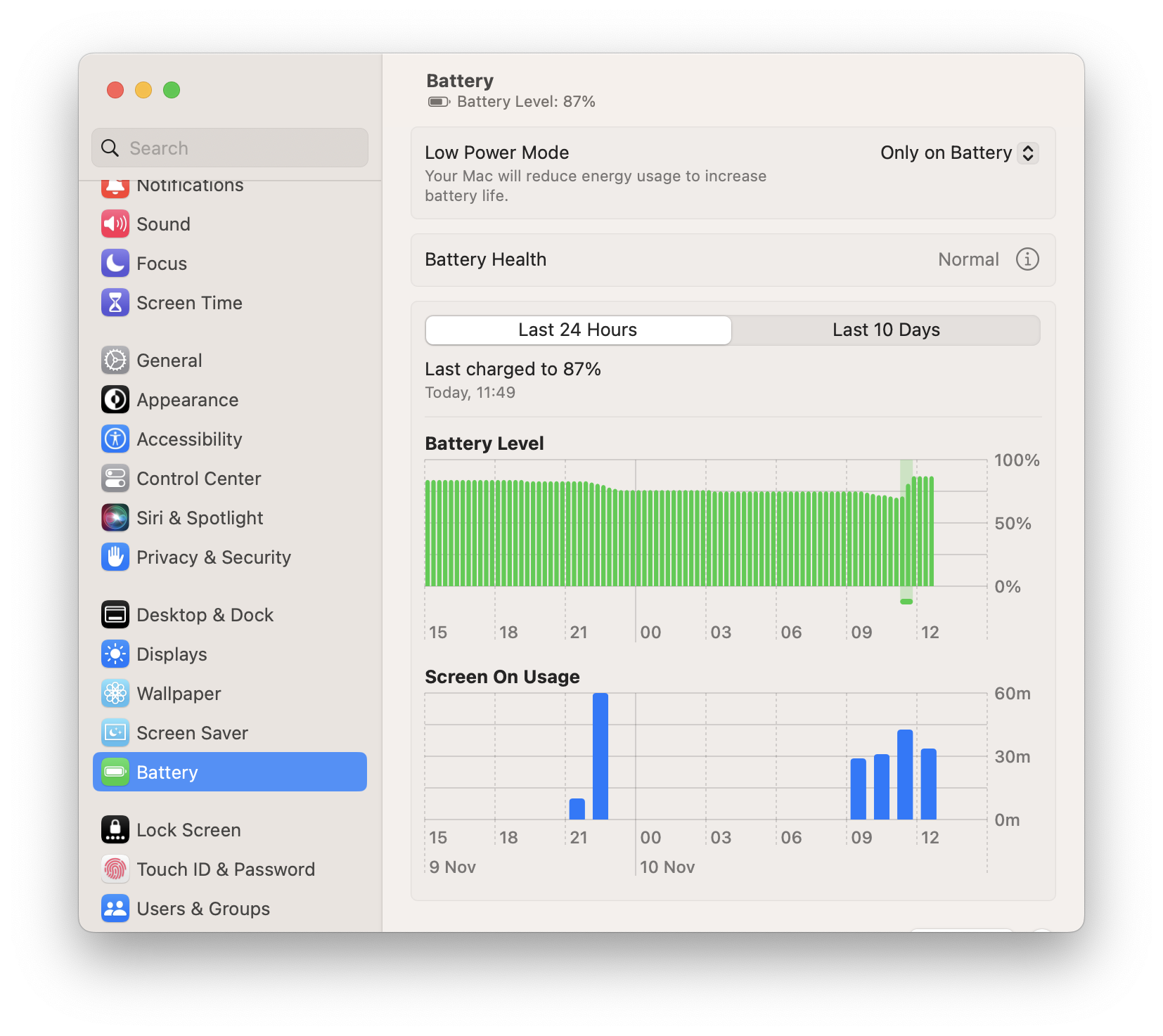
The M5 does a solid job of managing itself, but there are two settings worth knowing about. They make a real difference depending on what you’re doing.
- High Power Mode: Go to System Settings, then Battery, and switch on High Power Mode whenever you’re doing something demanding, like exporting video, running 3D renders, or training ML models. This unlocks sustained peak performance and stops the chip from pulling back to save power mid-task.
- Low Power Mode: If you’re writing, reading, or just browsing and you want to stretch your battery, Low Power Mode is your friend. The M5’s efficiency cores handle light tasks so well you’ll barely notice the difference in speed.
- Automatic Graphics Switching: MacBook Pro users can leave this on. macOS knows when to use the full GPU and when to dial back. Apple’s scheduler is genuinely good at this and you don’t need to override it.
Display Settings Worth Checking
- ProMotion (MacBook Pro only): This is the 120Hz adaptive refresh that makes scrolling feel smooth. Keep it on. It’s handled by a dedicated display scaler chip so it barely touches your battery.
- True Tone: Leave this on too. It adjusts the white balance of your screen based on the light around you. After a few hours it reduces eye strain noticeably, and the M5’s image signal processor handles it without using any CPU resources.
Keep an Eye on Memory Pressure
With unified memory, your CPU and GPU share the same pool. Open Activity Monitor and go to the Memory tab. The Memory Pressure graph at the bottom tells you a lot. If it’s consistently green, your chip is managing things well. If it’s yellow or red a lot, you’re pushing against the memory ceiling and should think about closing apps or tabs you don’t need open.
⚠️ If you have the MacBook Neo with 8GB: Be a bit selective about what you keep open. Safari uses less memory than Chrome, which actually adds up over a full day. The M5’s swap system is fast because it uses the SSD, but it’s still not the same as having more RAM to begin with.
Apple Intelligence: The Neural Engine in Your Everyday Life
This is probably the most underused part of owning an M5 Mac. The 16-core Neural Engine runs Apple Intelligence entirely on your device. No cloud processing, no subscription, nothing leaving your machine. Here’s what’s actually worth using.
Writing Tools (Seriously, Use These)
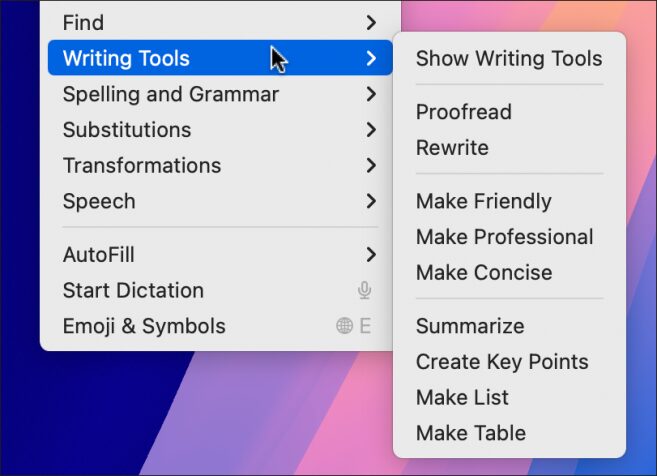
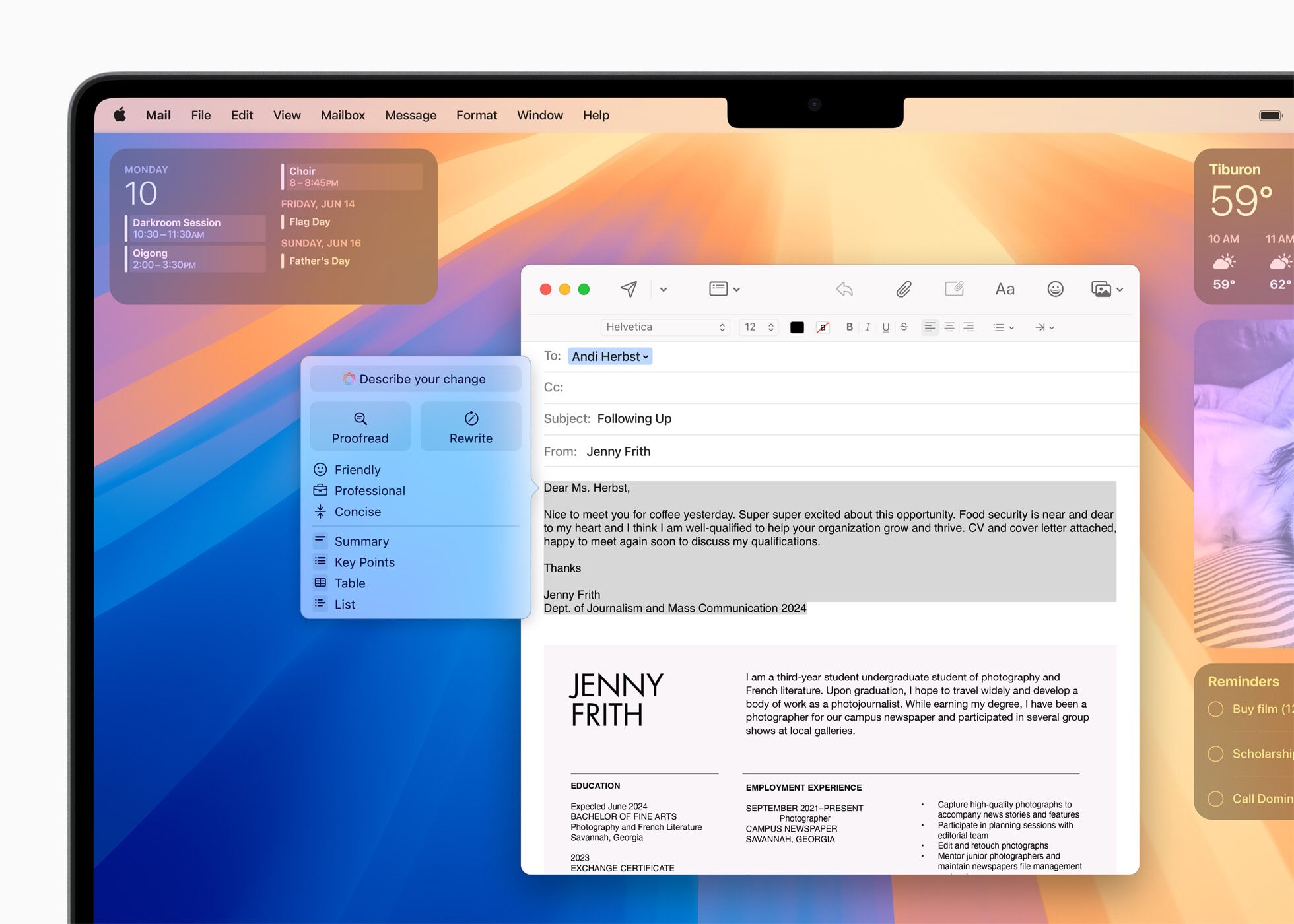
Most people I talk to haven’t even opened Writing Tools. They’re genuinely useful once you start using them regularly.
- Rewrite and Proofread: Select any text in Mail, Notes, Pages, or Messages, then right-click and go to Writing Tools. You can proofread, rewrite, or adjust the tone in seconds. It all runs locally so there’s no waiting around.
- Summarise: Works in Mail and Safari Reader. If you have a long email thread you need to get through quickly, hit Summarise and you’ll get the key points in a few lines. It’s a small thing that saves real time.
- Change Tone: You can flip between Friendly, Professional, and Concise without rewriting anything yourself. Handy when you’ve written something casually and need to send it to a client or manager.
Image Playground and Genmoji
Both of these run on the Neural Engine with no internet needed. Image Playground generates original illustrations from a text description in a few seconds. Genmoji lets you create a custom emoji from a description, which sounds gimmicky but turns out to be something people actually send all the time once they try it.
Siri That Actually Knows Your Stuff
On M5, Siri can reach into your Calendar, Notes, Mail, Photos, and apps that support App Intents. It’s worth trying a few natural language requests to see what sticks. Some examples that work well:
- “Find the email from Priya last week about the Bangalore project”
- “Schedule a call with Rahul tomorrow at 3pm and add the Zoom link from my notes”
- “Summarise the document I was editing this morning”
💡 India tip: If Apple Intelligence features aren’t showing up on your Mac, go to System Settings, then Apple Intelligence and Siri, and make sure it’s toggled on. If your language isn’t supported yet, switch the Siri language to English (India). That unlocks Writing Tools, Image Playground, and the rest of the suite.
For Creatives: You’re Not Using the GPU Properly Yet
Photo and Video Work
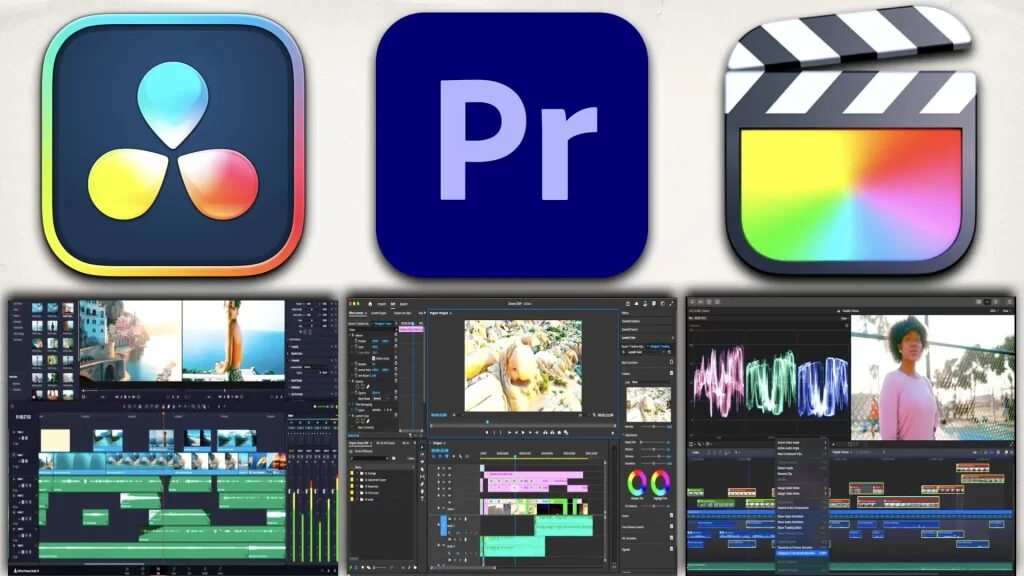
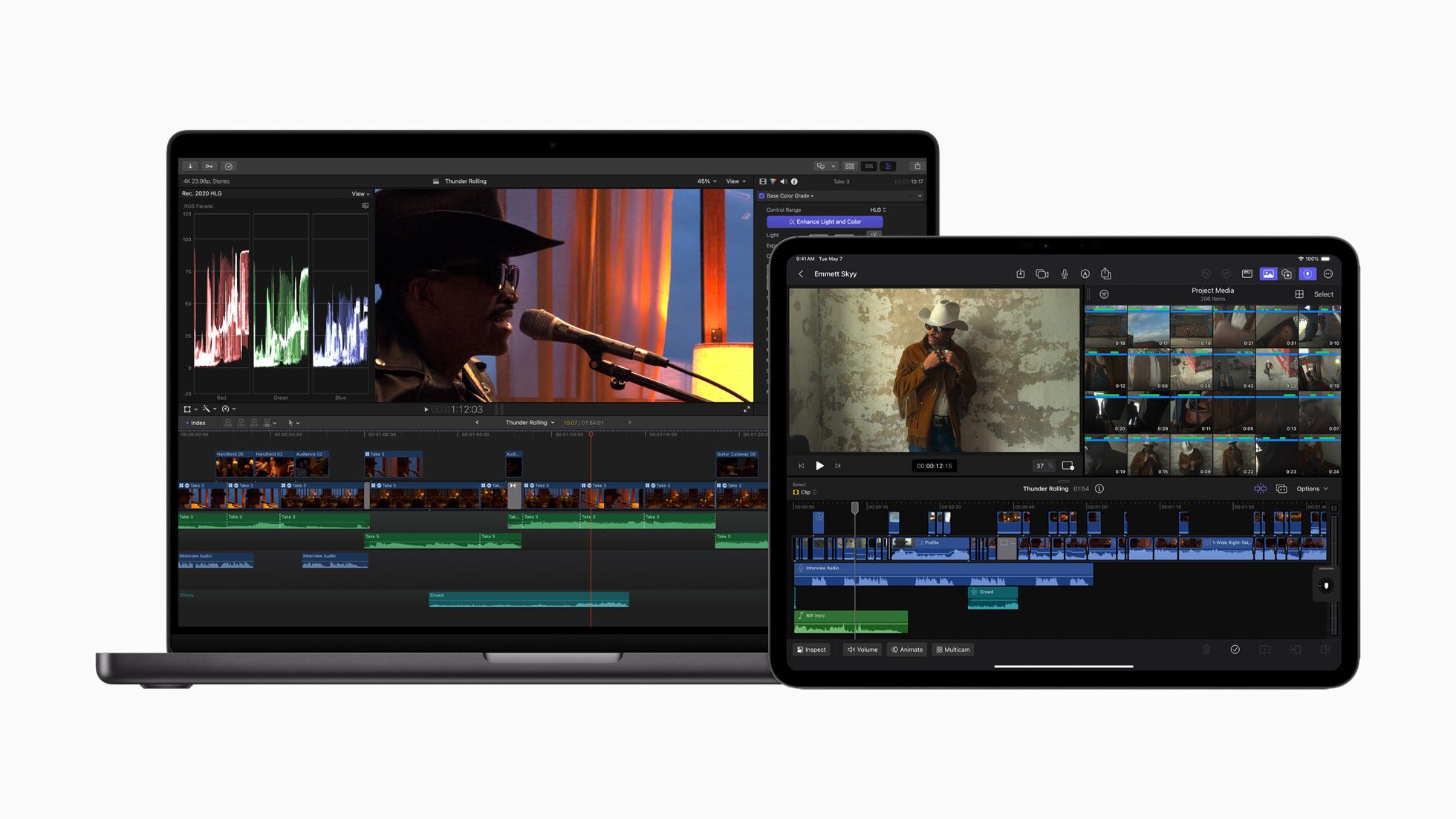
The M5 has a dedicated Media Engine that handles ProRes encoding and decoding completely separately from the CPU and GPU. This is a bigger deal than it sounds. It means your CPU stays free while the Media Engine handles the heavy lifting of video work.
- Final Cut Pro and iMovie: Exporting 4K ProRes runs at 2 to 3 times real-time speed without the fan spinning up. The Media Engine handles it independently so you can keep working on other things during an export without things grinding down.
- Lightroom Classic: Go to Preferences, then Performance, and make sure GPU acceleration is turned on. The M5 GPU handles RAW processing, AI Denoise, and Enhance noticeably faster than doing it on CPU alone.
- DaVinci Resolve: Open Preferences, go to System, then GPU, and confirm Metal is selected. On M5 Pro and Max, Resolve can decode footage, apply colour grades, and export all at the same time, using different parts of the chip simultaneously.
Music Production
- Logic Pro: The M5 handles significantly more live plugins than previous Macs in this price range. Keep an eye on the CPU Load meter at the top of the Logic window. If it’s staying green at 64 tracks with heavy plugins running, you still have headroom to work with.
- Spatial Audio: Logic Pro and GarageBand both support Dolby Atmos mixing. The M5’s Audio DSP handles binaural rendering for headphone monitoring at no CPU cost, which means you can monitor in spatial audio without it affecting your project’s performance.
Design and Motion Work
- Photoshop and Illustrator: Both apps have GPU acceleration settings buried in their Performance preferences. Turn them on. Photoshop’s Generative Fill runs on a combination of the on-device Neural Engine and Adobe’s cloud, and the local part is handled almost instantly on M5.
- After Effects and Motion: If you’re on M5 Pro or Max, you get hardware-accelerated ray tracing. The third-generation ray-tracing engine is noticeably faster for scenes with reflections and global illumination, which used to be the frames-per-minute territory on older Macs.
- Blender: Open Preferences, go to System, and switch the render device to Metal. The M5 GPU’s second-generation dynamic caching makes Cycles renders much more efficient than anything CPU-only could manage at this price point.
For Developers: Build Faster and Think About What’s Now Possible
Xcode and Compilation
The M5’s super cores are the fastest single-threaded cores Apple has ever shipped, and Xcode compilation leans hard on single-threaded performance. Combine that with 12 performance cores on M5 Pro and Max and you’re in genuinely fast territory.
- Use
xcodebuild -parallelizeTargetson M5 Pro or Max to saturate all 18 cores during multi-target builds. It cuts build times meaningfully on larger projects. - Enable Build with Timing Summary under Product, then Perform Action. It shows you exactly which phases are slow so you know where to optimise rather than guessing.
- Indexing is dramatically faster on M5 Pro and Max thanks to SSD read speeds up to 14.5 GB/s. Large projects that used to lag on first open are noticeably snappier.
Docker and Virtualisation
- Docker on M5: Make sure Docker Desktop is using the Apple Virtualization Framework rather than QEMU. It runs ARM containers natively and the performance difference is significant.
- x86 containers: Rosetta 2 translation still works for x86_64 containers. Performance is surprisingly decent, but use ARM images whenever they’re available for full native speed.
- Windows on Mac: Running Windows 11 ARM via UTM or VMware Fusion works really well on M5. For most development and testing tasks, it behaves at near-native speed.
Running Local AI Models (This Is the Big One)
If you have an M5 Pro or M5 Max, you can now run large language models locally that previously required renting cloud GPUs. With up to 128GB of unified memory and 614 GB/s of bandwidth, this is no longer a niche experiment. It’s a practical workflow.
- LM Studio: Download it for free, pick a model like Llama 3.3 70B or Mistral 7B, and run it. The M5 Pro handles a 70B model at 4-bit quantisation. M5 Max runs it more comfortably with more GPU cores available.
- Ollama: Run
brew install ollamain Terminal, thenollama run llama3.3. It’s the fastest way to get a local LLM up and running, and the inference speed on M5 is genuinely usable for day-to-day work. - MLX: Apple’s own ML framework is built specifically for M-series unified memory architecture. For inference and fine-tuning on-device, it’s significantly faster than PyTorch on the same hardware.
- Whisper for transcription: Install whisper.cpp and you have real-time audio transcription running entirely on your machine. Great for transcribing interviews, meetings, or recordings without anything going to a cloud server.
🚀 A MacBook Pro M5 Max with 128GB can run Llama 3.3 70B at around 20 to 25 tokens per second using MLX at 4-bit quantisation. That’s fast enough for real conversations with a frontier-class model, running entirely offline on your laptop.
Getting More Out of Your Battery
Find Out What’s Actually Draining It
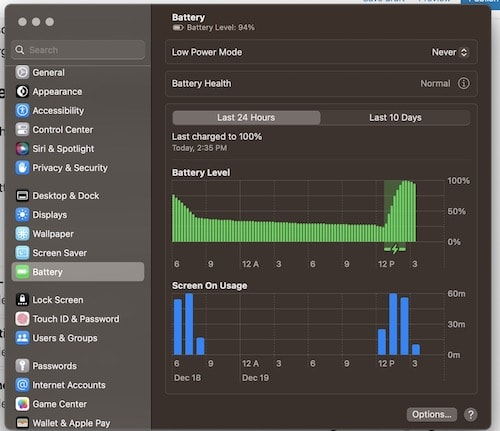
- Menu bar battery icon: Click it and you’ll see a list of apps flagged as Using Significant Energy right now. In most cases, a browser with too many tabs open is the culprit.
- Activity Monitor, Energy tab: Sort by Energy Impact over 12 hours. This is more useful than the real-time view because it shows you what’s been draining your battery across the whole day, including background processes you might have forgotten about.
Practical Tips That Actually Work
- Switch to Safari: Safari is 30 to 40 percent more efficient than Chrome on Apple Silicon. It’s the single biggest battery gain most people can make without changing anything about how they work.
- Trim your Login Items: Go to System Settings, then General, then Login Items and Extensions. Turn off anything you don’t actively use. Background extensions add up over the course of a day.
- Drop your brightness a little: The display is the largest power consumer on any MacBook. Bringing brightness down from 100% to around 70% can add an hour or two of real use time, especially indoors.
- Optimised Battery Charging: This is on by default and worth keeping on. It learns your charging habits and slows the charge rate when your battery approaches full, which protects long-term battery health.
- Plug in for big jobs: When you’re doing a heavy export, a large compile, or a 3D render, plug in. The M5 runs at higher sustained clock speeds on power, and for demanding tasks that difference can be 15 to 25 percent.
Making the Most of Your Ports and Connectivity
Thunderbolt 5 on M5 Pro and Max
Thunderbolt 5 pushes up to 120 Gbps per port. That’s three times the bandwidth of Thunderbolt 4 on the base M5. And on MacBook Pro, each port has its own dedicated controller so you can use all of them at full speed at the same time.
- External NVMe drives like the Samsung T9 already hit 3 to 4 GB/s over Thunderbolt 4. Next-gen Thunderbolt 5 drives will go significantly beyond that.
- M5 Pro can drive up to 3 external displays. M5 Max handles up to 5, including 8K monitors, all without needing any adapters or hubs.
Wi-Fi 7 on the Air M5 and MacBook Pro
Apple’s N1 chip brings Wi-Fi 7 with Multi-Link Operation, which means your Mac can connect to both the 5GHz and 6GHz bands at the same time and switch between them seamlessly. In practical terms:
- Streaming 8K ProRes from a NAS over your local network becomes reliable rather than hit-or-miss.
- Syncing large project files to network storage is noticeably faster, especially if you have a Wi-Fi 7 router.
- Video calls on congested networks feel more stable because the connection can shift bands mid-call without dropping.
📡 MacBook Neo users: Your machine has Wi-Fi 6E rather than Wi-Fi 7. It still supports the 6GHz band and is excellent for everyday use. The difference only becomes noticeable if you’re regularly moving large files across your home network.
Five Things Power Users Should Know
1. Use Rosetta 2 When You Need It, Not By Default
Most apps are native ARM now, so Rosetta 2 is mostly out of the picture day-to-day. But if a specific app or plugin is running slowly, right-click it, go to Get Info, and check “Open using Rosetta.” Some older professional tools are still x86-only and Rosetta handles them well, just at a small performance cost compared to running natively.
2. Developers: Check Out the Foundation Models API
Apple’s Foundation Models framework lets you call the on-device language model directly from Swift. You can build app features like text classification, smart summarisation, or intent detection that run entirely on the Neural Engine. No API key, no usage costs, no network required. It’s worth exploring if you’re building macOS or iOS apps.
3. Nano-texture Glass Is Worth It If You Work in Bright Spaces
If you frequently work near windows or in bright offices, the nano-texture glass option on MacBook Pro makes a real difference. It kills glare without the colour or brightness hit that anti-glare films usually bring. It’s only available at the time of purchase so it’s worth thinking about before you configure your machine.
4. Memory Swap Is Fast on M5, But It’s Still Swap
When your Mac runs low on memory, macOS moves data to the SSD temporarily. On M5, SSD read speeds hit up to 14.5 GB/s, so this is much faster than it was on any Intel Mac. That said, it still adds latency compared to having actual RAM, and heavy swap usage over time does affect SSD longevity. If you’re swapping constantly, more RAM at the point of purchase is the right call. You can’t add it later.
5. Build AI Shortcuts Once and Use Them Forever
Open the Shortcuts app and build a simple workflow: take selected text, send it to Writing Tools, choose Summarise, and paste the result to your clipboard. Assign a keyboard shortcut to it. It takes about five minutes to set up and from that point you can summarise anything anywhere with a single key press. The Shortcuts app works natively with Apple Intelligence actions on M5 so there’s no lag or workaround needed.
What the M5 Is Really Built For
Apple didn’t just make the M5 faster. They built AI processing into the silicon itself at every level. Every GPU core has a Neural Accelerator. The CPU has dedicated ML blocks. The Neural Engine runs across all M5 variants at 16 cores. None of that is marketing copy. It shows up in benchmarks and in real-world tasks.
The practical result is that things which used to feel like “AI features you wait for” now just happen. Writing assistance, photo cleanup, transcription, on-device search, local LLMs. They run in milliseconds, privately, with nothing leaving your machine, and no subscription required.
The people who get the most out of M5 are the ones who stop thinking about it as a faster MacBook and start asking what they couldn’t do before. Running a 70B language model on a laptop during a flight. Editing 8K footage on battery in a coffee shop. Building AI-powered apps without a cloud bill. Exporting a 30-minute film in under 6 minutes on a machine with no fan.
That’s the M5. Start using it like it is.
Published: March 5, 2026 | Based on Apple official specifications and independent benchmark testing. Performance figures sourced from Apple newsroom announcements dated October 2025 and March 2026.