Most people laugh when you say you’re gaming on a MacBook Air. Fair. It’s thin, it’s fanless, and it’s supposed to be a productivity machine — not something you’d take into Dust 2 for a full-blown gunfight.
But here’s the thing: it can game. And not just barely. I managed to get Counter-Strike 2 running at 50–60 FPS stable on a MacBook Air M1 (8 GB RAM, 256 GB SSD, 7-core GPU) — using nothing but CrossOver, some manual tweaking, and a dash of patience.
This post isn’t a gimmick. It’s a tested, working guide for anyone who wants to make CS2 run decently on Apple Silicon. So if you’re curious (or desperate), here’s everything you need to know.
My Setup
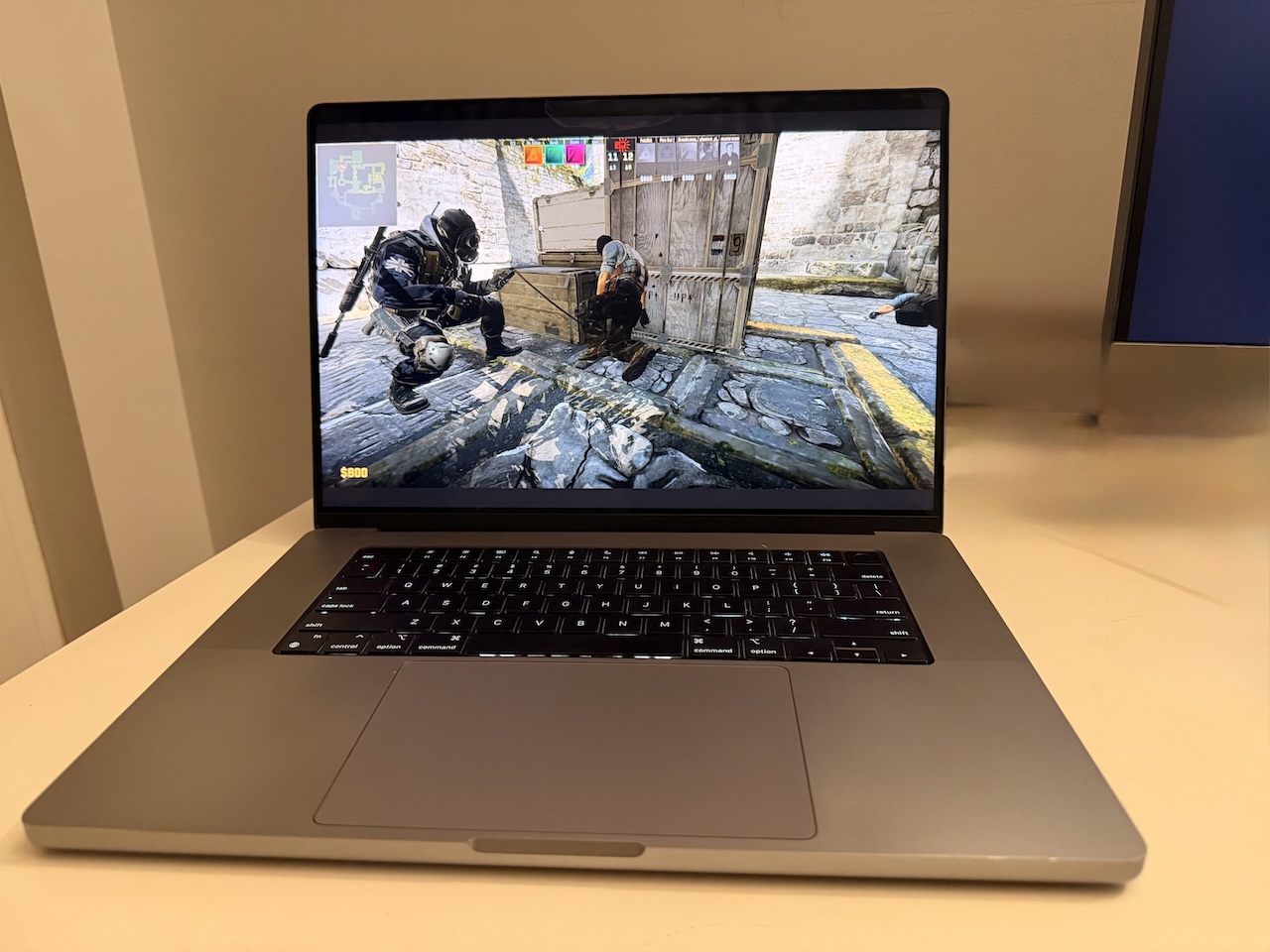
- Hardware: MacBook Air M1 (8 GB RAM / 256 GB SSD / 7-core GPU)
- macOS: Sequoia 15.5
- Method: CrossOver 25.1.1
- Bottle: Windows 10 64-bit with DXVK + MSync enabled
Steam Settings That Actually Matter
You don’t want Steam chewing up your limited memory with useless overlays and widgets. Here’s how I stripped it down:
Friends & Chat: everything off except “group friends by game”
Notifications: disabled
Interface: startup in “Library,” disable everything except “scale text/icons”
Library: disable all except “low performance mode” and “disable community content”
Downloads: disable “allow downloads during gameplay” and “background Vulkan shader processing”
In-Game: disable everything except “scale overlay text/icons to monitor settings”
Launch Parameters
Paste this into CS2’s Launch Options:
-nojoy -novid -high +cl_forcepreload 1 +r_dynamic 0 +engine_low_latency_sleep_after_client_tick true -softparticlesdefaultoff +violence_hblood 0 +cl_updaterate 1 -limitvsconst -noaafonts +mat_disable_fancy_blending 1
It’s a cocktail of small optimizations that removes fancy visual fluff and prioritizes responsiveness.
In-Game Settings

If you’re expecting Ultra graphics, stop here. The point is playability, not prettiness. Here’s what worked for me:
- Display Mode: Fullscreen
- Aspect Ratio: 16:10
- Resolution: 1440×900
- Boost Player Contrast: Off
- V-Sync: On
- Max FPS: 60
- Anti-Aliasing: CMAA2
- Global Shadow Quality: Low
- Dynamic Shadows: Sun Only
- Model/Texture Detail: Low
- Texture Filtering: Bilinear
- Shader/Particle Detail: Low
- Ambient Occlusion: Off
- HDR: Performance
- FidelityFX Super Resolution: Ultra Quality
- All cosmetic fluff (avatars, rare weapon glows, end-of-match animations): Off
Simple goal: keep frame times consistent and latency low.
Notes & Tips from Testing
This is where the real learning happened.
- Install via CrossOver Catalogue. It automatically sets up dependencies — don’t overcomplicate it.
- DXVK is king. D3DMetal starts off faster but falls apart in heavy fights (massive stutter). DXMT stutters for the first few rounds every match. DXVK stays smoothest overall.
- Shader compile ritual: Every time you launch or after major updates, hop into a bot match for a few rounds. It builds shaders and saves you lag later.
- ESync = instant crash (at least on my setup). Stick to MSync.
- Memory leak alert: Restart CS2 after each match. Don’t bother restarting Steam.
- Short breaks help. Take 5–10 minutes between matches — memory clears better and performance stabilizes.
- Headphones bug: If you’re using wired ones, reconnect after sleep or reboot so the game detects them properly.
- Cmd+Tab works instantly with these settings.
Known Issues & Fixes
You will face some oddities. Here’s what I found — and how to fix (or survive) them:
- Texture flickering: Some maps (like Dust 2) flicker vegetation when using DXVK. Office seemed fine.
- Sound crackling: Open Audio MIDI Setup, go to Headphones, and change output format to 96,000 Hz.
- Weird mouse acceleration: Grab SteelSeries ExactMouse Tool and launch it before CS2.
- Memory leak: Restart CS2 every 40 minutes (or every match) to avoid choppiness.
- Microphone crackling: Still unfixed. Teammates said I sounded like a robot — understandable, but broken. If you find a solution, drop it in the comments.
Performance
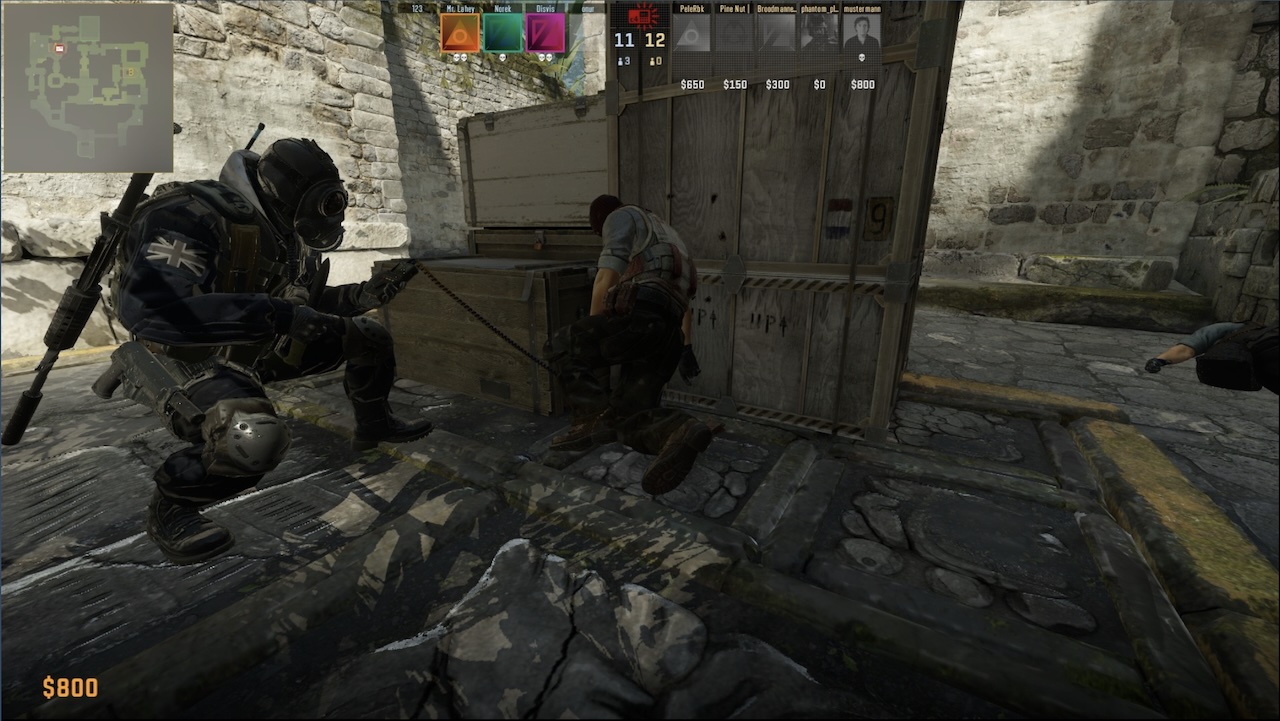
On Dust 2 and Office, I was consistently getting 50–60 FPS in active rounds, dropping to ~40 FPS before and after rounds. The gameplay itself? Surprisingly fluid. Input latency was tolerable, mouse tracking was smooth after using the ExactMouse tool, and recoil control didn’t feel delayed.
This is, again, a fanless laptop with no discrete GPU. The fact that it can even hold 50 FPS in Counter-Strike 2 is borderline absurd.
Final Thoughts
This experiment isn’t just about running CS2. It’s about proving that Apple Silicon can actually game, even without native support.
It’s not perfect — textures bug out, the mic crackles, and you’ll need to restart often. But the fact that it works at all is massive for the Mac gaming crowd.
Who says you can’t clutch on a Mac?
With every CrossOver update, macOS is inching closer to being a legitimate gaming platform. And if you’re rocking an M1 or newer, there’s absolutely no reason not to try this for yourself.
If you’ve managed to get CS2 running smoother or found fixes for the bugs I mentioned, share them below — let’s make Mac gaming a little less lonely.c