Introduction
Logitech has a funny relationship with its MX Master line, in that it barely ever changes it, and people (us included) keep buying it anyway. The shape has been more or less the same for years, the MagSpeed wheel has been the party trick ever since the MX Master 3 showed up in 2019, and every model since, the new MX Master 4 included, has been a round of small fixes rather than a reinvention. We have been living with an MX Master 3 for about two years now, it has scrubbed through more DaVinci Resolve timelines and Excel sheets than we would care to admit, and it has the scars to prove it, which makes this MX Master 4 review a slightly personal one.
So here we are with the MX Master 4, which Logitech announced on 30 September 2025 and brought to India on 15 December 2025 at an MRP of Rs 15,995, in Graphite and Pale Grey, with a month of Adobe Creative Cloud thrown in (as is Logitech tradition at this point). Is it a good mouse? Well, it’s an MX Master, so yes, obviously. But “it’s an MX Master” isn’t much of a review, so we’ve looked at the MX Master 4 two ways. First as a mouse in its own right, what it’s like to use, what it’s actually good for and how to squeeze the most out of it, because plenty of you will be coming to it fresh. And then against the MX Master 3 we’ve had on our desk for two plus years, for everyone wondering whether it’s time to retire the old one.
The MX Master 4 Build
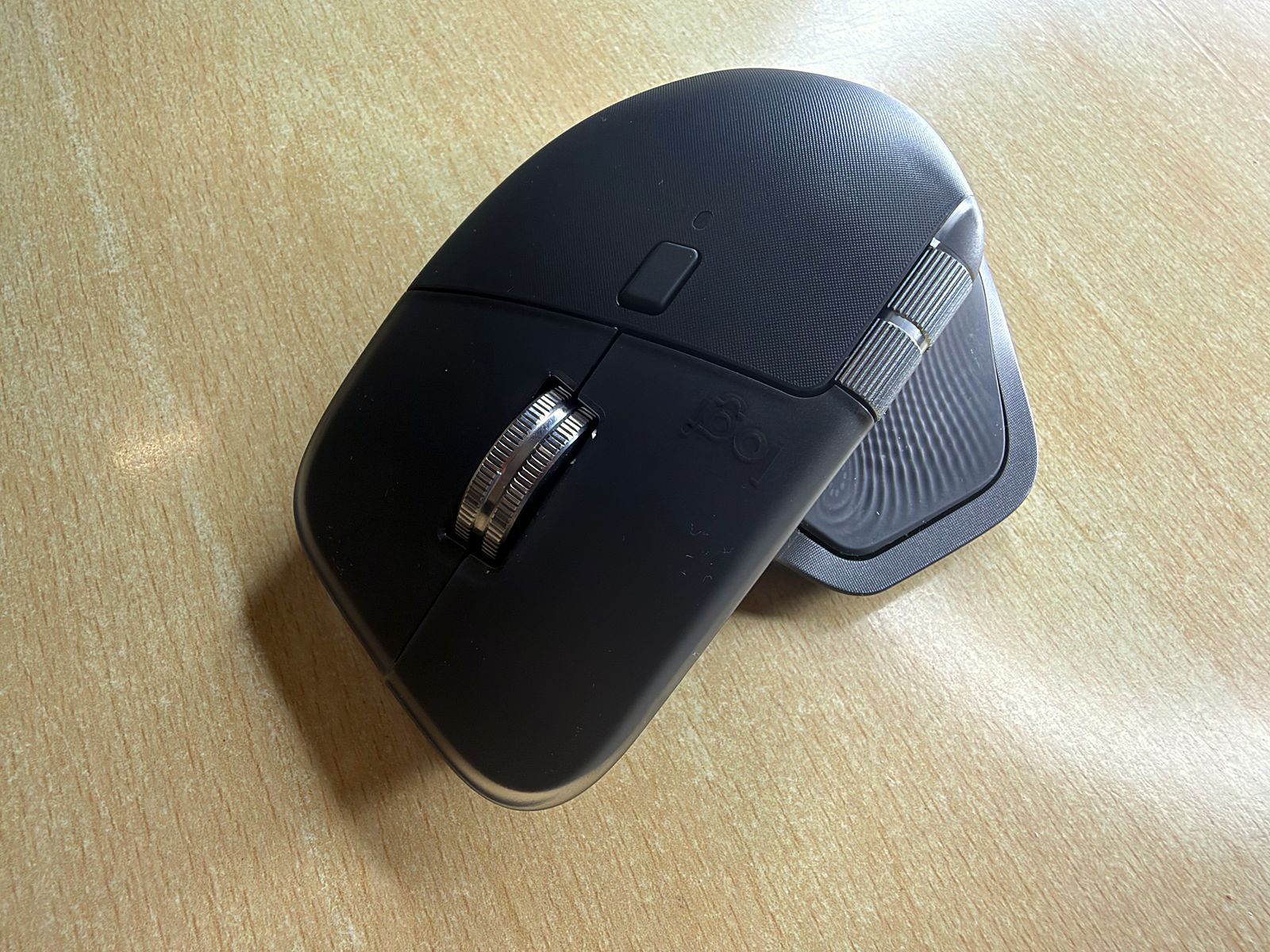
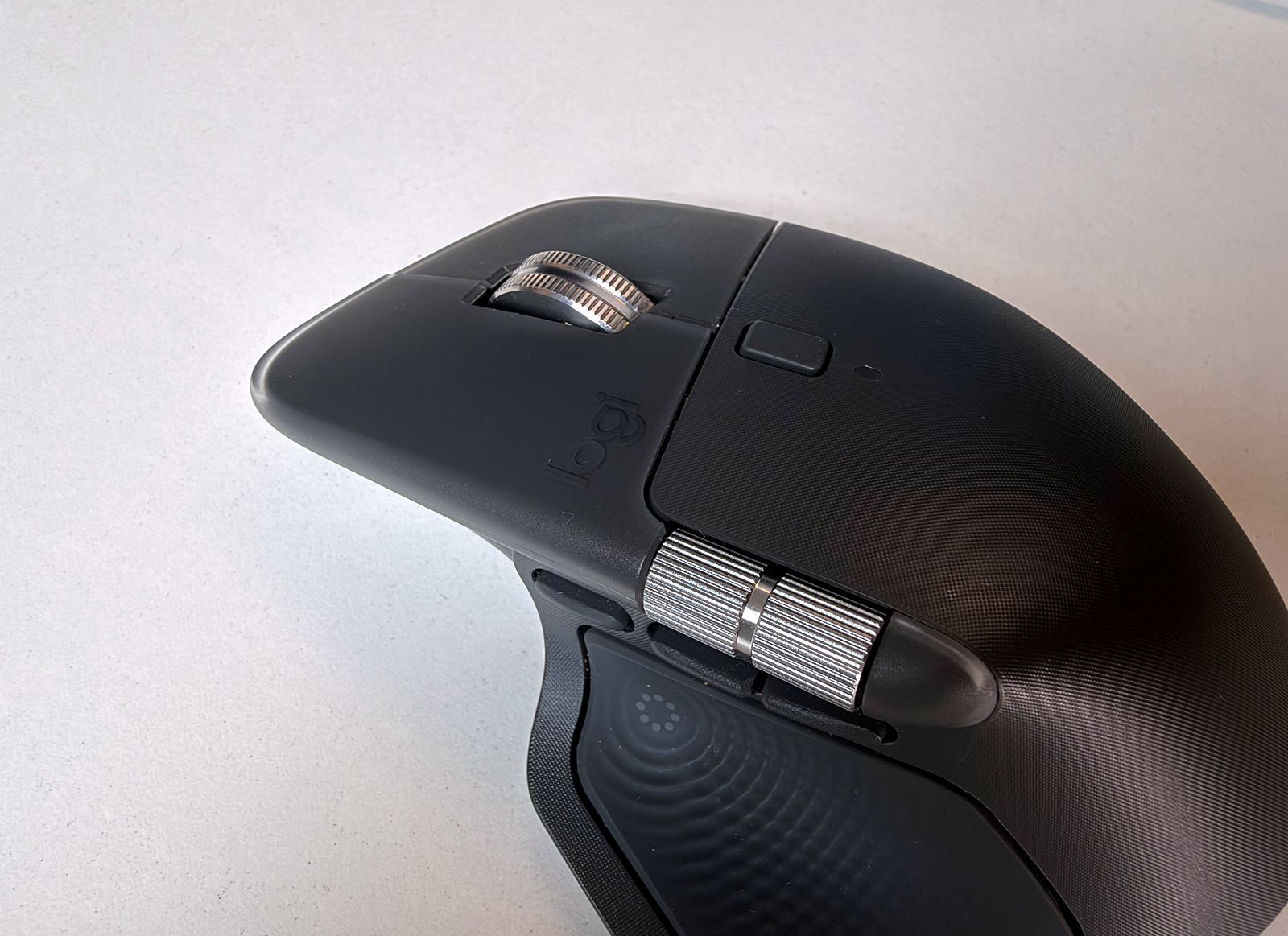
If you’ve never used an MX Master, here’s the deal. It’s a big, right-handed mouse, 150g, with a sculpted shape that your whole palm settles into and a little shelf for your thumb to rest on, and it’s built for people who spend their day at a desk working rather than playing. If you’re left-handed, or you have particularly small hands, you can stop reading here (sorry).
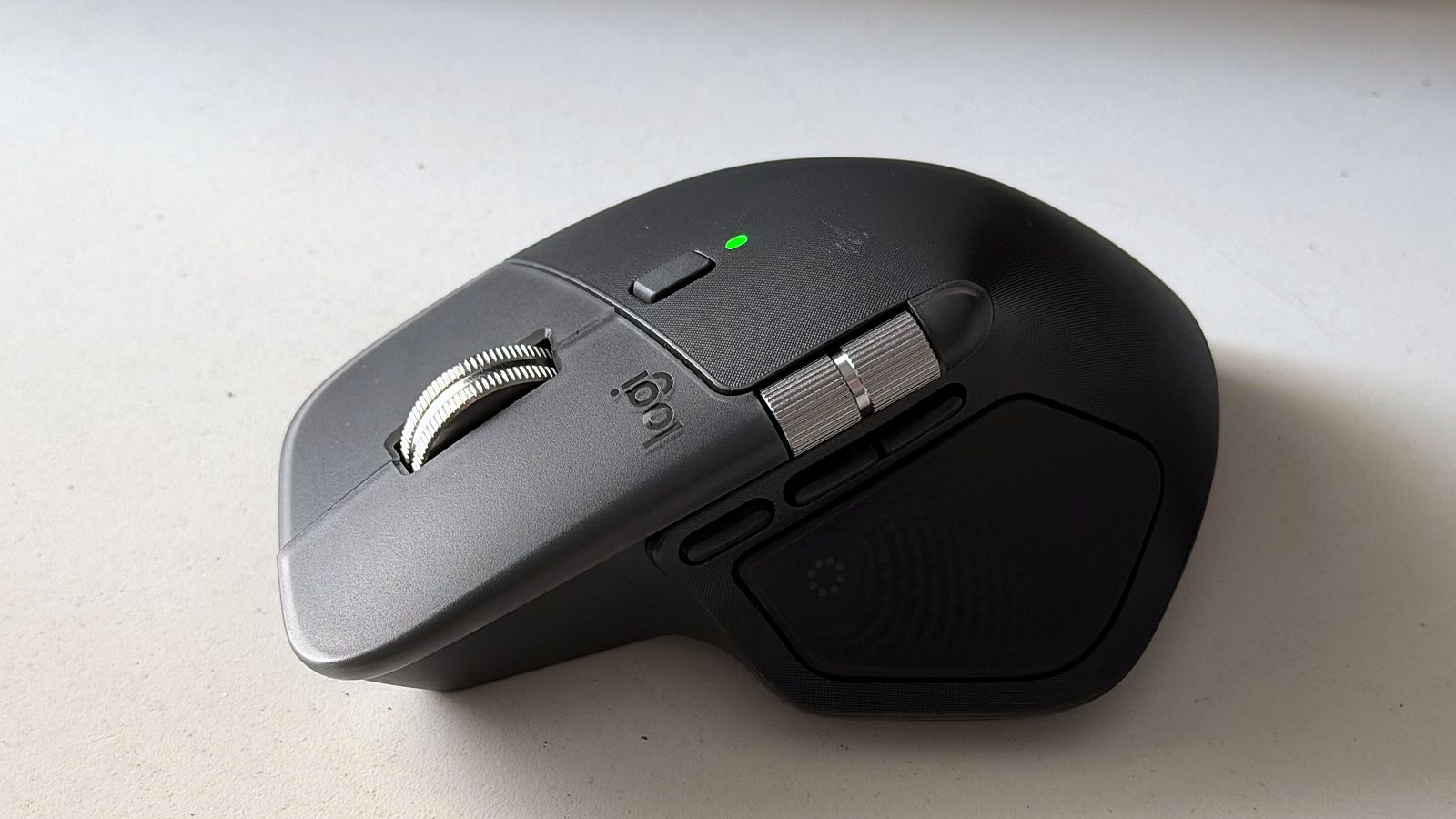
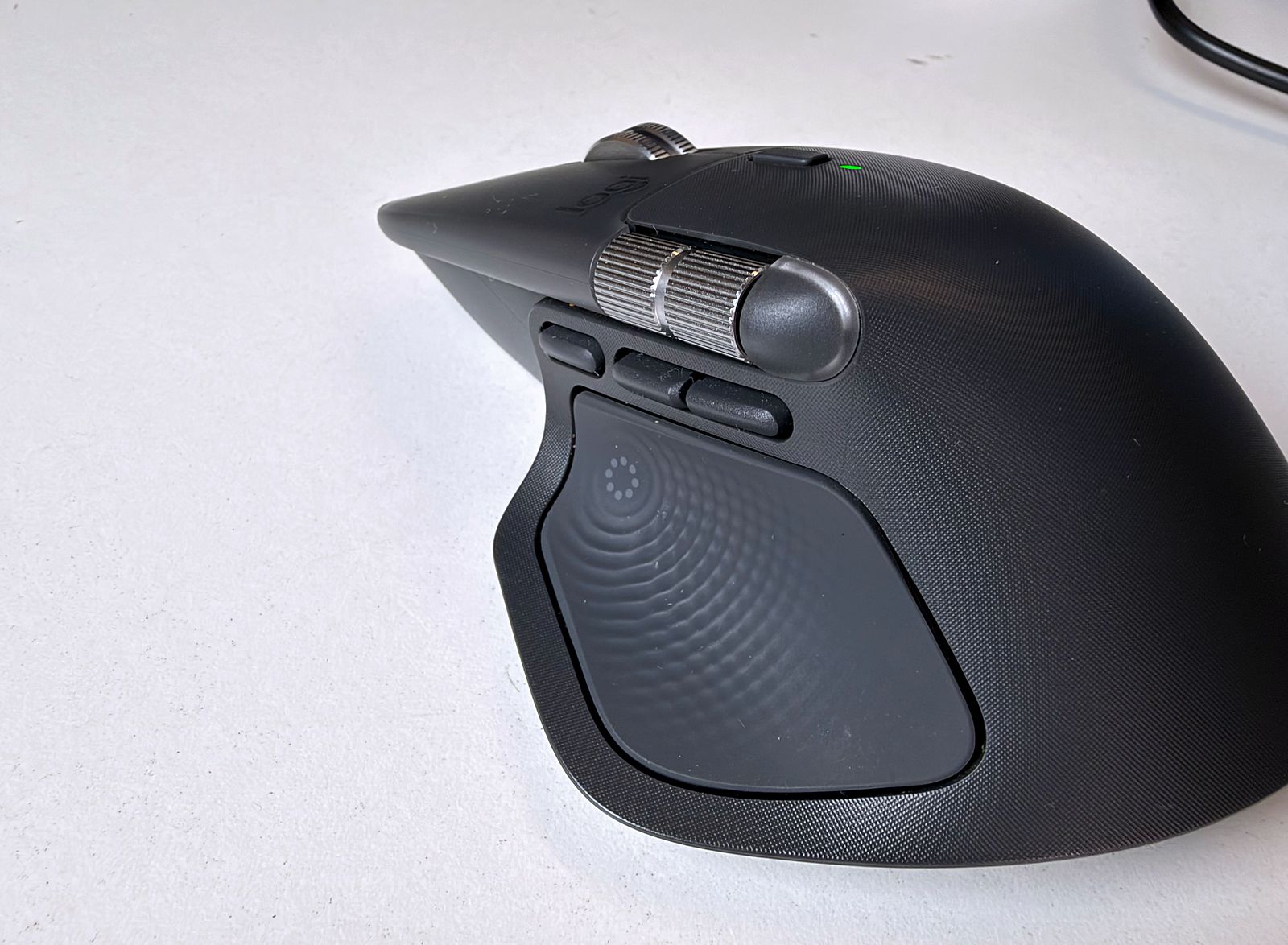
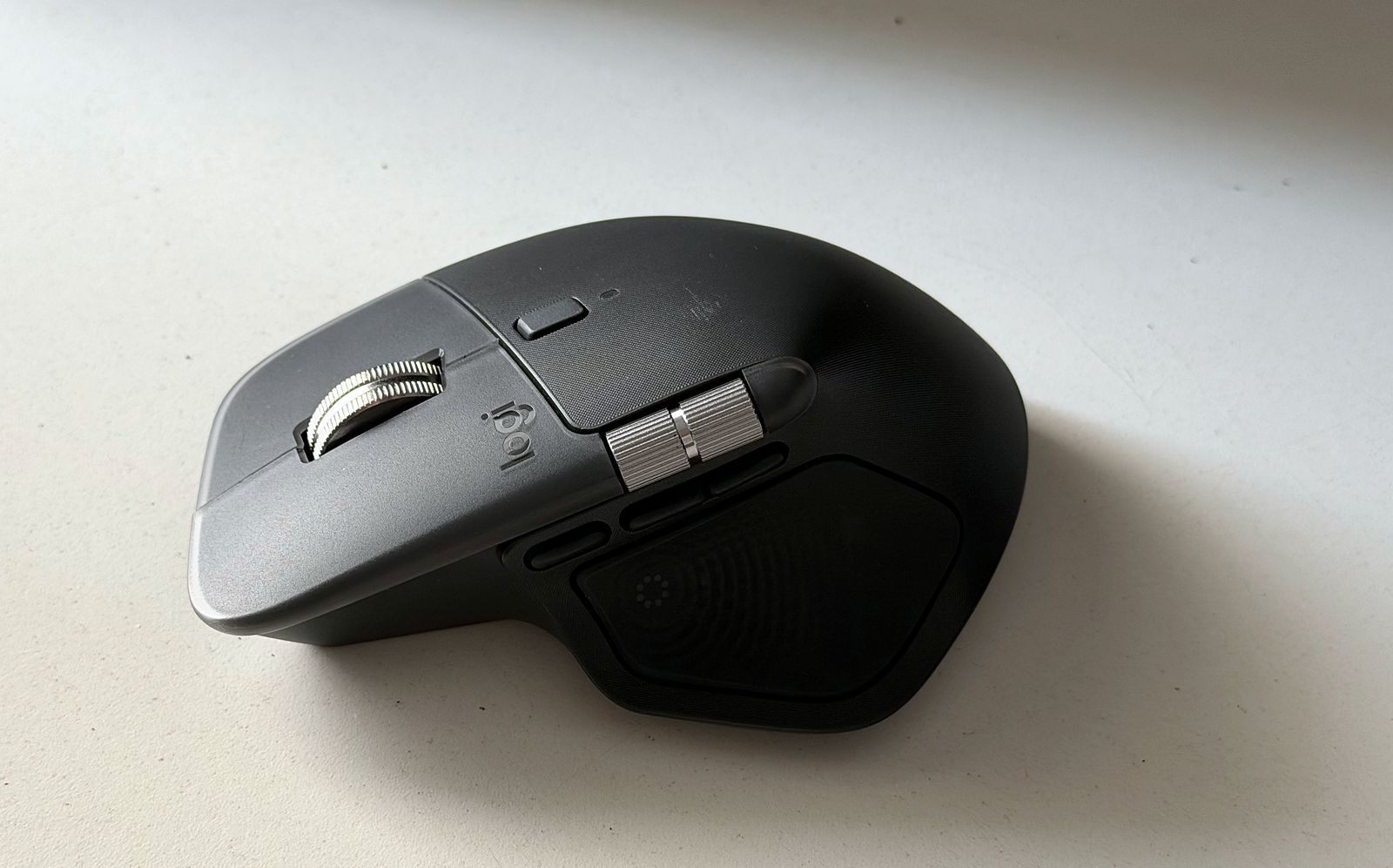
There are eight buttons in all. The usual left and right clicks, the MagSpeed scroll wheel (click it and it’s a middle click, while a small button behind it flips the wheel between a notched ratchet mode and a free spin that will fling you through a thousand lines a second), a thumb wheel for scrolling sideways, back and forward buttons, a gesture button in front of those, and the new one, the Haptic Sense Panel, which turns the whole thumb rest into a button with a little haptic motor behind it. That last bit is the reason this mouse exists, and we’ll get to it shortly.
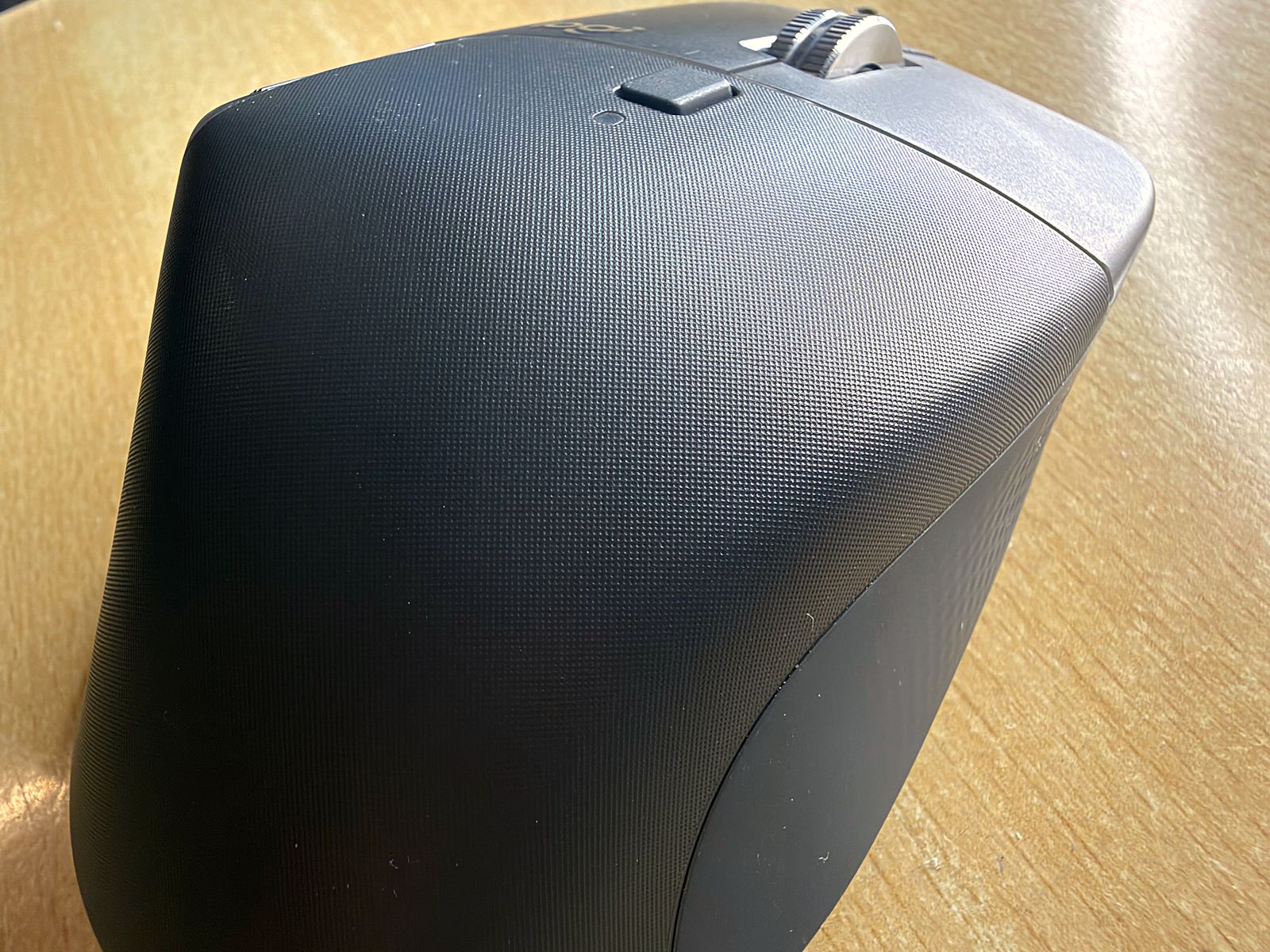
The top shell is a slightly rough, hard plastic, the sides get silicone inserts for grip, and the main buttons have a smooth, translucent textured layer that shrugs off smudges. Everything about it feels premium in the hand, which, at this price, is the least it can do. It connects over the USB-C Logi Bolt receiver or Bluetooth, remembers up to three devices with a button underneath to hop between them, and tracks on pretty much anything, glass included (4mm or thicker), so a glass desk or a café table is no problem.
What Logitech actually changed from the Master 3
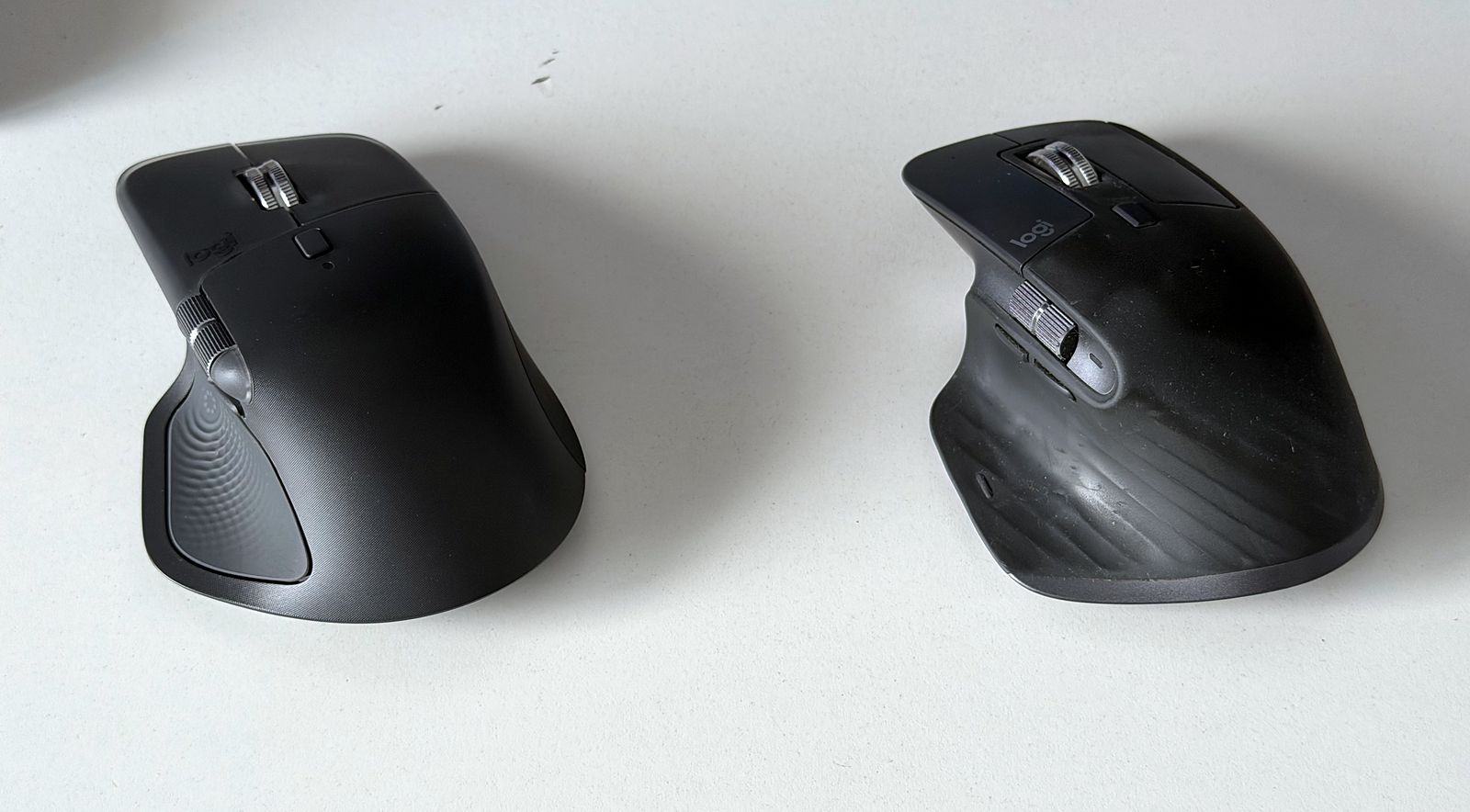
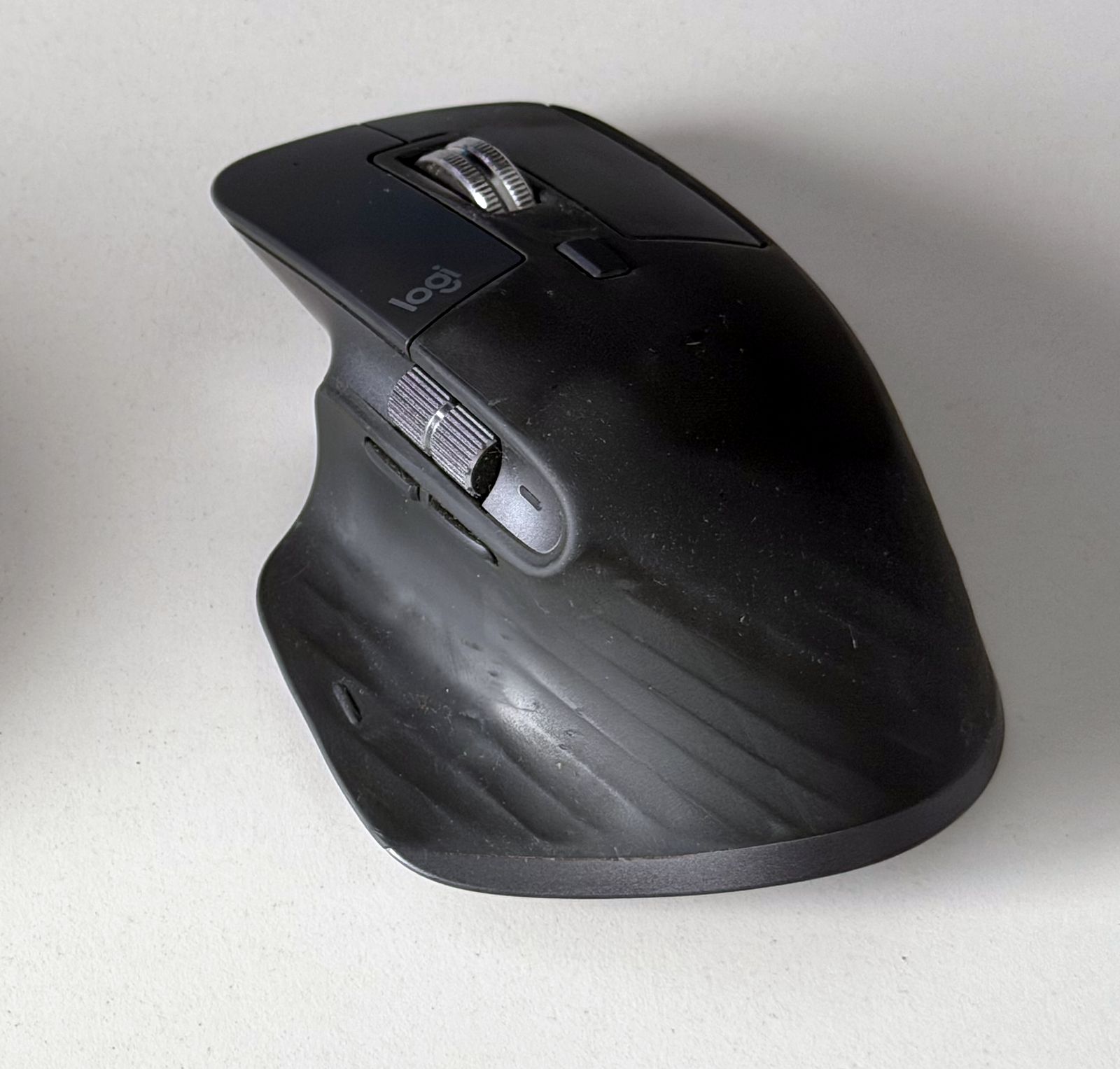
Pick up both and the differences start at your fingertips. The left and right clicks on the MX Master 4 now run the full width of the mouse as one unified piece, whereas on the 3 the right button had a visible plastic section along its side and a split between the buttons running all the way up to the scroll wheel. It sounds like a small thing (it is), but the 4 looks and feels more premium for it. The buttons also get a thick, textured, translucent layer on top, which is smoother under the finger and, crucially for anyone who has watched their MX Master go shiny, doesn’t pick up smudges the way the old ones did.
The clicks themselves are quiet, very quiet. Coming from the 3, which clicks like a regular mouse, it’s quite the change, though to be fair the 3S had already introduced Quiet Clicks, and the 4 goes a step further still, with the side buttons dampened as well. Some people will find it a touch muffled, and that one really comes down to taste.
Then there’s the thumb area, which was easily our least favourite part of the MX Master 3. The gesture button on the 3 was just the lower portion of the thumb rest, and pressing it never felt particularly pleasant, it felt cheap, frankly, on a mouse that was anything but. On the 4, the entire side surface is the button (Logitech calls it the Haptic Sense Panel, and it has a little dotted circle towards the front), and it feels far more complete, more on what it actually does in a bit. The gesture button hasn’t gone anywhere though, it has simply moved in front of the two side buttons, which is also how the 4 gets to eight buttons against the 3’s seven.
The side scroll wheel feels a little thinner and a little longer to our fingers, Logitech says it now gives your thumb more area to work with, and either way the proportions just feel more sorted. The main wheel is still MagSpeed, still electromagnetic, still happy to fling you through a thousand lines a second. On our MX Master 3 it whines when you give it a proper spin (that’s our unit, not every MX Master 3 out there), while the 4 is completely silent and the wheel just feels a notch higher in quality overall.
A few smaller bits. The charging LED has moved from the side to the top, just behind the scroll wheel, the skates underneath are significantly larger, and the 4 is a touch bigger overall, 128.2 x 88.4 x 50.8mm against the 3’s 124.9 x 84.3 x 51mm, and 150g against 141g. And if you’re the kind of person who keeps things for a long time (hello), the 4 is far easier to open up, the battery is held in by clips and three screws, so you no longer have to heat and peel off the skates to get inside like you did on the 3. Genuine replacement batteries are available too, which, for a mouse at this price, is exactly how it should be.
The receiver, and the slot that still isn’t there
The MX Master 3 came with a USB-A receiver, the MX Master 4 ships with a USB-C Logi Bolt receiver, which Logitech says gets a new chip and better antenna placement for twice the connection strength. Good, most laptops have given up on USB-A anyway. What neither of them has is a slot to stash the receiver in the mouse itself, and this is a bigger deal than it sounds, we have met SO many people who have lost theirs, usually right when they need it. This might be hard to believe, but I specifically know someone who intentionally throws away the receiver and uses MX Master permanently in Bluetooth mode. Reason they state: “carrying the receiver gives me anxiety.” Razer’s Pro Click V2, which costs less, has one. Logitech, at this point, it feels like you’re deliberately trolling us into losing the receiver and getting a replacement one, and losing that one too. For a mouse as big in size as the MX Master, sculpting out space to stash the receiver shouldnt be a problem. You’ve been doing it with the Superlight and Superstrike mice, which are smaller and lighter. This just doesn’t make any sense.
Haptics, the headline act
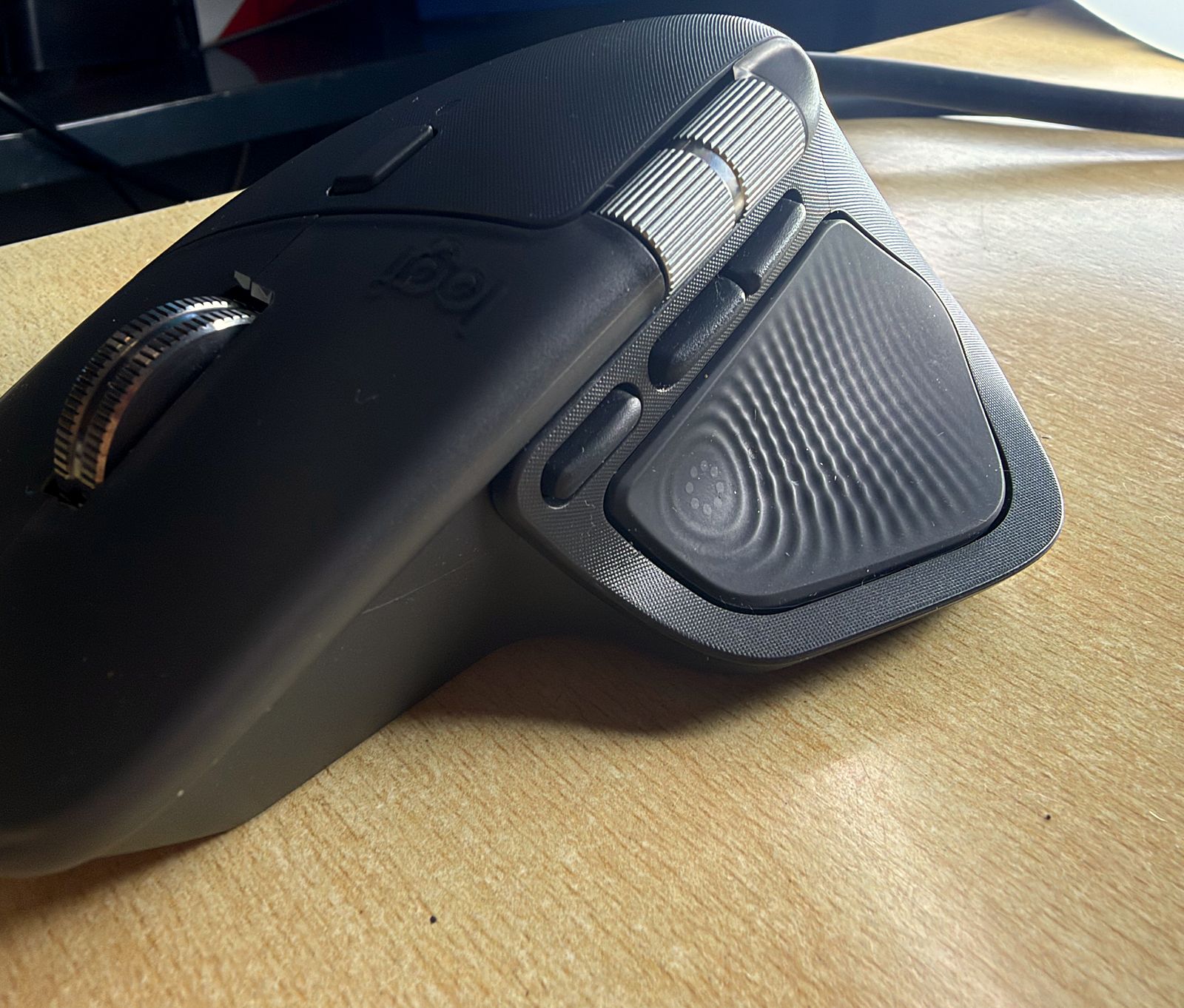
Logitech has recently started meddling with haptics in its mouse lineup, and the MX Master 4 is a victim. This is the big one, the thing Logitech really wants you to buy the MX Master 4 for. Is it a gimmick? For starters, it’s the single thing that made the 4 feel like a new mouse rather than a refreshed one, and there’s a LOT you can do with it.
The haptics live in that thumb panel. Hold the gesture button and move the mouse up, down, left or right, and you get a little buzz as it fires off whatever you’ve mapped to it, taking a screenshot, switching desktops, flicking between apps, opening the Start Menu on Windows or Mission Control on a Mac. A plain click of the gesture button doesn’t buzz, only the hold-and-move gestures do. It also gives you a nudge for things like connecting to a device, and with the Windows 11 update from the end of March 2026 onwards (plus a firmware update through Logi Options+), you get haptics when snapping and resizing windows as well. You can switch them on or off per feature and per plugin, so it doesn’t have to buzz at you for everything.
There are four intensity levels, Subtle, Low, Medium and High, and out of the box it’s set to Medium. We tried them all and settled on Subtle, the rest just felt harsh to us, so our advice is to dial it down on day one and then see if you even want more. Does the intensity affect battery life? Logitech doesn’t publish figures for each level, but it stands to reason a harder buzz drinks more, and the fact that the mouse switches haptics off by itself at 10% battery tells you they aren’t free. Interestingly, the Master 4 packs a 650mAh cell against the Master 3’s 500mAh and both are rated for the same 70 days, so you can make your own guess about where that extra capacity went.
One catch for the tinkerers, haptics only work on Windows and macOS, so Linux users essentially get the new shell without the party trick.
Actions Rings, Smart Actions
Press the thumb panel and up pops the Actions Ring, a circular overlay around your cursor with eight shortcuts that you cycle through with the thumb wheel, and it adapts to whichever app you’re in, DaVinci Resolve, Excel, Zoom and plenty more. If eight isn’t enough, you can nest rings inside rings. Set it up well and it slots nicely into your workflow and genuinely saves time, though the “set it up well” part is doing a lot of work there, you will spend a while getting it right. Logitech’s own figure is 33% time saved and 63% less mouse movement, from its own study of 37 users, and we’ll let you decide how much weight a company’s study of its own mouse deserves.
Installing the app-specific plugins needs you to sign in with a Logi ID. When you paid for a product and a company asks you to sign in to use a feature, has never sat right with any of us. It feels deliberate and forced, adding no value whatsoever. We aren’t fans of signing up and logging in just to make a mouse we’ve already paid for do its thing, but the feature is good enough that most people will grit their teeth and do it anyway.
Then there’s Smart Actions, Logitech’s take on automation. You pick a trigger (a button on the device, the Actions Ring, a keyboard shortcut) and chain actions to it, launching apps, typing text, keystrokes, system commands, an AI Prompt Builder and, on the MX Master 4 specifically, a haptic buzz as one of the steps. There are ready-made templates, one of which opens Chrome, Zoom and Excel in one go, and you can export your own to use on another machine. It also needs you signed in, naturally.
The Actions Ring isn’t exclusive to the MX Master 4, it has worked with all MX devices since August 2025 (you just assign it to a button), and Smart Actions run on other Options+ devices as well. So what does the 4 give you that an MX Master 3 or 3S can’t get through software? The haptics and the hardware refinements, and that is what you’re paying for. Also worth knowing, your settings live in Options+ rather than on the mouse, so if you hop between machines you’ll be setting things up again, and on macOS, Options+ asks for quite a lot of system access, input monitoring included.
Getting the most out of the MX Master 4
Here’s the thing about a mouse like this, it’s only as good as the time you put into setting it up, and if you leave it on defaults you’re paying Rs 13,000 odd for a very comfortable regular mouse. So install Logi Options+ and, when it offers to install the predefined app-specific settings, say yes. Logitech ships ready-made setups for Photoshop, Premiere Pro, Final Cut Pro, Chrome, Safari, Zoom, Teams, Word, Excel, PowerPoint and Edge, and the buttons quietly change what they do depending on which app is in front. Here’s how we’d put it to work.
Here’s the thing about a mouse like this, it’s only as good as the time you put into setting it up, and if you leave it on defaults you’re paying Rs 13,000 odd for a very comfortable regular mouse.
Video editing
This is where the MX Master 4 is at its best. The thumb wheel navigates your timeline in Premiere Pro and Final Cut Pro out of the box, the MagSpeed wheel in free spin gets you from one end of a long project to the other in a flick (flip it back to ratchet when you need to be precise), and the side buttons handle undo and redo. Add an Actions Ring with your most used tools for DaVinci Resolve or Premiere, set the haptics to Subtle so you feel each action land, and you’ll be reaching for the keyboard a lot less.
Photo editing and design
In Photoshop, the thumb wheel adjusts brush size, the side buttons become undo and redo, and holding the middle button lets you pan around a big canvas or artboard. The Actions Ring is handy here too, Logitech pitches it as a way to get your tools and filters right at the cursor, which saves a lot of trips to the menus.
Spreadsheets, documents and presentations
In Excel, the thumb wheel scrolls sideways across wide sheets (this alone is worth the price of admission if you live in spreadsheets, trust us), while in Word and PowerPoint it zooms instead. The free spin wheel makes light work of a 60-page document, and the Actions Ring can hold whatever Excel shortcuts you keep forgetting.
Calls and meetings
Zoom and Teams both have predefined settings, so you can put mute and camera on the side buttons and stop hunting for them mid-call, and Zoom is one of the apps the haptics work with too.
Browsing and getting around your system
In the browser, the thumb wheel can switch between tabs, and the gesture button (hold it and move the mouse up, down, left or right) takes care of screenshots, switching desktops, flicking between apps and Mission Control or the Start Menu. You get up to five actions on the gesture button alone, and each one buzzes to confirm it fired.
Working across two computers
If you run a Mac and a Windows PC side by side (or two of either), Logi Flow lets the cursor simply slide off one screen and onto the other, and you can copy text, images and even files on one machine and paste them on the other. Combined with the three-device button underneath, one MX Master 4 can quite happily run your whole desk.
Automating the boring bits
And if you’re up for it, Smart Actions can turn one button into a whole routine, opening your work apps together in the morning, typing out text you use all the time or firing off a prompt through the AI Prompt Builder. Start with Logitech’s templates and tweak from there.
Our advice, in short: haptics on Subtle, predefined profiles on, an Actions Ring built for the three or four apps you actually live in, gestures for screenshots and desktops, and then revisit the whole setup after a week of use, moving the things you use most onto the buttons that are easiest to reach.
Tracking, battery and the 125Hz question
The sensor is an 8,000 DPI Darkfield unit, and for spreadsheets and timelines it’s as precise as you’ll ever need. We used our unit mostly in the 800 – 1600 DPI range, and very rarely at 2000 DPI. The polling rate, though, is 125Hz, same as the MX Masters before it, which is perfectly fine for work and a non-starter for competitive gaming, so if you were hoping this would double up as your gaming mouse, it won’t. Not that you can’t game on it, I’ve had a couple of Dota 2 sessions using the MX Master 4 (and many more with the Master 3). It works, sure. Maybe you’ll even enjoy the game. But the mouse will never be the reason you enjoy the game. Battery is rated at up to 70 days, a minute on the charger gets you around three hours of use, and it charges over USB-C.
MX Master 4 vs MX Master 3, two years later
A quick disclaimer first, our comparison unit is the original MX Master 3, not the 3S, which slotted in between the two and already fixed a couple of things (quieter clicks and an 8,000 DPI sensor, mainly), so wherever the 3S had already sorted something, we’ll say so. And since our MX Master 3 has two years of daily use on it, some of what follows is honest wear and tear rather than a design flaw, we’ll point out which is which.
What two years did to the finish
Let’s start with the thing that pushed us towards this comparison in the first place. The MX Master 3 has a soft, rubbery finish, it feels lovely out of the box, and then it slowly stops feeling lovely. On our unit, the thumb rest and the patch where your index finger sits have both changed permanently, and no amount of wiping brings them back. This isn’t just our unit being unlucky either, it’s a well known complaint with that coating, and Logitech kept the same finish on the 3S, so if you’re a 3S owner reading this, you know where this is headed. Worse, using a damp cloth to clean the surface literally rubs it off, like using an eraser.
The MX Master 4 moves away from all that. The top shell is now a slightly rough, hard plastic, the sides get silicone inserts for grip, and the whole thing feels like it’s built to last. We say “feels” deliberately, because we haven’t had it for two years yet (ask us again in 2028), but the first impression is a very different one from what the 3 gave us on day one.
MX Master 4 alternatives worth a look
The MX Master 4 isn’t the only mouse chasing this crowd, and plenty of the competition is cheaper, some of it by a lot. The obvious one is Logitech’s own MX Master 3S, same shape, same wheel, same sensor, no haptics and the old finish, with prices that swing about wildly (it has dropped ridiculously low in clearance deals since the 4 arrived).
Razer’s Pro Click V2 is the gamer-brand take on the idea, with a 30,000 DPI sensor, 1,000Hz polling, a 110g body, up to 3.5 months of battery, nine programmable controls and (hear that, Logitech?) a place to store the receiver. It also has RGB underglow and a dedicated AI button, which may or may not be what you want on a work mouse. ASUS’s ProArt Mouse MD300 is the creator-focused one, its trick is the ASUS Dial for adjusting things like brush size and layer opacity in creative apps, and it has gone for as little as Rs 4,999 recently, though it’s an older mouse with a 4,200 DPI sensor. Keychron’s M6 8K openly borrows the MX Master’s shape and adds 8,000Hz polling in a much lighter body for about half the money, but it isn’t officially sold in India, and its main wheel is louder and less refined. And if you just want the basics, Logitech’s own M720 Triathlon gets you multi-device switching and a free-spinning wheel for a fraction of the cost.

| Logitech MX Master 4 | Logitech MX Master 3S | Razer Pro Click V2 | ASUS ProArt MD300 | Keychron M6 8K | |
|---|---|---|---|---|---|
| Price in India | Rs 12,995 (MRP Rs 15,995) | Rs 9,100 to 10,100 (volatile) | Rs 9,950 | Rs 4,999 | Not sold officially ($69.99) |
| Max DPI | 8,000 | 8,000 | 30,000 | 4,200 | 30,000 |
| Polling rate | 125Hz | 125Hz | 1,000Hz | Not listed | 8,000Hz |
| Weight | 150g | 141g | 110g | Not listed | 78 to 86g |
| Rated battery | Up to 70 days | Up to 70 days | Up to 3.5 months | Up to 150 days | Up to 35 hours at 8K |
| Standout | Haptics, Actions Ring | MagSpeed wheel, no haptics | Receiver storage, RGB, AI button | ASUS Dial for creative apps | 8K polling, metal wheel |
MX Master 4 price in India
The MX Master 4 carries an MRP of Rs 15,995 in India, in Graphite and Pale Grey, but it has been selling for around Rs 12,995 on Amazon (as of August 2026), and it has dipped as low as Rs 10,595 during sales. Prices on this one move about a lot, so unless you need it tomorrow, wait for a sale, there’s really no reason to pay MRP.
Who should buy it
If you spend your day in timelines, Photoshop, spreadsheets or back-to-back calls, and you’ve never owned an MX Master, this is the one to get, and if you edit video, nothing beats the MX Master 4 right now. The haptics and the Actions Ring inside Resolve make a real difference day to day, especially if you catch it at street price rather than MRP.
If you’re on an MX Master 3, though, use it for as long as it lasts and don’t upgrade until it dies, yes, even with a worn thumb rest. The Actions Ring already works on it, and the 4’s improvements, lovely as they are, won’t change how you actually work. If you’re on a 3S, you have even less reason to move, since the clicks and the sensor are already sorted. And if you game, look elsewhere, 125Hz just isn’t going to cut it.
Conclusion
Taken on its own, the MX Master 4 is about as good as a productivity mouse gets right now, beautifully built, with haptics that actually earn their place and software that, once you’ve put the setup time in, genuinely changes how quickly you get things done. Against the MX Master 3, it’s an iterative, refined update, and honestly, good job Logitech, because it fixes almost everything that bugged us after two years with the old one, from a finish that didn’t age well to a thumb button that never quite felt right.
It is, however, expensive. Rs 15,995 on paper and somewhere around Rs 12,995 in practice is a lot for a mouse that cheaper rivals beat on the spec sheet, so you are very much paying for the feel and the software here. If that’s your kind of thing, and especially if you spend your days in an editing timeline, you won’t regret it. And Logitech, if anyone there is reading this, a little slot for the receiver on the MX Master 5, please. We’re begging.