
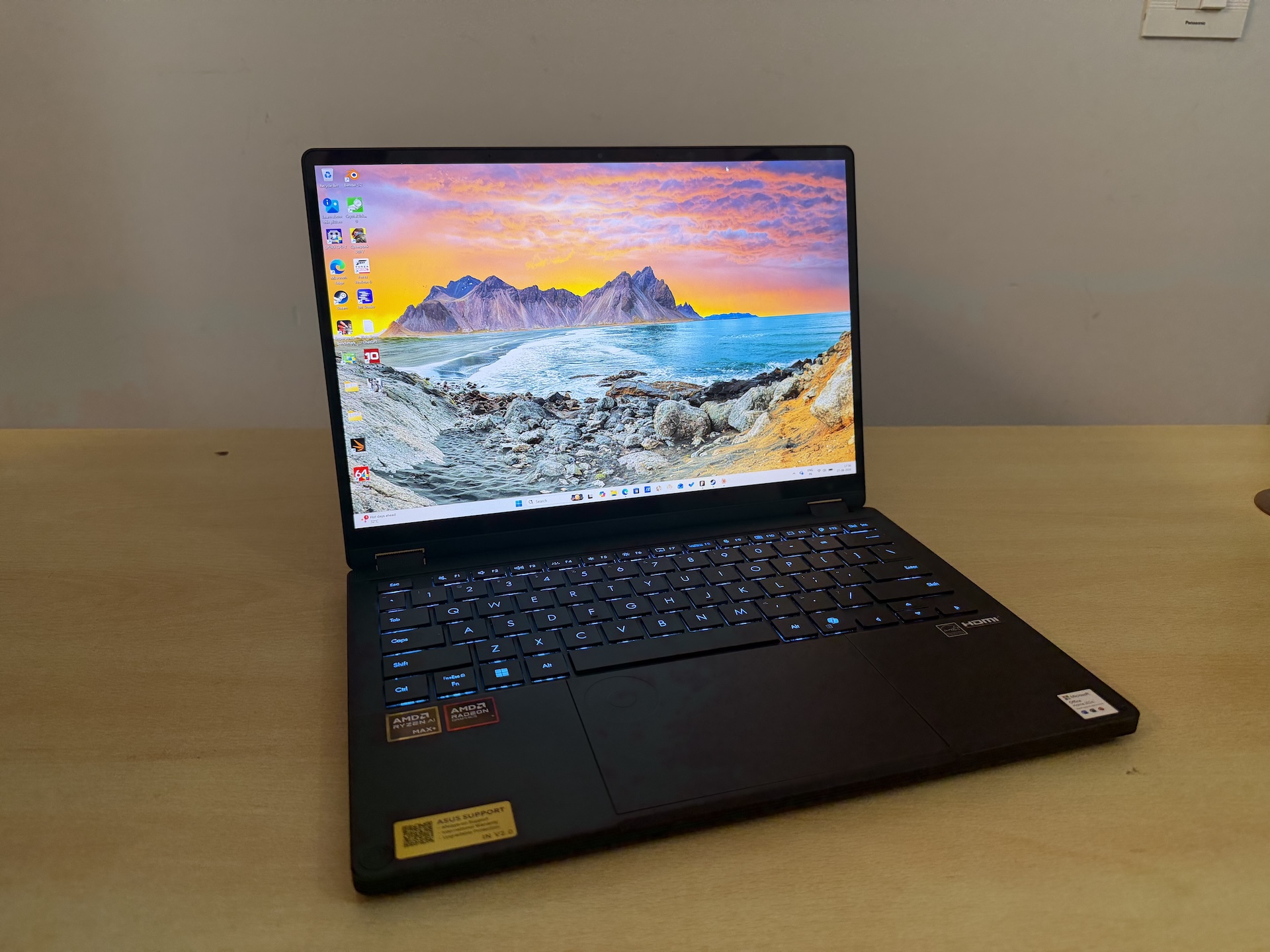
What the ASUS ProArt PX13 Actually Is
There are two laptops out there called the ProArt PX13, and sorting out which is which matters before anything else in this review makes sense.
The older one, the HN7306WU, pairs a Ryzen AI 9 HX 370 with a discrete RTX 4050 or 4060 and 32GB of memory. The one we have been living with, the HN7306EAC, throws the discrete graphics out entirely, and in its place sits AMD’s Ryzen AI Max+ 395, which is sixteen Zen 5 cores with a 40-CU Radeon 8060S fused onto the same package, and up to 128GB of LPDDR5X-8000 shared between the CPU, the graphics and the NPU with no PCIe hop in between.
On a spec sheet that reads like ASUS took something away, but they really didn’t. This version is about 40 percent faster in multi-core work than the model it replaces, its integrated graphics keep pace with a discrete RTX 4060 Laptop in games, and it will load AI models that no consumer graphics card on sale today can hold. What you give up is CUDA and a big chunk of 3D rendering speed, and we’ll get to both of those, because they genuinely matter to some of you.
Our unit has the full 128GB and a 1TB SSD, and sells in India for ₹3,34,990.
Design and Build
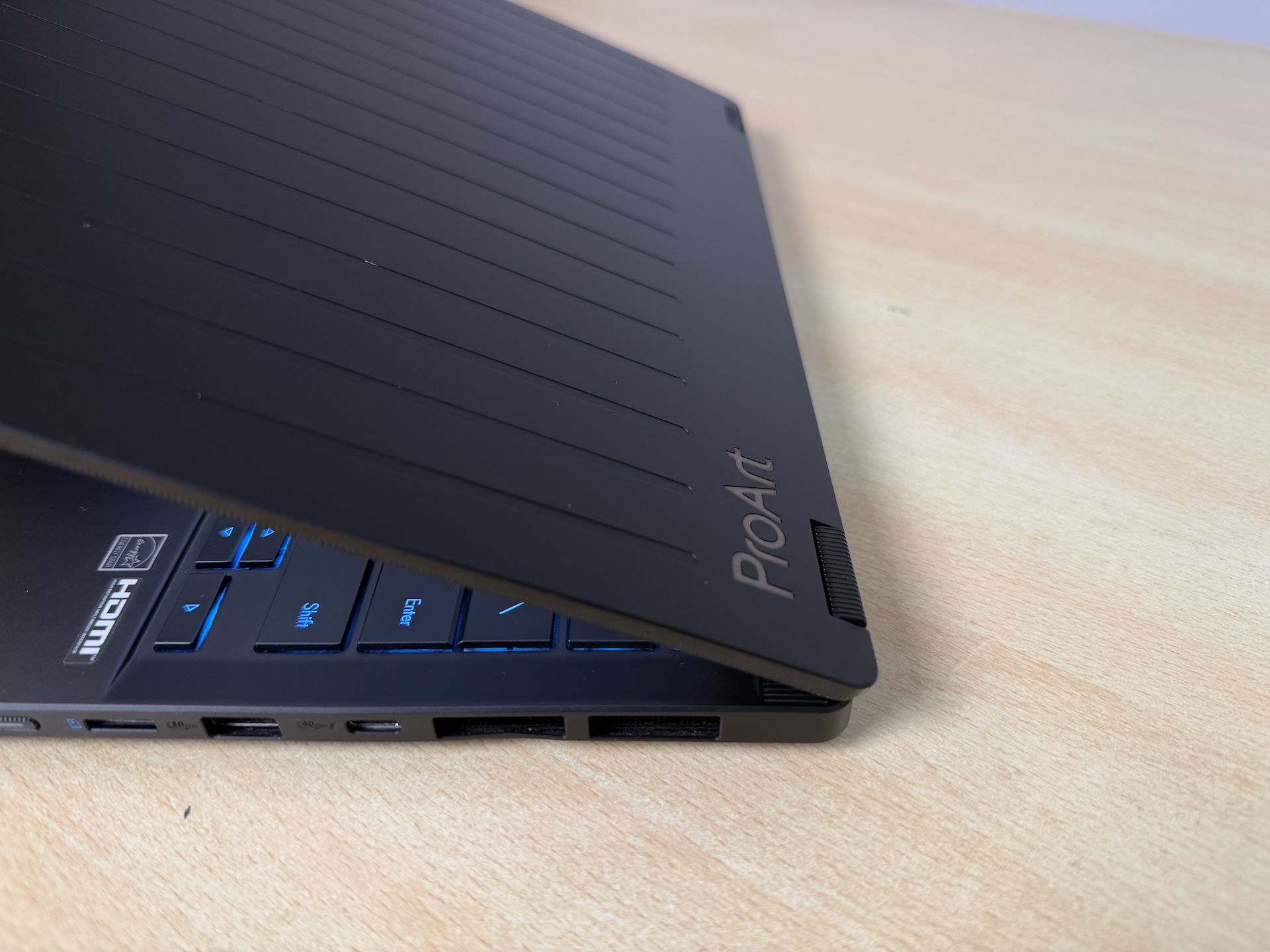
Pick this thing up and the first thing that registers is how premium it feels, and the second is how little you end up worrying about it.
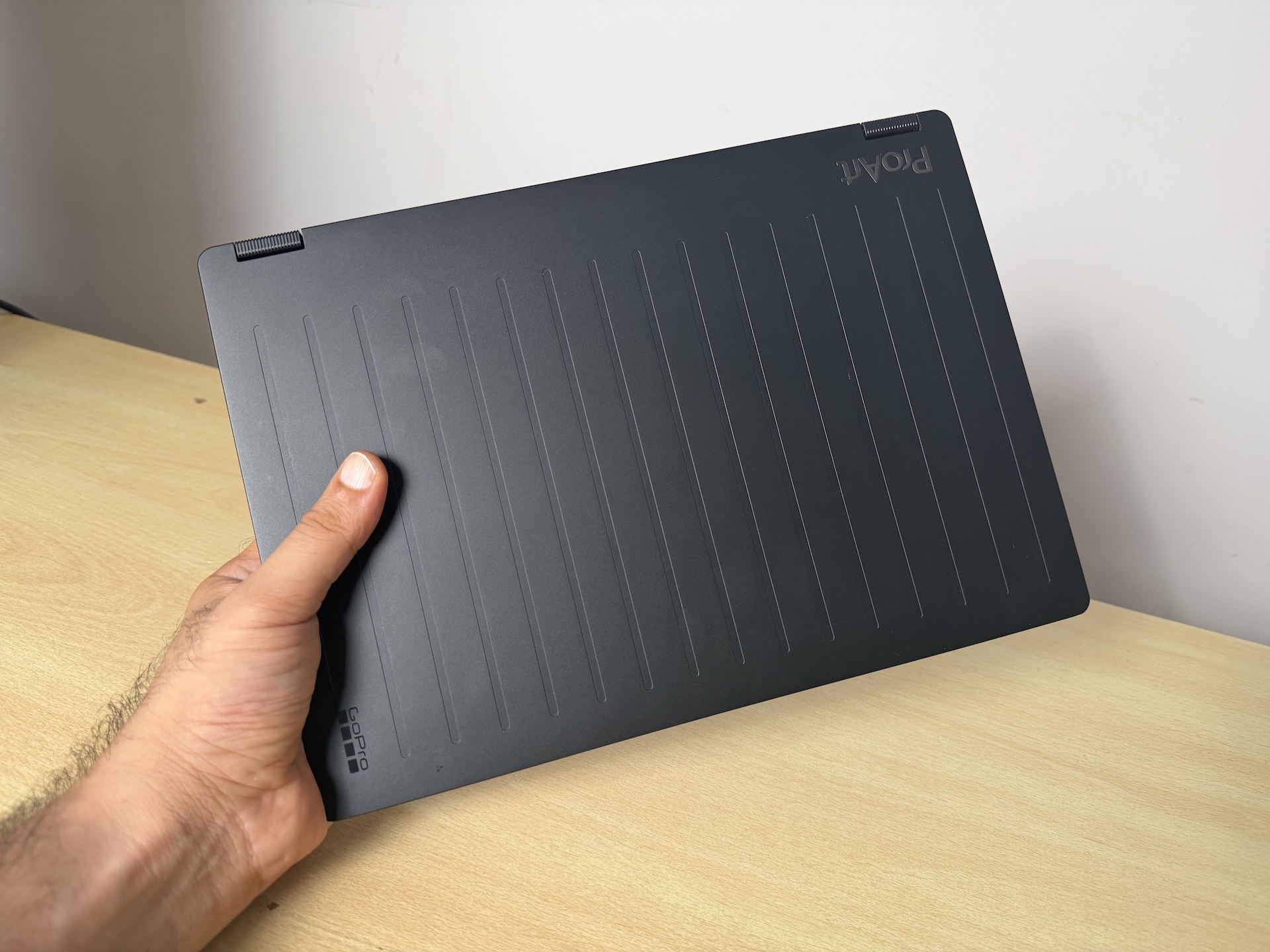
That combination is a lot rarer than it sounds. Most premium laptops are premium in a way that makes you careful with them, i.e. cold slippery aluminium that takes a fingerprint from across the room and picks up a scratch if you look at it wrong. This one is warm and grippy, with a fine texture across the lid that stops it sliding out of your hand, and it has shrugged off two months of being thrown into bags, yanked out on the move and used everywhere from a desk to a bed to the passenger seat of a car, without picking up a single mark worth mentioning.
The finish is doing the heavy lifting here. ASUS calls it nano black, and the process builds a microscopically porous structure into the anodised layer and works resin through it, with the stated goal being to kill reflections and resist fingerprints and scratches. ASUS uses a cousin of the same process, plasma electrolytic oxidation, on the Zenbook line, and claims roughly twice the scratch resistance of normal anodising. What you get in the hand is a surface that feels closer to good composite than to a slab of metal, with none of the rigidity given up underneath. There’s zero flex in the keyboard deck, and we leaned on it like we were genuinely trying to break the thing.
So yes, it’s built like a tank and it can clearly take a lot of abuse, which on a 13-inch machine you’re meant to carry absolutely everywhere matters a great deal more than any line on the spec sheet. Being able to grab it one-handed off a desk sounds like nothing until you’ve picked a laptop up and folded it around forty times in a week, which is exactly what you end up doing with this one.
The numbers are 298.2 x 209.9mm in footprint, and the chassis tapers from 15.8mm at the front lip to 17.7mm at the back. ASUS quotes 1.38kg. That taper is worth noticing, because the edge your wrists actually rest against is the thin one, and the machine reads slimmer in use than the headline thickness suggests. It isn’t an ultrabook, mind you, and a MacBook Air will still make it look chunky, but a MacBook Air also isn’t folding into a tablet or carrying 128GB of memory.
At 1.38kg it isn’t the lightest 13-inch laptop you can buy, but it is remarkably light for one hauling that much memory around, and the footprint is small enough to slip into bags that a 14-inch machine simply will not. Coming off the Zephyrus G14 at 1.5kg and the Flow Z13 at 1.7kg with its keyboard attached, this is the first machine in this entire run that we stopped noticing in a bag.
The hinges feel built to last, and that matters more here than on a normal laptop, because this one folds all the way around. Push the lid past 180 degrees and Windows drops into tablet mode and reworks the interface for touch and pen. As a tablet it’s perfectly fine to hold, not light exactly, but nowhere near the paving slab that most convertibles turn into.
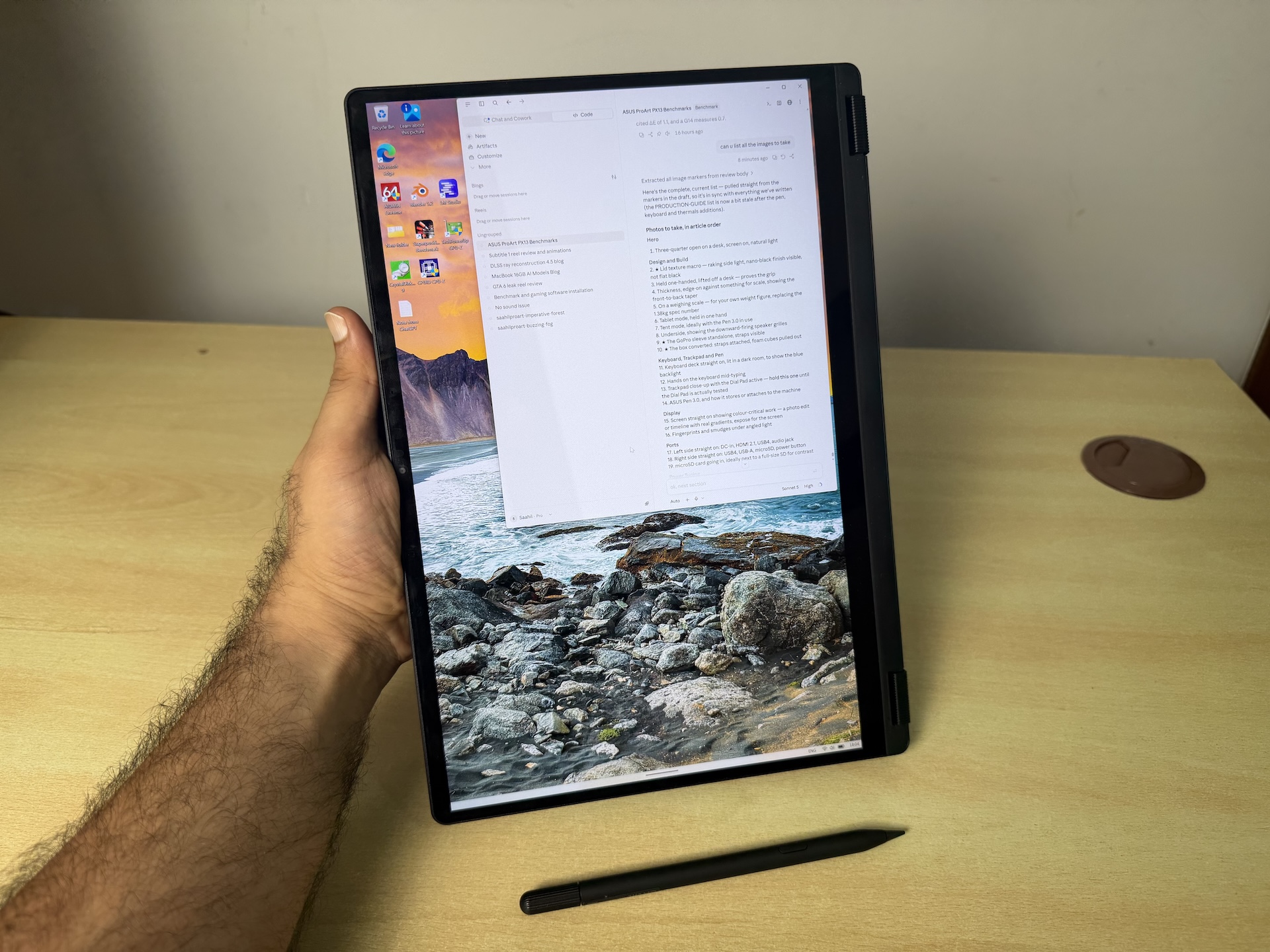
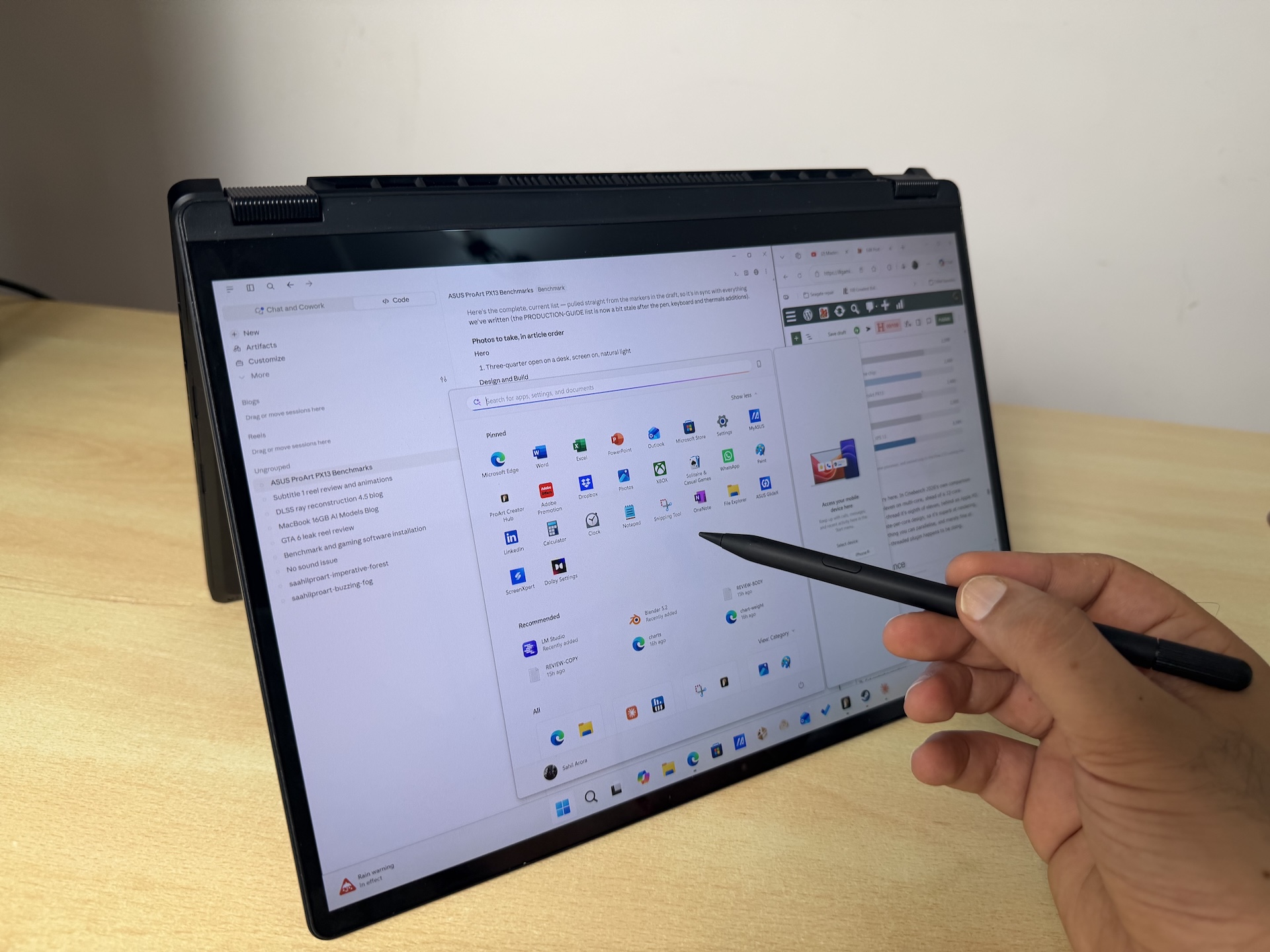
There’s one trade-off you should know about. The speakers fire downward, so in tablet mode you’re pressing them face-first into whatever surface you’re on and the audio takes a proper hit. That’s the cost of a speaker placement that is otherwise excellent, and having heard what these things do in laptop mode, we’d make the same trade every single time.
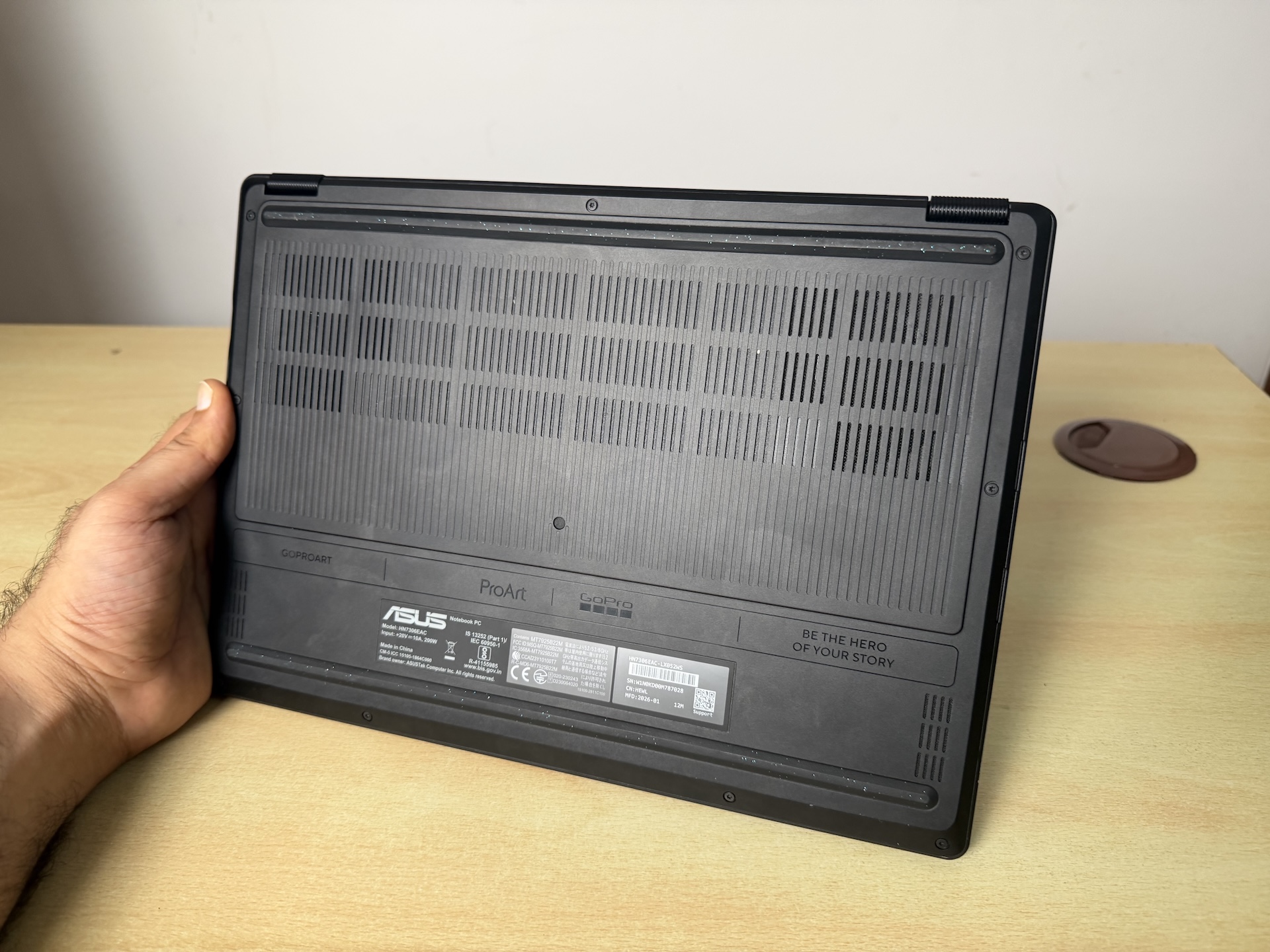
The bag, and the box it came in
We don’t normally write about packaging, but this one earns itself a paragraph.
Our unit is the GoPro Edition, and it ships with a rugged GoPro-styled sleeve with adjustable straps and proper internal compartments, rather than the flimsy neoprene envelope most laptops come with, if they come with anything at all. It’s a bag you would actually use. Ours has been carrying the laptop, the charger and a mouse for two months now and still looks new.
The box is the properly odd part. It has two straps that turn the packaging itself into a piece of travel gear, and the foam inside is pre-cut into cubes that you pull out to shape your own compartments, pick-and-pluck style, exactly like a Pelican case. You’re meant to keep it and use it for camera kit. It’s a genuinely clever idea, though we have no notion of how many people will ever realise they’re supposed to do that instead of flattening it for the recycling.
ASUS ProArt PX13 Specifications
The edition also bundles twelve months of GoPro Premium+, which ASUS values at $99.99, and a fifteen percent discount coupon for GoPro hardware. If you own a GoPro that’s real money in your pocket, and if you don’t, it’s a subscription you’ll cancel.
Keyboard, Trackpad and Dial Pad
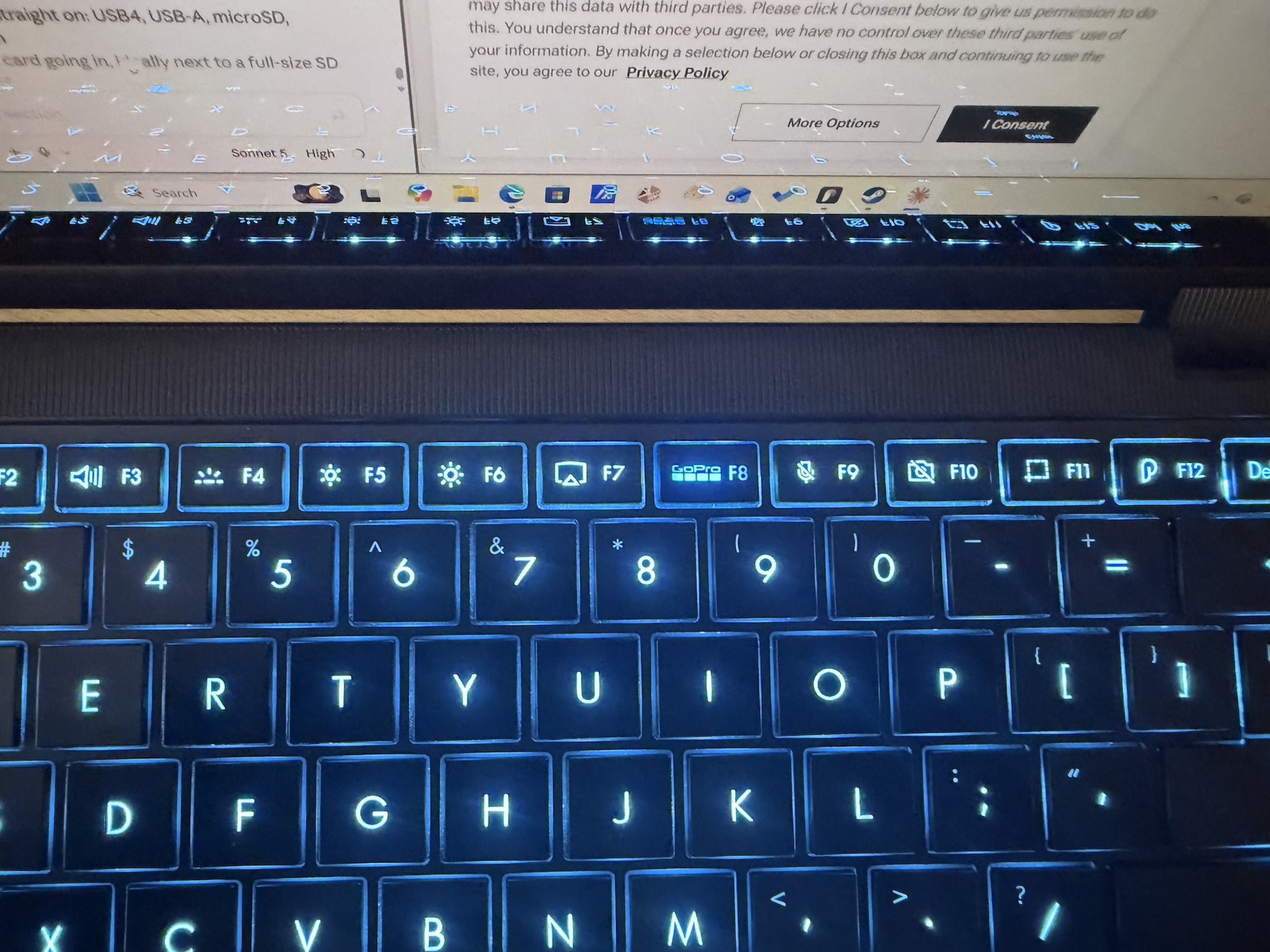
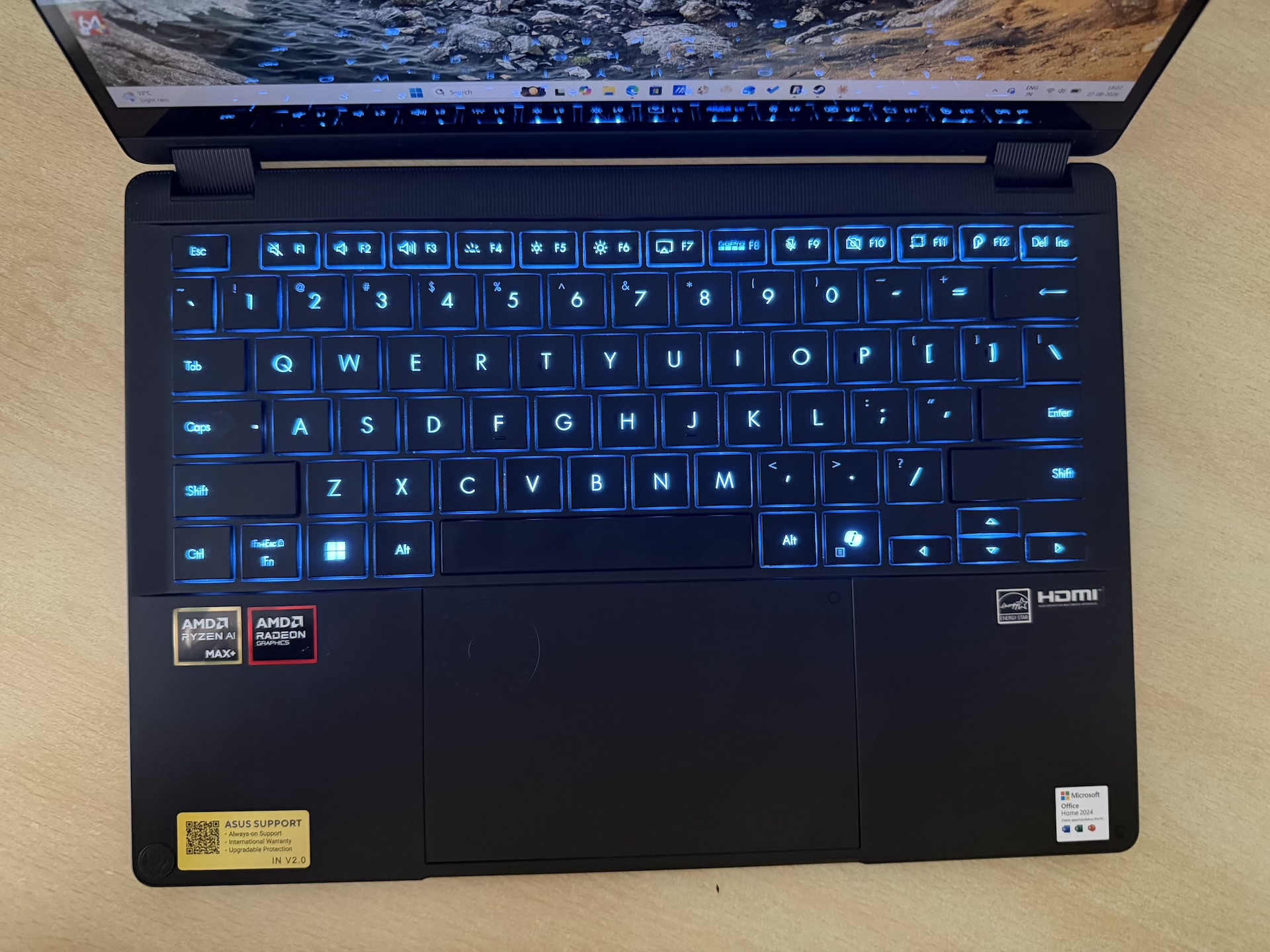
The keyboard is good, and the reason is mostly key travel. ASUS quotes 1.7mm here, which on a machine that’s 17.7mm thick at its fattest point is genuinely generous, because most thin laptops land somewhere between 1.2 and 1.4mm and you feel every bit of that difference. There’s no bounce and no rattle, and the actuation force sits right in the middle, neither so light that you skate over it nor so heavy that your hands ache by evening. The action is taut and snappy rather than mushy, which is the bit cheap chiclet boards always get wrong. We’ve written for hours on this without once thinking about the keyboard, which is really the only keyboard test worth running.
The backlight is blue, and only blue, across three brightness levels. It suits the machine’s colour scheme rather than feeling like a cost saving, and honestly we’d rather have one good colour than sixteen million bad ones. Two practical notes on it though. It’s bright enough to stay readable outdoors, which a lot of laptop backlights simply aren’t, and even the lowest of the three settings is fairly punchy, so in a properly dark room you may find yourself wishing there was a dimmer step below the dimmest one.
Layout is sensible and the keys are full size, with the arrow cluster given actual room rather than being crushed into half-height slivers. There’s no numpad, which on a 13-inch machine is the right call.
The trackpad, unfortunately, is where this machine stops feeling premium. Tracking is excellent, the surface is lovely, gestures are accurate and the cursor goes exactly where you put it, but the click is the problem. It’s clunky and bouncy and makes a hollow sound, when a laptop at this price should be giving you a solid, damped thud. Every press is a tiny reminder that you didn’t buy a MacBook Pro. Now, whether a proper haptic pad would have needed chassis depth that this design simply could not spare is a fair question, and on something this thin it may genuinely be a physical constraint rather than a saving, so we aren’t going to hang ASUS for it. Either way it’s the one part of the build that sits a tier below everything around it, and coming straight off the Flow Z13 where ASUS fixed precisely this complaint, it’s a strange thing to walk backwards into.
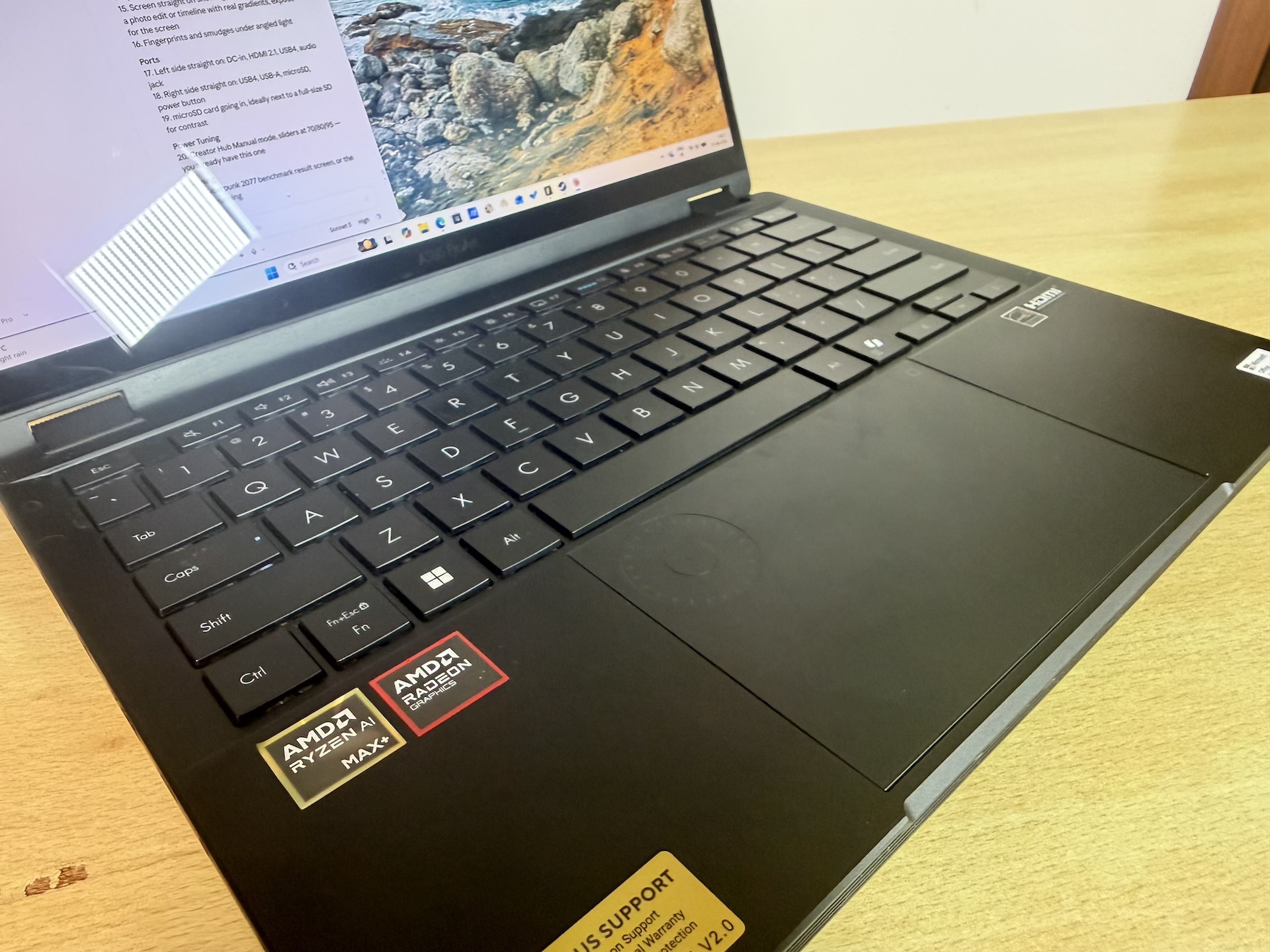
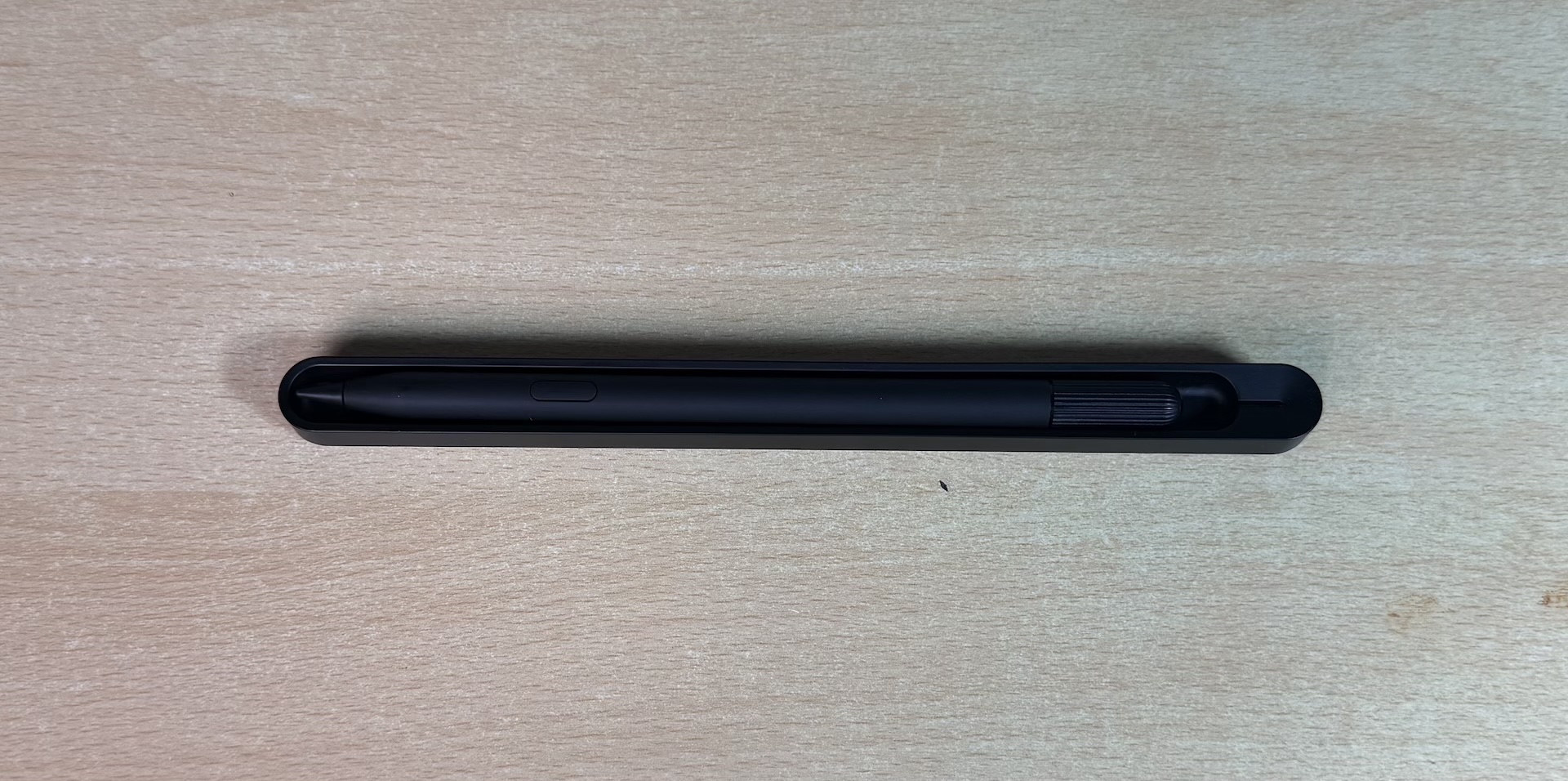
Then there’s the Dial Pad, which is a virtual control dial built into the trackpad, and the ASUS Pen 3.0 that comes in the box. These two are the ProArt line’s whole reason for existing over a normal laptop. They are the pitch, and yet ASUS tells you absolutely nothing about either of them.
No onboarding, no tutorial, nothing anywhere in the software that says here’s what this does, here’s how you bring it up, here are the apps that support it. You’re left to discover your own flagship features like you’re playing an adventure game with no hint system! On a machine built for creative professionals, where the dial and the stylus are the entire argument for spending more, that’s a genuine product failure, and it belongs squarely to ASUS rather than to the hardware.
The pen itself is lovely, and including it rather than charging separately is absolutely the right call. It turns tent mode and tablet mode into things you would actually use, instead of positions you demonstrate once to a friend and never touch again.
It’s worth knowing what you’re getting, because ASUS certainly isn’t going to tell you. This is the Pen 3.0, model SA205H, and it runs Microsoft Pen Protocol 2.6, which is the same tier Microsoft’s own Surface Slim Pen 2 sits on. That means 4,096 levels of pressure and tilt recognition, i.e. the shading and line-weight behaviour artists actually care about, rather than the cheap 1,024-level stylus you get bundled with a mid-range convertible. At 160mm long, 8.9mm across and 15.9g it’s noticeably slimmer and lighter than the Pen 2.0 it replaces, and it has moved from charging over USB-C to sitting on the little wireless charger ASUS puts in the box.
One regression is worth flagging, and it’s aimed squarely at illustrators. The Pen 2.0 shipped with four interchangeable tips, 2H through B, so you could dial in how much friction you wanted against the glass. The Pen 3.0 comes with one spare tip and that’s your lot. For note-taking and mark-ups it makes no odds at all, but if you were choosing tip feel the way you’d choose a pencil grade, that option has quietly gone away.
The same pen also works with the ROG Flow Z13, which is a small thing but a useful one if you’ve somehow ended up owning both.
ASUS ProArt PX13 Display
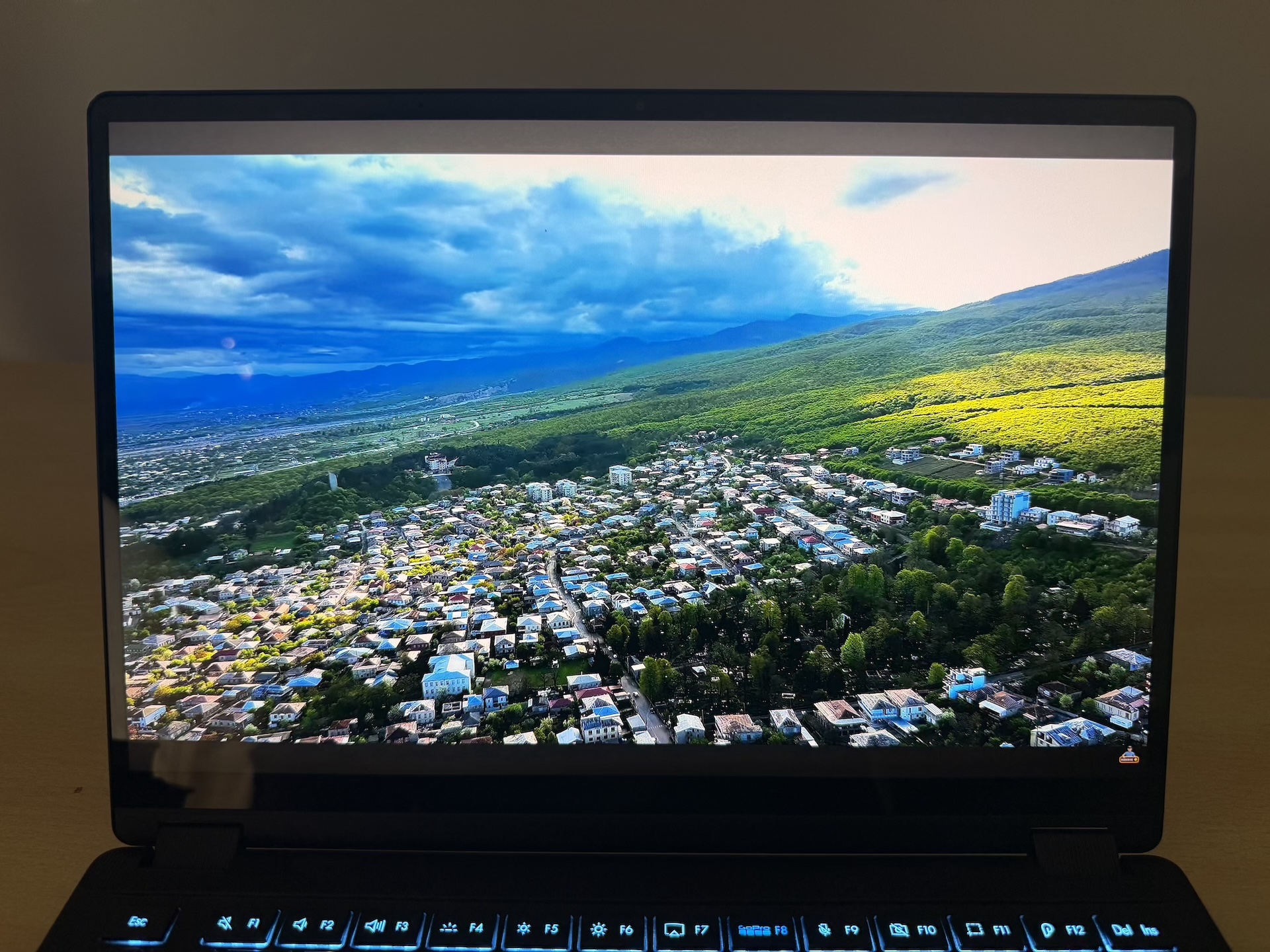
This is the best OLED panel we have used on a laptop, full stop.
It’s a 13.3-inch 2880×1800 touchscreen, factory calibrated, covering 100 percent of DCI-P3. Notebookcheck measured this same panel at a Delta-E of 1.1 on ColorChecker and 1.3 on greyscale, which are the sort of numbers you would normally pay a colourist to hit. Blacks are properly black, because OLED, and HDR peaks at 628 nits with around 380 nits in ordinary SDR use.
Colour work on this screen is a pleasure. There’s no calibration step, no squinting and wondering whether what you’re seeing is what you’re getting, and none of that low background anxiety about how it’ll look on the client’s monitor. It’s right straight out of the box, and on a machine sold to creative professionals that is the single most important thing the display could possibly get right.
Two things bug us though.
The first is that it’s a touchscreen, and touchscreens are fingerprint magnets. On a colour-critical panel that also doubles as a tablet you’ll be wiping it constantly. That comes with every touch OLED ever made, but it grates a lot more when the panel underneath is this good.
The second is PWM. Notebookcheck detected pulse-width modulation at 240Hz below 50 percent brightness, which means the screen is flickering rapidly to dim itself instead of actually lowering its output. Most people will never notice this. A meaningful minority get headaches and eye strain from exactly this, and if you’re one of them you already know it, because you’ve spent years working out which screens hurt you. Keep the brightness above half and it goes away.
Sixty hertz, and why it’s the right call
The panel runs at 60Hz. In 2026, on a ₹3.35 lakh laptop, that’s going to put people off, and on a spec sheet it looks mean.
In practice it’s the right call for this particular machine, and the maths isn’t complicated. The Radeon 8060S runs Cyberpunk 2077 at 91fps at 1080p on Ultra with FSR, which is already more than a 60Hz panel can show you, and at the screen’s native 2880×1800 it manages 33fps. So where exactly is the realistic setting on this hardware where the GPU is throwing 120 frames a second of anything you’d want to look at?
A faster panel buys you nothing in games here, and what it costs you is very real, i.e. more power draw on a machine whose battery life is one of its best features, and more heat into a chip that already runs out of cooling at 70 watts, which is a limit we’ll come back to at length because it turns out to explain almost everything about this laptop.
Sixty hertz isn’t a corner cut here, it’s the balance point, and it’s the difference between a laptop that lasts nine and a half hours and one that doesn’t. If you want a high-refresh gaming display then don’t buy this, and that’s fine, because it isn’t trying to be that.
ASUS ProArt PX13 Ports and Connectivity
For a laptop that’s 17.7mm thick, the port selection is better than it has any right to be.
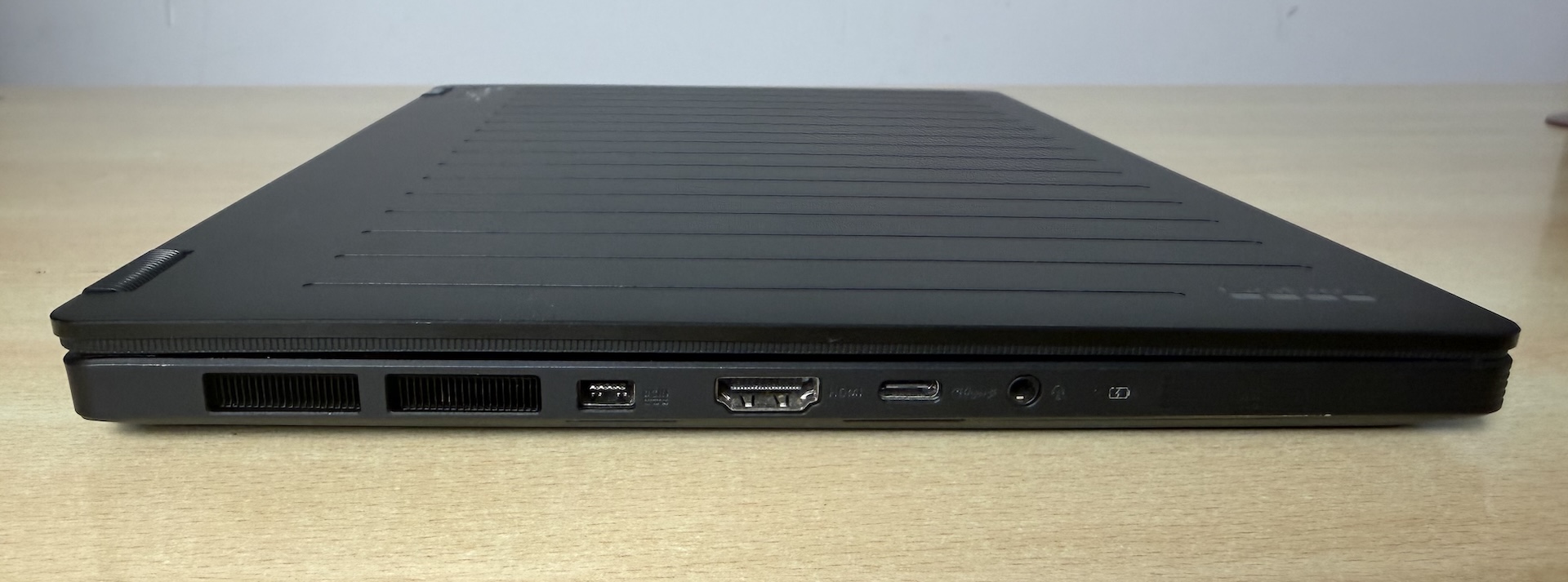
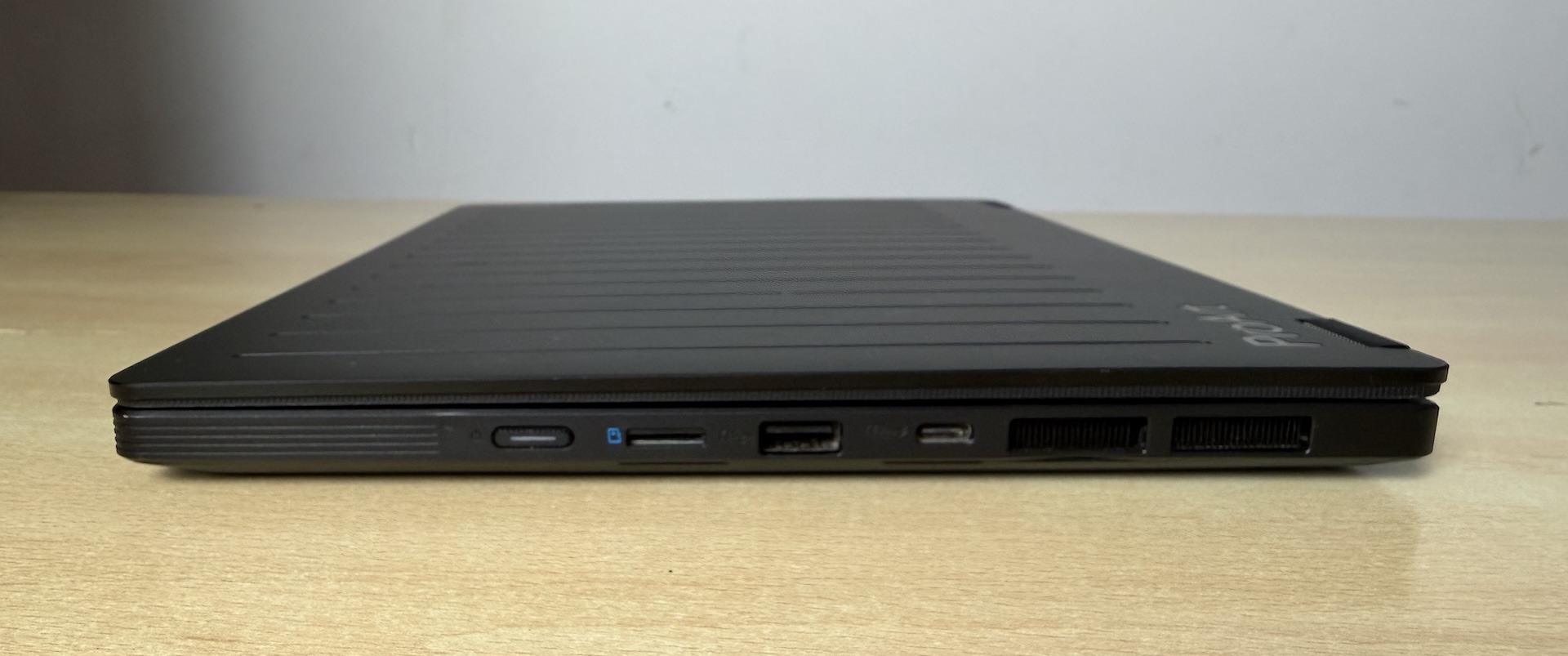
On the left you get the DC-in jack, HDMI 2.1 FRL, one USB4 port at 40Gbps and the audio combo jack. On the right there’s a second USB4 port, a USB-A 3.2 Gen 2 at 10Gbps, a microSD reader and the power button. Two USB4 ports on a machine this size is generous, HDMI 2.1 FRL will drive a 4K display at 120Hz or an 8K at 60, and having a full-size USB-A means you aren’t carrying a dongle around just for a mouse receiver.
Two USB4 ports matters more than it sounds. Each one carries 40Gbps, DisplayPort and power delivery, so you can run a monitor off one and charge from the other, or hang a Thunderbolt-class SSD or eGPU enclosure off either. Most 13-inch machines give you two USB-C ports and then quietly tell you one of them is USB 3.2 only.
The card reader is microSD rather than full-size SD, and that’s the one place this loses out to a proper creator laptop. If you shoot on a camera that takes SD cards then you’re back to carrying an adapter, which slightly undercuts the whole pitch. On a GoPro Edition it makes rather more sense, because GoPros take microSD, and we suspect that’s exactly the reasoning.
Wireless is Wi-Fi 7 on a triple-band 2×2 card, with Bluetooth 5.4, and we had no drops or reconnection oddities over two months on a Wi-Fi 6E router.
One oddity worth knowing before it wastes an afternoon of your life. This machine has no physical webcam shutter, it has a firmware kill-switch on the function row instead. Ours was toggled on at some point, and every application then reported the camera as “closed”, which is a strange thing to be told about a laptop that has no sliding cover to close. We checked the device status, we checked Windows privacy settings for both the user and the machine, and everything read as fine, because the block sits below all of that in ASUS’s own firmware. There’s no on-screen indication of the toggle state either. We had spent days inside this machine’s software and it still took us a while to work out.
There’s one more thing in ASUS’s spec sheet that nobody seems to mention, and given what we found later in this review it matters quite a lot. The PX13 supports the ROG XG Mobile GC34 external graphics dock. That is ASUS’s own eGPU, it can carry up to an RTX 5090 laptop GPU, and it connects over Thunderbolt 5 with backward compatibility to Thunderbolt 4 and USB4, which is what this machine has. So the one genuine hole in this laptop, i.e. no CUDA and mediocre Blender performance, has an official escape hatch. We did not have an XG Mobile to test, and you would be running it over USB4’s 40Gbps rather than Thunderbolt 5’s 120Gbps, so expect to leave some performance on the table. It is also an expensive box. But if you want this machine’s memory and portability and you occasionally need NVIDIA rendering at a desk, that path exists and ASUS supports it.
ASUS ProArt PX13 Power Tuning: The 19 Percent You Are Not Getting
This is the part of the review we did not expect to be writing.
The ProArt PX13 ships slower than it actually runs. It isn’t throttled and it isn’t faulty, it’s just set conservatively at the factory, with the fix sitting in ASUS’s own app where almost nobody who buys one will ever find it.
Out of the box, Cinebench 2026 multi-core returns 5,796, and the chip settles at about 45 watts sustained. Open ProArt Creator Hub, switch over to Manual mode, and you get three sliders: SPL, SPPT and FPPT, which are the sustained, short-burst and peak power limits. Push sustained power to 70 watts and the very same benchmark returns 6,911.
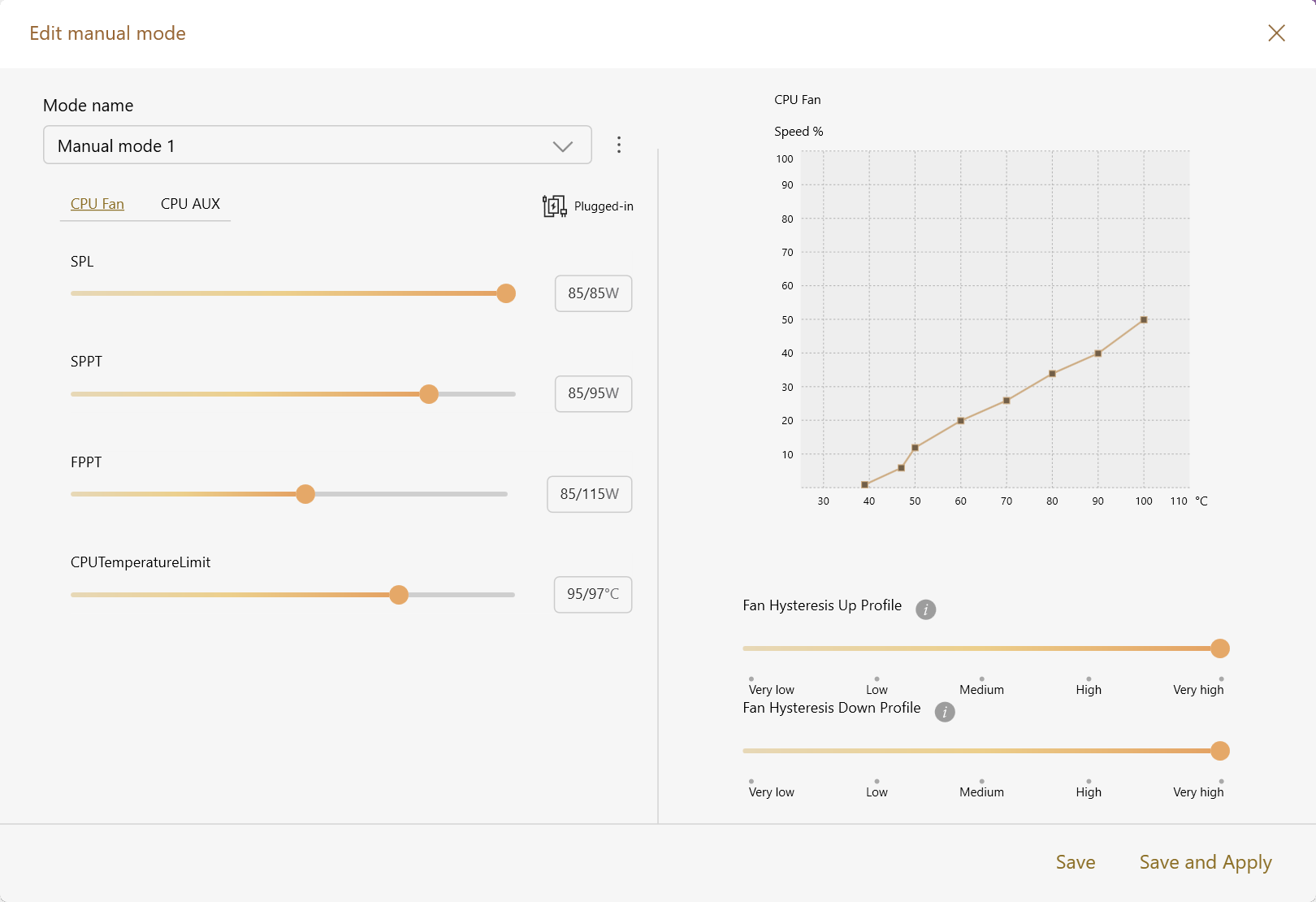
That’s 19.2 percent more performance for about ninety seconds of work, and it’s completely free. No undervolting, no third-party tools, no warranty risk, just three sliders in software that ASUS shipped on the machine themselves.
So naturally we kept going, because obviously you do.
| Sustained power | Cinebench 2026 |
|---|---|
| 45W (stock) | 5,796 |
| 60W | 6,618 |
| 70W | 6,911 |
| 75W | 6,689 |
| 85W | crashed at 82 seconds |
At 75 watts it gets slower, and not marginally either, losing 222 points and dropping below where it sat at 70.
We went looking for why, and the answer turned out to be mechanical rather than mysterious. At 70 watts the cooling fan is already running at 6,897rpm against a ceiling of 7,000, i.e. it’s completely maxed out. Every extra watt you feed the chip past that point has nowhere to go, so temperatures climb into the 97-degree limit, the processor starts pulling power back to protect itself, and the resulting oscillation costs you more performance than the extra wattage ever buys. Our telemetry shows package power bouncing between 66 and 75 watts through the whole run, with core clocks swinging from 3,492 to 3,899MHz, where the 70-watt run held a dead-flat 70.0 watts throughout.
Push it to 85 watts and the machine simply switches off. Ours died 82 seconds into a run, peaked at 115 watts, with the thermal limit pinned at 100 percent the entire time, and there was no blue screen and no crash dump, it was just gone. That’s firmware protection doing exactly what it should, and we’d far rather it did that than cook itself, but it’s worth knowing the edge is there.
70/80/95 is the setting. It isn’t a preference, it’s where the cooling runs out, and every number in this review from here onwards was measured there.
One important thing before you go and do this, because we learned it the hard way. The sliders on their own are not enough. The stock fan curve is quiet-biased and caps the fan at 50 percent even at 100 degrees, and our first attempt at 70 watts on that curve simply died. You need to go into the fan curve editor in the same app and build a curve that actually ramps, i.e. roughly 50 percent at 70 degrees, 70 percent at 80, and 90 percent by 90. We also raised the CPU temperature limit from its stock 95 degrees to 97, and left fan hysteresis on Medium, because the “Very high” setting makes the fan slow to react when load arrives.
With the new curve the machine held 95-watt peaks without complaint. Without it, 70 watts is not stable. The curve isn’t a performance setting in its own right, mind you, because at 60 watts it changed nothing at all and the two runs landed within noise of each other. It’s a prerequisite for going above 60, nothing more and nothing less.
There’s a second reason the curve flattens off, and it isn’t thermal at all. Watts buy you progressively less clock speed as you go up, which is just how a voltage-frequency curve works. Going from 27 to 47 watts bought us 939MHz, i.e. 47MHz for every watt. From 47 to 62 watts bought 466MHz, or 31MHz per watt. And the last step from 62 to 72 watts bought only 198MHz, which is 20MHz per watt, less than half the return of the first stretch. That happens before thermal saturation even enters the picture at 75 watts.
There is a cost to all this and it’s worth stating plainly. At stock the machine produces 129 points per watt, and at 70 watts it produces 98.7. You buy that 19 percent by spending about a third of your efficiency, and the fan gets loud doing it. Which is the whole argument for ASUS’s conservative default, honestly. They tuned it for a quiet machine that lasts a long time and they weren’t wrong to do that. They just didn’t tell anyone there was another mode.
ASUS ProArt PX13 CPU Performance
Sixteen Zen 5 cores at 70 watts is a lot of laptop.
| Benchmark | Score |
|---|---|
| Cinebench 2026 multi | 6,911 |
| Cinebench 2026 single-core | 624 |
| Cinebench 2024 (R24) multi | 1,611 |
| Cinebench 2024 (R24) single | 115 |
| Geekbench 6 multi | 18,274 |
| Geekbench 6 single | 2,903 |
The number that matters most isn’t any of those on its own, it’s this one: the PX13 is 40 percent faster in multi-core work than the Ryzen AI 9 HX 370, which is the processor sitting in the other laptop that’s also called the ProArt PX13. Same product line, same chassis family, and a gap that large between them. If you’re choosing between the two models then that’s your answer, unless you specifically need CUDA.
Against everything else we’ve tested recently, in Geekbench 6 multi-core it beats the Core Ultra 9 285H in the Lenovo 83KF (17,647), the Core Ultra 9 386H in the Zephyrus G14 (17,112), and the Ryzen AI Max+ 392 in the TUF Gaming A14 (18,026, and only just). The only laptop chip that beat it in our testing was the Core Ultra 9 275HX in an HP OMEN MAX 16, which is a 24-core part sitting in a much larger machine.
Single-core is strong too. 2,903 puts it ahead of the 275HX, the 285H and the 386H, and 18 percent above Geekbench’s own median for this chip, which is the tuned profile and the chip’s burst behaviour showing up. The one machine on our bench that edged it was the Flow Z13, on the identical processor, at 2,976.
Put it next to a premium ultrabook and the gap becomes frankly silly. The Core Ultra 7 258V, which is the chip in the ThinkPad X1 Carbon and the XPS 13 and the Galaxy Book5 Pro, medians at 9,299 in Geekbench 6 multi. This laptop is roughly twice as fast as the thing sitting next to it on the shelf at a similar price!
Three things worth pulling out of that. We’re hitting 91 percent of the best published score for this same chip, which is the 13-inch chassis tax and matches the 92 percent we measured on Cinebench 2026. We’re 40 percent ahead of the HX 370 in the other PX13, which is the same comparison as before but now on a different benchmark and a global ranking rather than our own bench. And we land right between Apple’s two M4 Pro configurations, ahead of the 12-core and behind the 14-core, which is genuinely competitive with Apple’s mid-tier professional silicon in a machine that costs less and folds into a tablet.
There’s one honest asymmetry here. In Cinebench 2026’s own comparison ladder the PX13 sits fifth of eleven on multi-core, ahead of a 32-core Threadripper, while on single-thread it’s eighth of eleven, behind an Apple M2. This is a many-cores, moderate-per-core design, so it’s superb at rendering, compilation, exports and anything you can parallelise, and merely fine at whatever your slowest single-threaded plugin happens to be doing.
Gaming Performance
The Radeon 8060S is the fastest integrated GPU in the world and it isn’t particularly close.
In 3DMark Time Spy it scores 10,507 on the graphics test. The next-fastest iGPU we can find data for is Intel’s Arc B390 at 6,656, and AMD’s own Radeon 890M manages 3,373. So it’s roughly 58 percent ahead of the best Intel integrated part and three times the speed of the 890M.
Worth being precise about whose win this is, because it belongs to the chip rather than to this particular laptop. We have now run the same test on three different machines carrying the 8060S, and they land at 10,856 for the TUF Gaming A14, 10,507 here and 10,197 on the Flow Z13. That spread is normal run-to-run variance on identical silicon, and the A14 nudging ahead of the PX13 means nothing at all. What matters is that all three sit in a cluster that nothing else with integrated graphics gets near.
More usefully, that puts it level with discrete graphics. An RTX 4060 Laptop typically scores 10,402 and a desktop RTX 4060 does 10,619, which means this integrated GPU, sharing system memory, sits between the two and within two percent of both. For an integrated part, that is outright insane.
Let’s keep the scale honest though, because an RTX 5090 does 46,923. This isn’t a gaming flagship, it’s an integrated GPU that has arrived at the entry point of discrete graphics, which is still a genuinely remarkable place for it to have got to.
Time Spy is only one test though, and the picture changes as you make the work harder. Here is the full synthetic set, with the Zephyrus G14 and its discrete RTX 5070 alongside for scale:
| Test | ProArt PX13 | Flow Z13 | Zephyrus G14 (RTX 5070) |
|---|---|---|---|
| Time Spy | 10,479 | 10,321 | 12,939 (+23%) |
| Time Spy Extreme | 5,055 | 5,020 | 6,248 (+24%) |
| Steel Nomad | 2,089 | 2,034 | 3,000 (+44%) |
| Superposition, 1080p Medium | 4,609 | — | — |
| Superposition, 1080p Extreme | 1,624 | — | — |
Two things fall out of that. Against the Flow Z13, which has the identical chip, it’s a dead heat across all three 3DMark tests, exactly as it should be. Against an actual discrete GPU, the gap grows as the load gets heavier, from 23 percent in Time Spy to 44 percent in Steel Nomad. That’s the shared memory bandwidth showing up: the heavier the scene, the more the 8060S feels the lack of dedicated VRAM, and it’s the same constraint that turns up again in the AI section.
Here’s what all that means in Cyberpunk 2077, which we ran five ways.
1080p with FSR is where this GPU wants to live, and at 91fps on Ultra it’s comfortably past what the 60Hz panel can show you anyway. Turn ray tracing on and you still get 61.7, which is perfectly fine. Native panel resolution isn’t viable, and native plus ray tracing is a slideshow.
For what it’s worth we’ve also put a decent number of Dota 2 and Forza hours into this between actual work, and neither is remotely a problem. This isn’t a machine you buy for gaming, but it’s absolutely a machine you can game on, which is a distinction that matters a lot if the alternative was carrying two devices around.
Gaming is also power-limited rather than heat-limited here, same as everything else on this laptop. STAPM sat pinned at 98.7 percent through our Cyberpunk runs while the thermal limit never once touched 99, so the tuning helps in games too and not only in benchmarks.
One thing the telemetry surfaced that we found genuinely interesting: during Cyberpunk, cores 0 to 7 ran about 10 degrees hotter than cores 8 to 15, because Windows parks the game on one compute die and leaves the other mostly idle. That’s why the CPU reads 92 degrees while only drawing about 71 watts. It’s a hotspot rather than a furnace.
3D Rendering
Everything above says this GPU matches an RTX 4060 Laptop. In Blender it doesn’t come anywhere close, and if you render for a living then this is the section that matters to you.
Blender Open Data, three-scene total, samples per minute:
| Device | Score |
|---|---|
| Apple M4 Max (40-core) | 5,208 |
| NVIDIA RTX 4060 Laptop | 3,297 |
| NVIDIA RTX 4050 Laptop | 2,569 |
| Apple M4 Pro (20-core) | 2,528 |
| Radeon 8060S, this machine | 1,675 |
| Radeon 8060S, typical | 1,349 |
The same GPU that ties an RTX 4060 Laptop in Time Spy renders at roughly half its speed in Cycles, and even the cheaper RTX 4050 Laptop is about 53 percent faster.
This is a software problem rather than a silicon one. NVIDIA’s Cycles path runs through OptiX, which has mature hardware ray-tracing acceleration behind it, and AMD’s runs through HIP, which doesn’t. The same gap turns up elsewhere too, because Cinebench 2026’s GPU test, which uses Redshift, won’t run on this chip at all. It crashes on launch, and we reproduced that on a second machine with the same processor. Redshift simply doesn’t support AMD integrated graphics.
Blender’s own HIP path does work, for the record, and works well relative to this machine’s CPU, with GPU rendering coming in 3.1 to 3.9 times faster than rendering on all sixteen cores. It’s only against NVIDIA that it falls behind.
So for video, for photo, for AI and for code, this is a complete non-issue. For Blender and Redshift specifically, buy the model with the RTX 4060 in it, or buy a different laptop altogether. We’d far rather tell you that now than let you find out after the money’s gone.
There is one other way out, and we mentioned it back in the ports section. ASUS lists this machine as compatible with the ROG XG Mobile GC34 external graphics dock, which will take an NVIDIA card and hand you CUDA and OptiX at a desk while leaving the laptop itself light. We could not test one, and running it over USB4 rather than Thunderbolt 5 will cost you some of the benefit, but if you need this machine’s memory on the road and NVIDIA rendering at home, that is the combination that gets you both.
Worth noting that the tuning still earns its keep even here, because at 1,675 this machine sits 24 percent above the community median for the same GPU. The deficit is architectural, not configuration.
One more thing came out of the telemetry that’s genuinely useful if you do this for a living. Blender and Cinebench stress this chip through completely different limits. Cinebench settles into a steady grind, averaging 71.9 watts and sitting pinned against the sustained power cap 85 percent of the time. Blender renders scene by scene with gaps in between, so it averages 82.6 watts, which is well above the 70-watt sustained setting, while only hitting that cap 13 percent of the time. It lives in the burst window instead.
Which means you can’t take a Cinebench number and assume it tells you how this machine handles real render work, because the two are constrained by different registers altogether. Bursty creative workloads care about the FPPT peak setting far more than the sustained one.
Local AI on the ASUS ProArt PX13
This is the reason the machine exists, and it’s the one thing it does that nothing else in its class can manage.
In raw compute terms the GPU posts 97,872 in Geekbench 6 OpenCL and 102,434 in Vulkan. Note which way round those fall, because Vulkan comes out 4.7 percent ahead, and that same Vulkan-ahead pattern turns up again below when we get to language models. On current AMD drivers the Vulkan path is simply the better-optimised one.
128GB of LPDDR5X-8000 on a 256-bit bus gives you roughly 256GB/s of bandwidth, shared between the CPU, the graphics and the NPU with no PCIe hop in between, and through Variable Graphics Memory you can hand a large slice of that pool over to the GPU. We set 64GB, then loaded Llama 3.3 70B and watched it occupy 61.7GB of graphics memory.
No consumer discrete GPU can do that. A desktop RTX 4090 has 24GB, the laptop version has 16, and the RTX 4060 in the other ProArt has 8. The model doesn’t fit at any price in any of them. It fits here, and it runs at 5.20 tokens per second, which is slow for chat and perfectly usable for batch work you leave running.
But the genuinely interesting finding wasn’t the 70B at all, it was this:
| Model | Type | Size | Tokens/sec |
|---|---|---|---|
| Qwen3-8B | dense | 5GB | 43.24 |
| Qwen3-30B-A3B | MoE | 18GB | 80.94 |
| Qwen3-32B | dense | 20GB | 11.04 |
| Llama 3.3 70B | dense | 40GB | 5.20 |
Look at the middle two. They’re nearly the same size on disk, and the mixture-of-experts model runs 7.3 times faster. It’s also faster than the 8B model while being three and a half times larger!
The reason is bandwidth. On this chip, generation speed is almost entirely determined by how fast weights can be read out of memory, and all three dense models land between 81 and 86 percent of the theoretical 256GB/s ceiling, which means you can predict token rate from file size alone. A mixture-of-experts model only activates a fraction of its parameters per token, so it sidesteps the exact constraint this hardware has.
If you’re buying this for local AI, run MoE models. That’s the practical takeaway and we haven’t seen anyone else say it about Strix Halo.
One more thing worth knowing if you’re actually going to use this. We tested both backends that LM Studio offers, and Vulkan generates about 12 percent faster than ROCm, but ROCm processes the prompt roughly 23 times faster than Vulkan does, which isn’t a typo. So for short prompts and long answers, use Vulkan, and for anything with a big prompt, which means RAG, document analysis or feeding it a codebase, use ROCm and it’ll feel dramatically quicker even though the tokens-per-second number is lower.
Language models are only half the story though, so we also ran Geekbench AI, which tests inference across three numeric precisions and lets you pick which framework and which bit of silicon does the work. We ran it three ways.
Two things in there are worth your attention. The first is how completely the GPU wins on floating point and how quickly that lead evaporates. On single precision the GPU is 4 times the CPU, on half precision it’s a frankly ridiculous 15.4 times, and then on quantized INT8 the lead collapses to 1.85 times against ONNX, and against OpenVINO it comes down to 3.8 percent, which is a tie in anything but name. So if your work is FP32 or FP16 the GPU isn’t optional, and if you’re running quantized models the CPU is still very much in the game.
The second is that the runtime you choose matters enormously, and almost nobody talks about this. Running on the exact same processor with the exact same workload, OpenVINO’s CPU path beats ONNX Runtime’s by 7.6 percent on single precision, by 190 percent on half precision, and by 78 percent on quantized. Same silicon, same test, and the only variable is which software executes it. If you’re doing any CPU-side inference on this machine, try both before you settle.
That half-precision gap has a specific cause, incidentally. This CPU has no native FP16 execution units, so ONNX has to upconvert everything to FP32 and you pay overhead rather than saving anything, which is why its half-precision score of 2,320 lands below its own single-precision 6,302. OpenVINO handles the same situation far more gracefully and lands at 6,718, near parity with its own single-precision result.
NPU Performance
The NPU is the odd one out. AMD’s XDNA 2 is in there, it works, and we have telemetry showing it hitting 98 percent utilisation under Windows workloads, but no benchmarking framework we tried could target it. Geekbench AI offers CPU and DirectML on this machine and no NPU option at all, under either ONNX or OpenVINO, while on the Intel machine sitting next to it OpenVINO reaches the NPU happily and scores 55,845. That’s a tooling gap rather than broken hardware and it’ll presumably close, but right now the NPU is a feature you own rather than one you can use.
Storage
The 1TB SanDisk PC SN5100S is quick. CrystalDiskMark returns 7,052MB/s sequential read and 6,323MB/s write, which puts read speed near the practical ceiling of a PCIe 4.0 x4 interface, and random 4K is 335MB/s read and 441MB/s write at high queue depth. Nothing at all to complain about.
There’s a small story here though, because it nearly fooled us. Our first run showed sequential writes of 230MB/s, which is roughly 30 times slower than read and slower than the drive’s own random writes, and that’s impossible on a healthy drive. The answer was test file size. The SN5100S fronts its storage with a fast SLC cache, and our original test was large enough to drain it and expose the native write speed underneath. Rerun at 1GiB and it does 6,323MB/s.
Worth knowing if you routinely dump 50GB of footage onto it in one go, because the first chunk will be fast and then it won’t be.
Thermals
Every temperature figure here is measured on the tuned 70/80/95 profile, which is the hottest this machine gets in normal use.
| State | CPU | GPU | Chassis surface |
|---|---|---|---|
| Idle | 43°C | 43°C | 30°C |
| Whisper profile, battery | 62°C | 59°C | 40°C |
| Cinebench, stock 45W | 76°C | 68°C | 43°C |
| Cinebench, tuned 70W | 91°C | 78°C | 44°C |
| Cyberpunk 2077 | 92°C | 83°C | 43°C |
| Steel Nomad stress loop | 94°C | 94°C | 44°C |
Ninety-one degrees under sustained load sounds alarming and really isn’t. The chip’s limit is 97, AMD designs these to run hot, and we saw no throttling at 70 watts across any of our runs. What we did see is that the margin is thin, which is the same story as the 75-watt regression. This machine runs close to its ceiling by design.
The number we care about more is the chassis surface, which peaks at 44 to 46 degrees under any sustained load and sits at 30 when idle. Discomfort starts somewhere around 48, so it stays the right side of that line. The heat is going into the air rather than into your palms, which on a laptop you actually put on your lap matters rather a lot.
Against the other machines we’ve tested, the PX13 idles coolest of the entire group at 43 degrees, against roughly 55 for the Zephyrus G14. Under sustained CPU load it sits mid pack. In gaming it runs hotter than the TUF Gaming A14, 92 degrees against 82, which is simply the price of putting the same processor into a 13-inch body instead of a 14-inch one.
A few other things the telemetry turned up while we were in there. The chip does genuinely reach its rated 5.1GHz, and we logged a peak of 5,150MHz. The VRMs run to 91 degrees under gaming load and the SSD to 59, both warm but well inside their limits. And interestingly, power isn’t the only ceiling this chip runs into, because the CPU current limit exceeded 100 percent during gaming and peaked at 106, which means EDC is a real constraint here and not just a number in a spec sheet.
There’s a neat confirmation buried in the peak figures too. Cinebench peaked at 95.1 watts, R24 at 94.8, Blender at 95.0, LLM inference at 94.9 and Cyberpunk at 93.2. Five completely different kinds of workload, all converging on the same number, because all five are hitting the 95-watt FPPT burst ceiling we set in Manual mode. That slider does exactly what it says.
Noise
he good news first, and it’s rather better than we expected. Set this machine to Balanced and the fans simply do not run. We logged it on battery for 41 minutes with the laptop in actual use, browser open, processor peaking at 37 percent, and across 4,900 samples the fan never span up once. Not slowed down, not quiet, off. Package power stayed under 16 watts the whole time and the chip never got past 41 degrees, which is comfortably below the point where the cooling has any reason to wake up.
That’s worth being precise about, because “silent at idle” is a thing lots of laptops claim and it usually means silent when you aren’t touching it. This is silent while you work. For writing, browsing, email and video, this laptop makes no noise whatsoever, and that is not something we can say about most machines carrying this much performance.
Lean on it and that changes fast. We haven’t measured decibels on this unit ourselves yet. Notebookcheck, testing the same model in a sound-treated room, recorded 40.3dB(A) in Silent, 47.2 in Standard and 53.4 in Performance, and 53dB is loud enough to be the main thing in a quiet room. Independently, they also report coil whine, which matches what bothers us most about this machine under load. The problem isn’t the volume so much as the character, because a broadband fan rush disappears into the background in a way a high-pitched electrical whine never does.
Under sustained load the CPU fan sits at 6,897rpm against a 7,000rpm ceiling, so it is genuinely maxed out rather than merely loud.
Battery Life
This is one of the machine’s genuine strengths, and it surprised us given what the chip can pull.
Playing 1080p video at 50 percent brightness with Wi-Fi on, from full charge to shutdown:
| Profile | Runtime | Average draw |
|---|---|---|
| Stock | 7h 40m | 8.62W |
| Whisper | 9h 35m | 6.77W |
Charging is fast. ASUS bundles a 200W adapter, and the machine also charges over USB-C, though you’ll want a 100W supply to get full speed out of it, and a 65W charger will fill it just more slowly. We got 50 percent in 28 minutes and a full charge in 70. Other outlets testing the PX13 have landed anywhere between 58 and 90 minutes for a full charge, so treat somewhere around an hour as the realistic figure. Either way it’s quick enough that topping up over lunch genuinely gets you through an afternoon.
Speakers
We didn’t expect to write much here, and then we heard them.
They’re loud, properly loud, well past what a 13-inch chassis suggests, with Dolby Atmos processing that actually does something rather than just appearing in a settings menu. The signature is crisp and clear, and the soundstage is wider than it has any right to be.
The clever part is the placement. They fire downward from the left and right edges of the underside, which means your hands never cover them while you’re typing. Every top-firing laptop speaker we’ve used gets muffled the moment you rest your palms on the deck, and this simply does not.
We’ve watched films on these without the usual moment of resignation where you accept that laptop speakers are laptop speakers. Bass is the only real shortfall, and at this size that’s physics rather than a design failure.
The one exception, as we mentioned earlier, is tablet mode, where you’re laying the speakers flat against a table and everything goes muddy.
ASUS ProArt PX13 Firmware and Stability
Here’s the part we’d rather not have to write.
Over two months our unit shut down unexpectedly three times. One of those we caused deliberately, pushing the power limits to 85 watts to find the edge, but the other two we did not.
The first was a blue screen, bugcheck 0x13A, kernel-mode heap corruption, and it happened before we’d touched any power setting at all. The second was a hard power-off with no crash dump and no warning, on a day we weren’t running anything unusual.
Alongside that there’s a reproducible pattern we ran into repeatedly. If the battery drains completely and you plug in and boot, the machine will sometimes load Windows fully and then simply switch off, and cycling in and out of sleep occasionally produces a freeze or a shutdown that needs a hard power cycle to recover from.
Both of those cluster around power-state transitions rather than load, which is a fairly specific signature.
We want to be fair about this. One unit can’t tell you whether this is our machine or the platform, and we have no second sample to check against. It’s also worth saying that ASUS has a long and well-documented habit of shipping shaky firmware early in a product’s life and then fixing it over the following months of BIOS updates, and this reads like that pattern to us rather than a hardware fault.
But it happened, it happened repeatedly, and if you’re spending ₹3.35 lakh you should know before rather than after. The firmware needs work.
Conclusion
We’ve had this machine for two months and it became our daily driver almost immediately, which is not something that happens with most review units. Content consumption, sneaking in a session of Dota 2 or Forza between work, AI, video editing, the lot. It’s very easy to live with, largely because it’s so light and so easy to throw in a bag and forget about.
The ProArt PX13 is that rare machine that genuinely adds up to more than its spec sheet. The build gets you first, because it’s anodised aluminium engineered so carefully that it stops behaving like metal, light enough to forget you’re carrying it and tough enough that you stop worrying about it. Then there’s the screen, which is the best OLED we’ve used on a laptop, and the speakers, which have absolutely no business sounding this good out of a 13-inch chassis. It folds into a tablet, it takes a proper stylus, and it lasts nine and a half hours doing ordinary work. And then it turns around and runs a 70-billion-parameter language model entirely offline, which no laptop with a discrete graphics card in this class can do at any price.
It isn’t flawless. The trackpad click doesn’t match the rest of the machine, it gets loud and hot when you actually lean on it, and ASUS has done a poor job of telling owners what the Dial Pad and the pen can even do. Our unit shut down unexpectedly three times over two months and the firmware clearly needs work, though ASUS has a well-worn habit of shipping shaky BIOS at launch and quietly fixing it over the following months, and this looks like that story rather than a hardware fault. And if your work is specifically 3D rendering, an NVIDIA laptop is still going to finish first.
But for a creator, an entrepreneur, or anyone who wants serious local AI in something they can carry around all day, this is the most complete 13-inch machine we’ve tested, and at ₹3,34,990 it undercuts the rivals it beats. Just go into ProArt Creator Hub and move those three sliders first.
9.2 / 10 — Editor’s Choice.
ASUS ProArt PX13 vs Flow Z13 vs TUF Gaming A14: Which To Buy
We’ve now reviewed all three on the same bench with the same methodology, which makes this comparison rather more useful than most.
| ProArt PX13 | ROG Flow Z13 | TUF Gaming A14 | ROG Zephyrus G14 | |
|---|---|---|---|---|
| CPU | Ryzen AI Max+ 395 | Ryzen AI Max+ 395 | Ryzen AI Max+ 392 | Core Ultra 9 386H |
| GPU | Radeon 8060S | Radeon 8060S | Radeon 8060S | RTX 5070 Laptop |
| Memory | 128GB | 128GB | 32GB | 32GB |
| Cinebench 2026 | 6,911 (70W) | 6,328 (60W) | 5,789 | 4,996 |
| Time Spy | 10,479 | 10,321 | 10,701 | 12,939 |
| Battery, video | 7h40 / 9h35 | 7h04 | — | 3h50 |
| Price | ₹3,34,990 | ₹3,79,990 | ₹1,79,990 | ₹3,70,000 |
Against the Flow Z13, which has the identical processor and identical memory, the PX13 sustains more power, lasts 36 percent longer on battery and costs ₹45,000 less. One fairness note here: our Z13 ran its stock Performance preset while the PX13 was tuned, so at a matched 60 watts the PX13 still leads, but by 4.6 percent. Graphics is a tie, as it should be with the same GPU. Buy the Z13 if you want a tablet with a detachable keyboard, and buy this if you want a laptop.
Against the TUF Gaming A14, the graphics are effectively identical because it’s the same GPU, and the A14 costs roughly half as much. The PX13 gives you 19 percent more CPU, four times the memory, a far better screen, a far better build and a convertible hinge, and whether that’s worth ₹1.5 lakh depends entirely on whether you need the memory. If you don’t, the A14 is the value play and we won’t pretend otherwise.
Against the Zephyrus G14 with its RTX 5070, the NVIDIA machine is 23 percent faster in Time Spy and 40 percent faster in OpenCL compute. The PX13 answers with 38 percent more CPU performance, more than double the battery life, and the ability to run models that the 5070’s 8GB simply cannot hold. Similar money, completely different machines.
And against the other ProArt PX13, the one with the HX 370 and the RTX 4060, this one is 40 percent faster on CPU and runs AI models the other cannot load at all, while the other one renders in Blender roughly twice as fast and runs CUDA. Pick based on that single question.
ASUS ProArt PX13: frequently asked questions
Why is my ProArt PX13 slower than reviews say?
Because it ships at a 45-watt sustained power limit, and most published numbers are run at that setting. Open ProArt Creator Hub, switch to Manual mode, and set the three sliders to 70/80/95. That’s worth 19.2 percent in Cinebench 2026 and costs you nothing but fan noise. Don’t go past it though, because 75 watts is measurably slower and 85 watts crashed our machine.
Do I need to change anything else along with the sliders?
Yes, and this matters. The stock fan curve caps the fan at 50 percent even at 100 degrees, and our first attempt at 70 watts on that curve simply died. Build a curve in the same app that actually ramps, roughly 50 percent at 70 degrees, 70 at 80 and 90 by 90, and raise the CPU temperature limit from its stock 95 to 97. Leave fan hysteresis on Medium. Without the curve, 70 watts is not stable.
Should I really change the power settings?
Yes, and 70/80/95 is the setting. It isn’t a preference, it’s where the cooling physically runs out.
Is it noisy?
In Balanced, no. We logged 4,900 samples on battery with the machine in active use and the fan never span up once. Under sustained load it is a different machine, and the noise is a high-pitched tone rather than a broadband rush, which is the more irritating kind.
Is the 60Hz display a dealbreaker?
No, and we’d argue it’s the right call. The GPU does 91fps in Cyberpunk at 1080p with FSR and 33fps at native resolution, so there’s no realistic setting where a faster panel would show you more. What it would cost is battery life and thermal headroom on a chip that already runs out of cooling at 70 watts.
Can it actually game?
Yes, at 1080p. 91fps in Cyberpunk on Ultra with FSR, and esports titles are trivial for it. It isn’t a gaming laptop, but you won’t need a second machine for the evening.
Is 128GB of memory overkill?
For ordinary work, completely. For local AI it’s the entire point, and it’s the only way to run a 70-billion-parameter model on a laptop this size.
How does it compare to a MacBook Pro?
On CPU multi-core it sits between the M4 Pro’s two configurations and roughly 27 percent behind an M4 Max. On GPU rendering an M4 Max is about three times faster. On local AI capacity it’s competitive with high-memory Macs at considerably less money.
Is the RAM or SSD upgradeable?
The memory is soldered, so choose your configuration carefully at purchase. This is unavoidable on this platform, since the unified memory architecture is the whole design.