Remedy has always been a studio that builds a game around one technical idea and then quietly dares your hardware to keep up with it, and if you have been buying graphics cards for any length of time you will know this is not new behaviour. Alan Wake did it with volumetric lighting back when almost nobody could run volumetric lighting, the first CONTROL did it in 2019 with ray traced reflections and comfortably cooked a generation of GPUs in the process, and now CONTROL Resonant turns up, seven years in the making, with a full path traced renderer sitting at the top of its settings menu waiting for somebody to find it. Some things never change!
The trouble is that the menu does not tell you any of this, and the gap between what it offers and what it explains is where most people are going to lose their evening.
So this is a settings guide. We have spent time with the game on an RTX 5070 Laptop, logging every frame and every sensor we could get at, and what came out of it is a set of findings that apply well beyond the machine we tested on. Which dropdown is expensive and which is cheap. What upscaling actually buys you. Why the frame counter is going to lie to you and what to watch instead. And whether eight gigabytes of VRAM is really the thing standing between you and path tracing, which, spoiler, it is not.
Where Path Tracing Is Hiding in the Settings Menu
Let us clear this up first, because it catches people out.
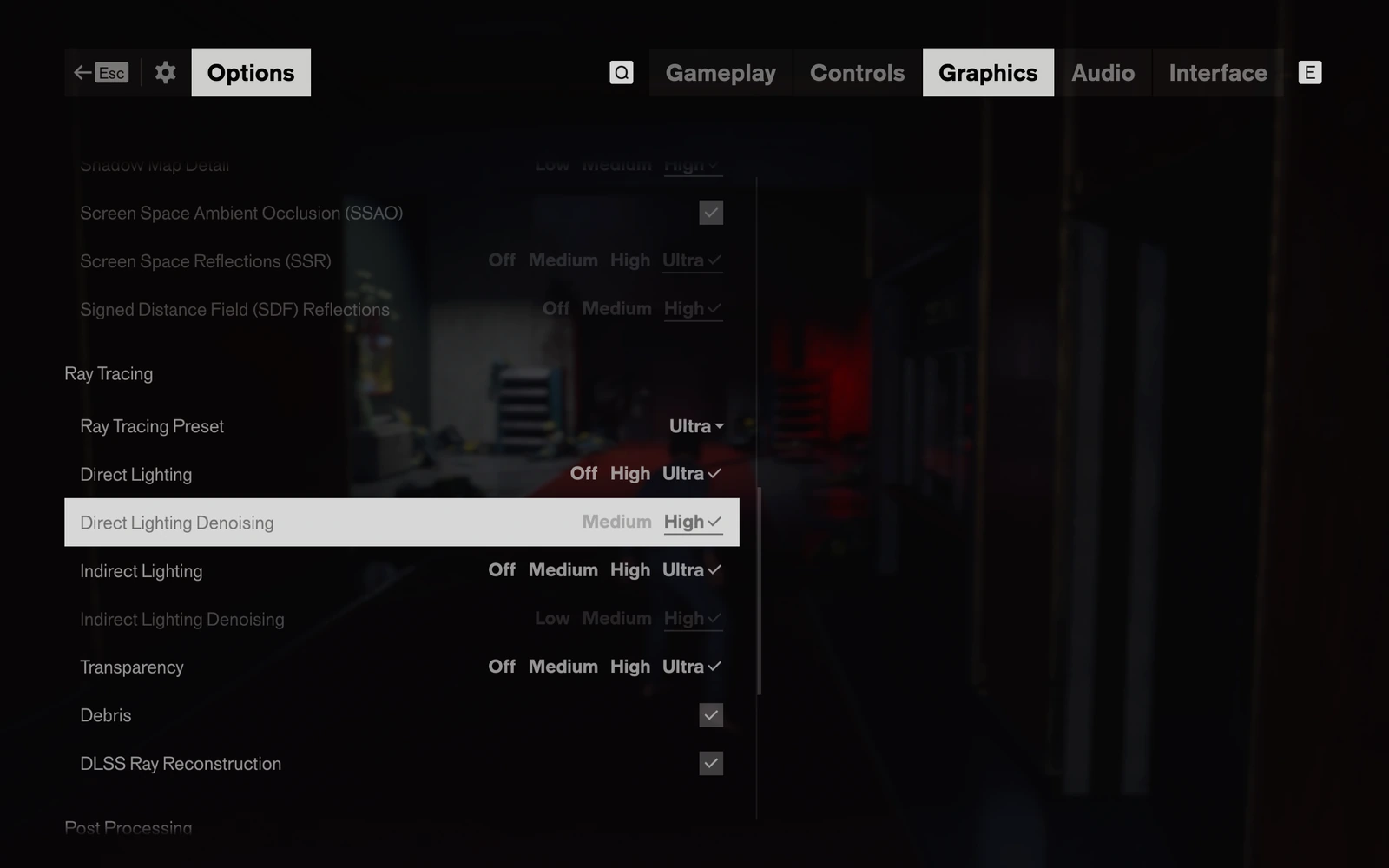
There is no path tracing option in CONTROL Resonant. Not one labelled as such, at any rate. What you get instead is a Ray Tracing Preset dropdown, and when you move it from High to Ultra the game swaps its entire lighting model over to a path traced one, covering reflections, indoor bounce lighting and cast shadows all at once. There is no warning, no asterisk, nothing whatsoever to tell you that the setting one notch above High is a fundamentally different class of workload.
We have already watched a few people go hunting for a path tracing toggle, fail to find one, and announce that the feature must have been cut before launch. It hasn’t been cut. It is sitting right there at the top of the ladder, being patient.
While you are in that menu, here is the rest of what matters:
Under Display:
- Upscaler: FSR, DLSS, or DLSS (Legacy). RTX owners want DLSS.
- Render Resolution: this is your DLSS mode, expressed as the internal resolution rather than the usual Quality / Balanced / Performance wording. On our 2560×1600 panel, Quality reads 1707×1067.
- DLSS Frame Generation: Off, then fixed 2x, 3x, 4x, 5x and 6x, then Dynamic with a target frame rate you set yourself.
Under Ray Tracing:
- Ray Tracing Preset: Off, Medium, High, Ultra. Ultra is path tracing.
- Direct Lighting (Off / High / Ultra) with its own Direct Lighting Denoising control
- Indirect Lighting (Off / Medium / High / Ultra) with its own Indirect Lighting Denoising control
- Transparency (Off / Medium / High / Ultra)
- Debris, a checkbox
- DLSS Ray Reconstruction, a checkbox. Turn it on and leave it on, and we will explain why shortly.
Test System
| Laptop | Lenovo Legion 7 16IAX10 (Legion 7i Gen 10) |
| CPU | Intel Core Ultra 9 275HX |
| GPU | GeForce RTX 5070 Laptop GPU, 8GB GDDR7 |
| Memory | 32GB (2x16GB) DDR5-6400 |
| Display | 2560×1600, 240Hz |
| OS | Windows 11 Home, build 26200 |
| GPU driver | NVIDIA 616.92 |
| Game build | PC 1.2.3.0 |
| Resizable BAR | Enabled |
| Hardware GPU scheduling | Enabled |
| Capture | CapFrameX 1.9.0.8 and HWiNFO 8.52, logging at 500ms |
Everything ran at the panel’s native 2560×1600 in fullscreen, with VSync off and the in-game frame rate limiter disabled, in discrete GPU mode on the Performance profile, on mains power at 100 percent charge, after a ten minute warmup so we were reading steady state clocks rather than the flattering numbers a cold laptop hands you. Where we used DLSS Quality, that is an internal render resolution of 1707×1067.
We tested one GPU (so far), the RTX 5070 8GB laptop variant. The measurements below are from that card. Where we make recommendations for other cards further down, those are reasoned from our data plus NVIDIA’s published desktop figures, and we have marked them as such rather than dressing them up as things we measured.
CPU Bottleneck
Quick one, and it will save somebody a pointless upgrade.
Across all our test runs, total CPU usage ran between 7.6 and 15.5 percent on a 24 core Core Ultra 9, with package power sitting between 28 and 49W. Time spent in the present API averaged under half a millisecond. Not one dropped frame in any configuration.
This game is GPU bound from top to bottom, and comprehensively so. If your frame rate is disappointing you, nothing in your processor is going to fix it, and no amount of background-process housekeeping is going to shake anything loose either. Spend your attention on the graphics menu.
Ray Tracing Performance Analysis
CONTROL Resonant, 2560×1600, High preset, DLAA (no upscaling), frame generation off. RTX 5070 Laptop 8GB. Higher is better.
| RT Off |
|
36.0 29.8 |
| RT Medium |
|
23.6 18.9 |
| RT Ultra (path tracing) |
|
14.0 11.8 |
Time to render one frame goes from 27.8 ms to 42.4 ms to 71.6 ms across those three rungs. Going from Off to Ultra costs 61 percent of the frame rate. For comparison, moving the overall graphics preset from High to Ultra costs only 16 percent.
If you read nothing else in this guide, read this bit.
Moving the overall graphics preset from High to Ultra costs you 16 percent.
Moving the ray tracing preset from Off to Ultra costs you 61 percent.
Most people will spend an evening tuning shadow quality, texture filtering and volumetric detail, and never once touch the dropdown that is actually eating their frame rate. On our card, ray tracing off gave 36fps at native 1600p, Medium gave 23.6, and Ultra gave 14.0. Frame time went from 27.8 milliseconds to 42.4 to 71.6 across those three presets.
The ratio is the transferable part here. Whatever card you own, the ray tracing dropdown is roughly four times more expensive than the graphics preset, so that is where your tuning time belongs.
And you do not have to treat that preset as a single lever, which is a detail worth knowing because the menu rather buries it. Underneath the preset sit individual controls for Direct Lighting, Indirect Lighting and Transparency, each with Off through Ultra, plus separate denoising quality for the two lighting passes and a checkbox for Debris. Changing the preset simply moves all of them at once.
So if Ultra is too much and Medium feels like giving up more than you want to, the middle ground is to sit on a lower preset and pull Indirect Lighting back up, or to keep Ultra and drop the two denoising controls. Indirect lighting is the expensive half of a path traced scene and it is also the half doing most of the visible work, so that is the first dial we would experiment with rather than the last. We have not measured each of those individually, and we are not going to pretend otherwise, but if you are the sort who enjoys an evening with a frame counter and a settings menu, that is where the interesting ground is.
DLSS 4.5 and Path Tracing Performance
2560×1600, High preset, frame generation off, Ray Reconstruction on. Higher is better.
| RT Medium |
|
23.6 45.9 |
| RT Ultra (path tracing) |
|
14.0 29.0 |
A 94 percent uplift at RT Medium and 107 percent at RT Ultra. Frame time halves almost exactly, 71.6 ms down to 34.5 ms, which is what a 67 percent render scale ought to do. It also buys back only 215 to 251 MB of VRAM, which tells you something about where the pressure actually is.
Switching from DLAA, which renders at full native resolution, to DLSS Quality lifted RT Medium from 23.6 to 45.9fps, a 94 percent uplift, and lifted path tracing from 14.0 to 29.0, which is 107 percent.
Frame time halved almost exactly in both cases, 71.6 milliseconds down to 34.5 at Ultra and 42.4 down to 21.8 at Medium. On our panel DLSS Quality renders internally at 1707×1067 against a 2560×1600 output, which is 67 percent of the linear resolution and about 44 percent of the pixels, so halving the frame time is simply the arithmetic behaving itself. That is reassuring, and it also means the result ought to hold on any RTX card rather than being some quirk of ours.
DLSS Quality nearly halves your input latency. At RT Medium with frame generation fixed at 2x, switching the upscaler and changing nothing else took average PC latency from 99.1 milliseconds down to 52.8. Same ray tracing preset, same frame generation mode, same everything else. Which makes perfect sense once you say it out loud, because halving the frame time halves how long the pipeline takes to get a rendered image in front of you, but it is not something the frame rate number tells you and it is not something we have seen anybody measure.
So if you were treating DLSS as a frame rate crutch with an image quality cost attached, it is worth updating that. On hardware that genuinely needs it, it is also the single cheapest latency improvement in the menu.
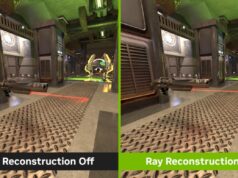
Ray Reconstruction, meanwhile, is the easiest decision you will make in there. It replaces the game’s hand-tuned denoiser with NVIDIA’s transformer model, we could not measure a performance cost for it, and it visibly cleans up the noisy parts of a path traced frame. Tick it and forget about it.
Nvidia Multi Frame Generation (MFG)
2560×1600, High preset, RT Ultra, DLAA, Ray Reconstruction on. Mean of repeated 60 second captures. Higher is better.
| FG Off |
|
7.9 4.9 |
| FG 2x |
|
27.1 10.6 |
| FG Dynamic |
|
69.8 9.1 |
Dynamic delivers 2.6 times the frame rate of fixed 2x while its 1% low is the lower of the two. Hold that thought for the next chart.
On our GPU, switching on fixed 2x took path tracing from 7.9fps up to 27.1, more than doubled the 1% lows from 4.9 to 10.6, and reduced latency from 465 milliseconds to 297. On every metric we captured, 2x was better than off. Anyone telling you frame generation always makes things worse is not measuring it properly. This is speaking strictly on performance terms. Speaking of the impact of visual quality by frame generation, that matter is highly subjective.
And yet, with path tracing switched on, nothing we tried got anywhere near comfortable. The best of those configurations still sat at 297 milliseconds, and a game that feels responsive wants to be under 50.
That is the thing to understand about frame generation: it multiplies what you already have. It does not create a foundation. Feed it 13 rendered frames per second and you get a counter reading 27 and a game that still feels like treacle. Feed it 60 and you get something genuinely excellent.
So the setting you tune first is never frame generation. It is whatever gets your base frame rate up: the ray tracing preset, then DLSS, then resolution. Turn frame generation on last, as polish, once the underlying number is healthy.
So the setting you tune first is never frame generation. It is whatever gets your base frame rate up: the ray tracing preset, then DLSS, then resolution. Turn frame generation on last, as polish, once the underlying number is healthy.
CONTROL Resonant, 2560×1600, High preset, Ray Reconstruction on. RTX 5070 Laptop 8GB. Average click to photon latency, milliseconds. Lower is better.
| RT Medium DLSS Quality, FG 2x |
53 | |
| RT Medium DLAA (native), FG 2x |
99 | |
| RT Ultra DLAA (native), FG 2x |
297 | |
| RT Ultra DLAA (native), FG Dynamic |
390 | |
| RT Ultra DLAA (native), FG Off |
465 | |
| Responsive target | <50 |
The ray tracing preset, not the frame generation mode, is what decides which band you land in. Everything in red is path tracing and none of it is playable. The top row put 45 percent of its frames under 50 ms with a best of 38. Note the middle pair too: at the same preset and the same frame generation mode, switching the upscaler alone nearly halves input lag. The two blue rows and the three red rows were captured on different evenings, so read across the colour boundary as directional rather than exact.
And that chart is more or less the whole guide in one picture. Look at where the colours sit. It is the ray tracing preset, not the frame generation mode, that decides which band you land in, and everything in red is a configuration nobody is going to enjoy playing. Two settings separate the top row from the bottom and they cost a factor of six in responsiveness. Get those two right and the game answers when you press a button. Get them wrong and no multiplier in the menu is going to save you.
Dynamic Frame Generation
Dynamic mode lets you set a target frame rate and adjusts the multiplier on the fly to chase it, and it produced comfortably the best headline number of our entire test: 69.8fps, against 27.1 for fixed 2x. On a spec sheet, in a screenshot, in a thumbnail, Dynamic wins and it is not close.
It is also noticeably worse to play.
Average PC latency on Dynamic came in at 390 milliseconds. Fixed 2x came in at 297. So Dynamic handed us 43 extra frames per second and charged roughly 90 milliseconds of input lag for the privilege, and its 1% low was worse too, 9.1 against 10.6.
The general rule, which should hold across the range: every extra generated frame costs you latency. The higher your base frame rate, the less that matters, which is why 6x on a 5090 is a perfectly reasonable thing to do and 6x on a mid-range card is not. If you are anywhere near the bottom of your card’s comfort zone, use the lowest multiplier that gets you where you need to be.
Worth noting alongside this: NVIDIA’s own reviewer material for CONTROL Resonant leads with 6x MFG figures, and very impressive they look too, with a desktop RTX 5070 going from 52.5fps to 254.7fps at 1080p. We have no reason at all to doubt those numbers. We would simply observe that the multiplier which produces the best chart is not necessarily the multiplier that produces the best game.
Is 8GB VRAM Enough for CONTROL Resonant?
Yes. Across sixteen captures on an 8GB RTX 5070 Laptop, CONTROL Resonant used between 7,140 and 7,645MB of dedicated VRAM and never spilled more than 7MB into system RAM, even with path tracing at native resolution. The buffer runs full, but it never overflows.
Peak dedicated VRAM, megabytes, against the card’s 8,192 MB. Path tracing at 1600p.
| DLAA, FG off | 7,484 MB | |
| DLAA, FG 2x | 7,472 MB | |
| DLSS Quality, FG off | 7,229 MB | |
| Spilled to system RAM | 7 MB |
Across sixteen captures and 43 minutes of logging, dedicated memory never exceeded 7,645 MB and the driver never spilled more than 7 MB into system RAM. The buffer runs full, but it never once overflows.
Short answer: your VRAM is not the problem, and you can stop reading forum threads about it.
Across sixteen separate captures and roughly 43 minutes of continuous logging, dedicated VRAM usage on our 8GB card sat between 7,140 and 7,645MB. High, certainly, and if you were watching an overlay you would reasonably assume the card was moments from falling over.
But the number that actually matters is dynamic memory, which is what the driver spills into system RAM once the card has run out of its own. That figure never once exceeded 7MB. Not in a single sample. Not during path tracing, not at native resolution, not with Ray Reconstruction layered on top, not in any of the sixteen runs.
The game works out its budget, fits inside it, and stays there. And DLSS Quality, for all that it doubled our frame rate, gave back only 215 to 251MB of memory, which tells you where the pressure genuinely is.
Also, crank the resolution up to 4K, and 8GB clearly won’t be enough.
Percentage of logged samples with the power limiter engaged. Path tracing at 1600p, DLAA.
| FG Off | 38% | |
| FG 2x | 90% | |
| FG Dynamic | 79% |
Path tracing on its own leaves the power budget largely unspent, running at 2,791 to 2,867 MHz on 77 to 86W while each frame takes 116 to 137 ms. Frame generation is the only workload that made this laptop use its full power headroom.
With path tracing on and frame generation off, our GPU sat at 2,791 to 2,867MHz, the highest clocks we logged across either evening, at its highest recorded core voltage, and the limiter it was running into was reliability voltage rather than power, active on 60 to 64 percent of samples. It was pulling 77 to 86W against a budget it reaches 103W on elsewhere. Memory controller load dropped to between 18 and 24 percent.
In plain terms: the card was already at the top of its voltage and frequency range, it could not go any faster, and it still took 116 to 137 milliseconds to produce a frame while barely touching its memory. That is not a GPU that has run out of VRAM. That is a GPU sitting at its ceiling waiting on ray traversal and denoising, and another four gigabytes of memory would not have changed a single number on this page.
If you are buying a laptop right now, this matters practically. NVIDIA sells the RTX 5070 Laptop GPU in both eight and twelve gigabyte versions under the same name, and nothing on a retail listing will tell you which one you are getting. Buy the twelve gigabyte card if you want headroom for texture heavy games at high resolutions, which is a perfectly sound reason. Just do not buy it expecting it to unlock path tracing, because it will not.
Recommended Settings for Every GeForce RTX GPU
RTX 5090 and 5080
Path tracing is genuinely yours. RT Ultra, DLSS Quality at 1440p or Balanced at 4K, Ray Reconstruction on. Your base frame rate is high enough that frame generation is doing what it was designed for rather than papering over a hole, so 3x or 4x is reasonable here, and even 6x if you are on a high refresh panel and not playing anything that demands precision.
RTX 5070 Ti and desktop 5070
Path tracing at 1080p or 1440p with DLSS Quality, Ray Reconstruction on, frame generation at 2x. You are in the band where the base frame rate is healthy enough to multiply but not so high that you can afford to be careless with it. If 1440p feels heavy, drop DLSS to Balanced before you drop the ray tracing preset.
RTX 5060 Ti, 4060 and 4070 class, and most laptop chips
This is where our testing lives, and our recommendation is RT Medium rather than Ultra.
On our card, RT Medium with DLSS Quality and fixed 2x frame generation produced 77.3fps, a 1% low of 31.0, and 52.8 milliseconds of latency, with 45 percent of its frames landing under 50ms and a best of 38. That 1% low is the highest figure anywhere in our dataset, higher even than the raster baseline with ray tracing switched off entirely. Ray Reconstruction on throughout.
You lose path traced reflections and the indoor bounce lighting, and they are lovely, we are not going to pretend otherwise. What you get in exchange is a game that runs smoothly and answers when you press a button, and on this class of hardware that is not a trade you should have to think very hard about.
Anything older or slower
Ray tracing off, DLSS Quality or Balanced, frame generation at 2x if you have it. The game still looks good. Remedy’s art direction was carrying this series long before anyone was tracing a ray through it.
The Order to Tune Graphics Settings in CONTROL Resonant
If you take one procedure away from all of this, take this one:
- Ray Tracing Preset first. It is four times more expensive than the graphics preset and it is the setting that decides whether the rest of your tuning matters at all.
- Then DLSS. Quality roughly doubles path traced performance, nearly halves your input latency, and costs you very little visually.
- Then Ray Reconstruction on, because it is effectively free and the image is better for it.
- Then the graphics preset, which is where the cheap wins live.
- Frame generation last, at the lowest multiplier that gets you where you want to be.
Tuning in that order gets you to a good result in about five minutes. Tuning in the reverse order, which is more or less what the menu layout quietly encourages, gets you a frame counter that looks healthy and a game that feels wrong, and you will spend an hour trying to work out why.
FAQ
How do you enable path tracing in CONTROL Resonant? There is no path tracing toggle. Open Graphics, scroll to Ray Tracing, and set Ray Tracing Preset to Ultra. That switches the renderer to a full path traced solution covering reflections, indoor lighting and shadows.
Is 8GB of VRAM enough for CONTROL Resonant? Yes. We measured 7,140 to 7,645MB of dedicated VRAM use across sixteen captures with no meaningful spill into system RAM. The 12GB version of the RTX 5070 Laptop would not change the result, because memory is not the limit here.
Why does CONTROL Resonant feel laggy even at high frame rates? Frame generation multiplies frames without improving the underlying render rate. With path tracing on we measured 70fps at 390ms of latency. A responsive game sits under 50ms. The frame counter cannot show you this.
Should I use Dynamic or fixed frame generation? Fixed 2x. Dynamic gave us 43 more frames per second but added roughly 90ms of input lag and slightly worse 1% lows. Use the lowest multiplier that reaches your target.
Does DLSS improve input latency? Yes, substantially. At the same ray tracing preset and frame generation mode, switching from DLAA to DLSS Quality took average latency from 99ms to 53ms, because halving frame time halves how long the pipeline takes.
What are the best CONTROL Resonant settings for a gaming laptop? Ray Tracing Medium, DLSS Quality, Ray Reconstruction on, frame generation at fixed 2x. On our RTX 5070 Laptop that gave 77.3fps, a 1% low of 31.0, and 53ms of latency.
Conclusion
CONTROL Resonant is a seven year project from a studio that has never been shy about asking too much of your hardware, and by that measure it is entirely in character. Path tracing here is not a gimmick. The reflections and the indoor lighting genuinely do change how the game reads, and on a card with the headroom for it this is going to be one of the better looking games of the year.
But the settings menu does not tell you what it is asking for, and the frame counter does not tell you what you are getting. The Ultra rung of that ray tracing dropdown arrives without a warning label, and on the class of card most people actually own it delivers single digit frame rates and very nearly half a second of input latency, which no multiplier in the menu is going to rescue.
The encouraging part, and the reason this guide is not simply a list of complaints, is how little you have to give up to fix it. One rung down the ray tracing ladder, DLSS Quality switched on, frame generation at a sensible 2x, and the same laptop that was crawling along at half a second of lag is running at 77fps and answering in 53 milliseconds. Two settings. A factor of six.
Get your base frame rate right first. Everything else in that menu is decoration until you have.