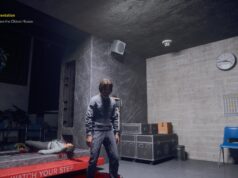
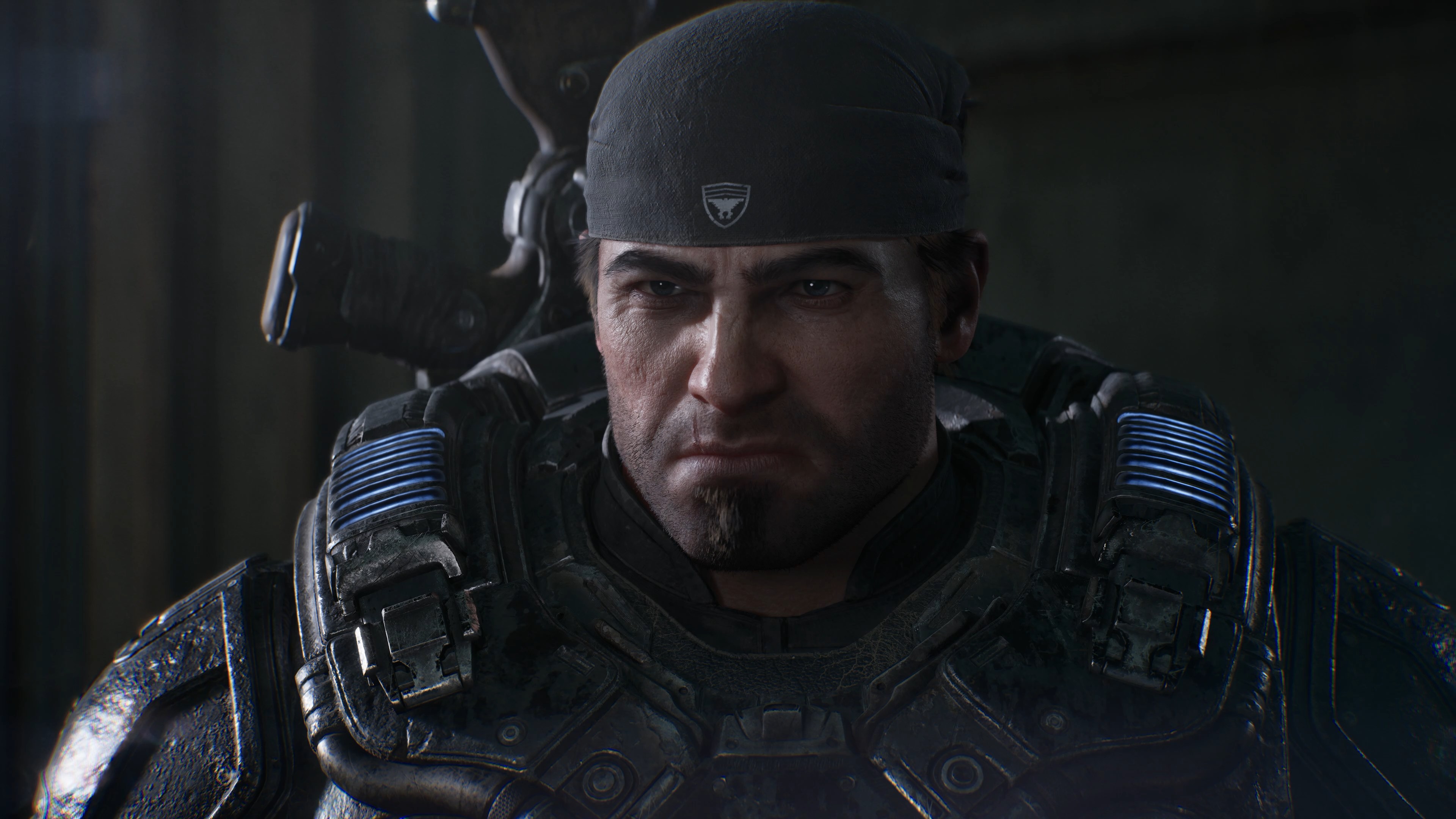
Gears of War has always been Microsoft’s favourite way of showing off, ever since the first game landed on the Xbox 360 in 2006 as the poster child for Unreal Engine 3 and made pretty much everything else on the shelf look dated (while being very, very grey itself, but that was the style at the time). The Coalition has kept that tradition going through every instalment since, and Gears of War: E-Day, the prequel that takes Marcus and Dom back to Emergence Day, fourteen years before the original game, is the first one built on Unreal Engine 5, with just about every expensive rendering trick the engine and NVIDIA could come up with switched on.
On PC, that means hardware Lumen, Nanite, MegaLights and something called RTX Mega Geometry, which makes its debut in this very game, plus DLSS 4.5 with Multi Frame Generation. It also means ray tracing is NOT optional. E-Day needs a graphics card with hardware ray tracing to run at all, so if you’re still on a GTX 10 or 16 series card, or a Radeon RX 5000 series or older, there’s no setting low enough to get you in, which is a first for a mainline Gears on PC and probably not the last time you’ll read a sentence like that about a big Unreal Engine 5 game.
We used the game’s built-in benchmark on our RTX 5090 test rig, running the Ultra and Ludicrous presets at 4K, with and without DLSS, with Mega Geometry on and off, and with frame generation at 2X and 3X, while HWiNFO logged everything the card was doing in the background. Does Ludicrous really bring a 5090 to its knees? Pretty much, yes. But the more useful numbers are the ones sitting underneath that headline, so that’s what this piece is about.
What’s under the hood
If you’ve played anything built on Unreal Engine 5 lately, most of this will sound familiar. Lumen does the global illumination and ambient occlusion here using hardware ray tracing (the soft, bounced light that makes a room look lit rather than painted), Nanite handles the absurdly dense geometry, and MegaLights is what lets the artists hang far more shadow-casting lights in a scene than games could usually afford, up to 100 at once by NVIDIA’s count.
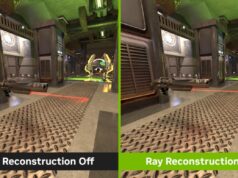
RTX Mega Geometry is the new one, and it needs a little explaining. Nanite meshes are so dense that ray tracing them directly has been far too expensive, so until now Unreal Engine has ray traced a simplified, low-detail stand-in for each object instead. What you see on screen is the detailed version, what the light actually bounces off is the stand-in, and that mismatch is where shadows and reflections that don’t quite line up with the object come from. Mega Geometry lets the ray tracing work with far more of the real geometry, on far more objects, and NVIDIA says the technique will be adopted into Microsoft’s DirectX Raytracing 2.0 standard, so E-Day is very likely the first of many games to use it. Helpfully, it’s a simple on or off toggle in the graphics settings, which makes it easy to measure (more on that shortly).
For upscaling and frame generation you get DLSS 4.5 Super Resolution, Frame Generation and Dynamic Multi Frame Generation, which NVIDIA says goes all the way up to 6X on RTX 50 series cards, along with Reflex for latency, and FSR and XeSS are in there too for Radeon and Arc owners.
How we tested
Everything here was run on our usual GPU test rig, which you’ll find in the table below, and there are a couple of things worth knowing before you look at a single number. First, our RTX 5090 runs an undervolt, the core sat at 0.89 V and around 2,765 MHz through every run, so a stock card may land slightly either side of our figures. Second, all of these numbers come from the game’s own benchmark, a roughly 60-second flythrough that ends on a rather detailed summary screen (average frame rate, VRAM use, even how GPU bound the run was), and we checked every average against our HWiNFO64 log, where the two agreed to within a couple of percent.
We ran the most important configurations twice, the repeats landed within 3% of each other (most of them within half a percent), and where there are two runs we’ve averaged them. Settings were 3840 x 2160 with VSync on and HDR off, on GeForce driver 617.14 and game build 1.0.0. And one note on labels, when the charts say native, we mean DLSS set to Native in the game’s menu, which renders at full 4K and uses DLSS purely for anti-aliasing, effectively DLAA. There’s no option to switch ray tracing off, so there’s no RT off number to show you either.
Ultra vs Ludicrous at 4K
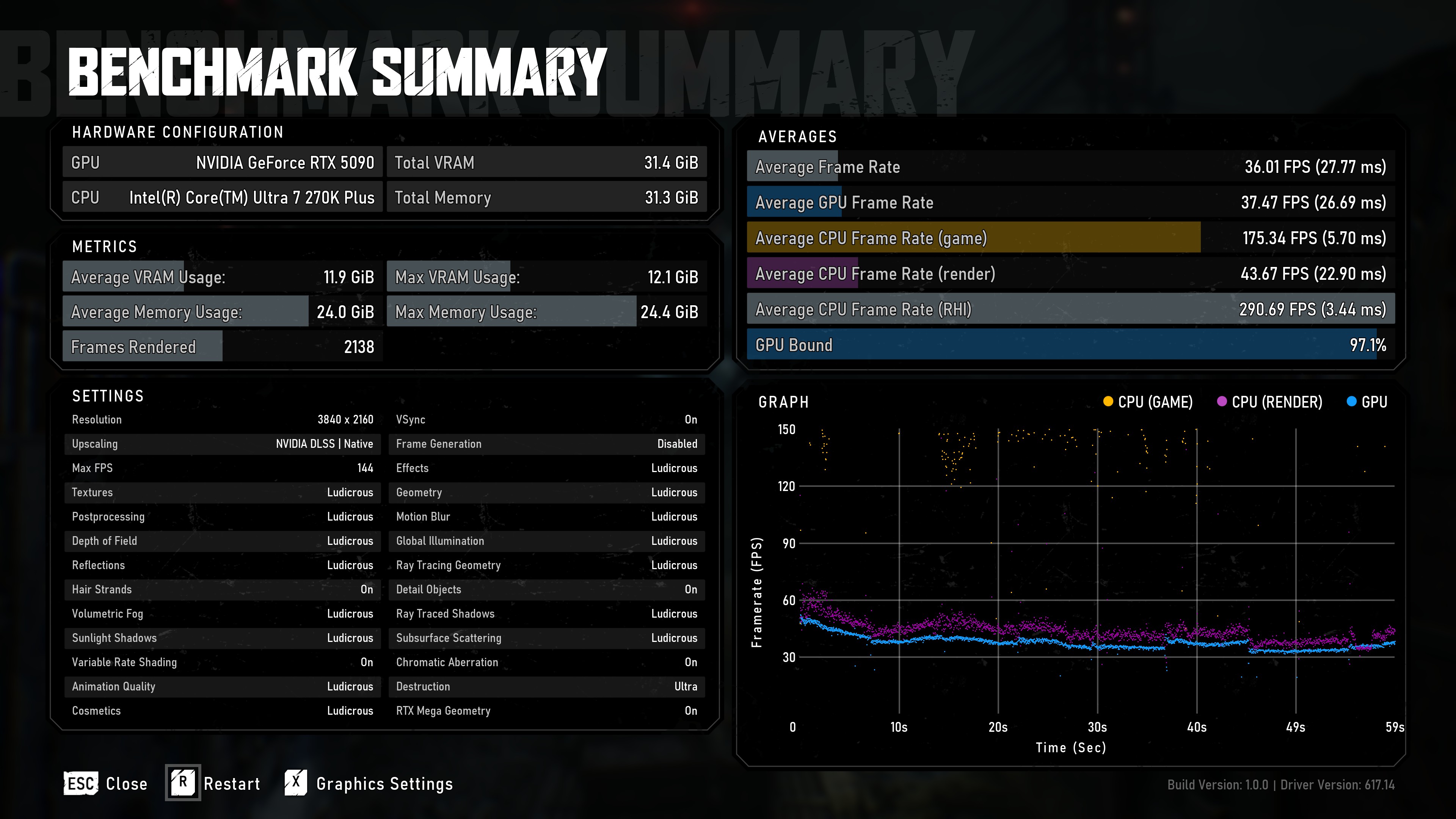
Ludicrous is the preset above Ultra, and it pushes almost every setting one notch further (Destruction is the odd one out, it stays on Ultra either way). On paper, that’s one step up. On a 5090 at native 4K, it takes you from 63.8 fps on Ultra down to 36.0 fps on Ludicrous, a 44% drop, on a graphics card that costs more than most people’s entire PC.
DLSS Quality is what makes Ludicrous playable, lifting it to 58.0 fps, and it does a lot more of the heavy lifting here than it does at Ultra, adding 61% at Ludicrous against 41% at Ultra. That makes sense when you think about it, the ray-traced effects at Ludicrous cost more per pixel, so rendering fewer pixels saves you more. Even so, Ludicrous with DLSS Quality is still 9% slower than Ultra running at full native 4K, which should give you a fair idea of just how heavy this preset is.
Is the processor holding anything back? Not at 4K, no. The benchmark rated every run without frame generation as 96% to 99% GPU bound, and the game’s own CPU-side frame rate sat somewhere between 167 and 178 fps throughout, way above anything the graphics card managed. The card itself averaged 358 W on Ultra with DLSS Quality and peaked at 537 W on Ludicrous at native 4K (against a 600 W limit), the core never went past 80°C, and the fans were spinning at 95% by the end of our back-to-back Ludicrous runs, so this is very much a game that will find out how good your case airflow is.
RTX Mega Geometry, and what it costs
Because Mega Geometry is just a toggle, measuring it is easy, and the answer is remarkably consistent. Switching it off at Ludicrous takes native 4K from 36.0 to 40.7 fps, and DLSS Quality from 58.0 to 66.0 fps. Put the other way round, Mega Geometry costs you 11.5% at native and 12.1% with DLSS Quality, and our two runs with it switched off landed within half a percent of each other, so we’re confident in that number.
It costs memory as well, about 2 GiB of extra VRAM (9.9 to 11.9 GiB at native, 7.8 to 9.6 GiB with DLSS Quality), which a 32GB card shrugs off, though anyone on an 8GB card will want to keep an eye on it. There’s also an oddity worth flagging, the card drew slightly less power with Mega Geometry on, 486 W against 507 W at native and 430 W against 441 W with DLSS Quality, while delivering fewer frames. We’d only be guessing at the reason, so we’ll leave it there, but it does mean Mega Geometry isn’t simply making the GPU work harder in the usual sense.
So, is it worth 12%? That comes down to how much better it looks, and we haven’t put proper side-by-side captures together yet, so we’re holding that verdict back for an update rather than guessing. What we can tell you is that if you need around 12% back, Mega Geometry is the first toggle to try.
Frame generation, and the frames you don’t see
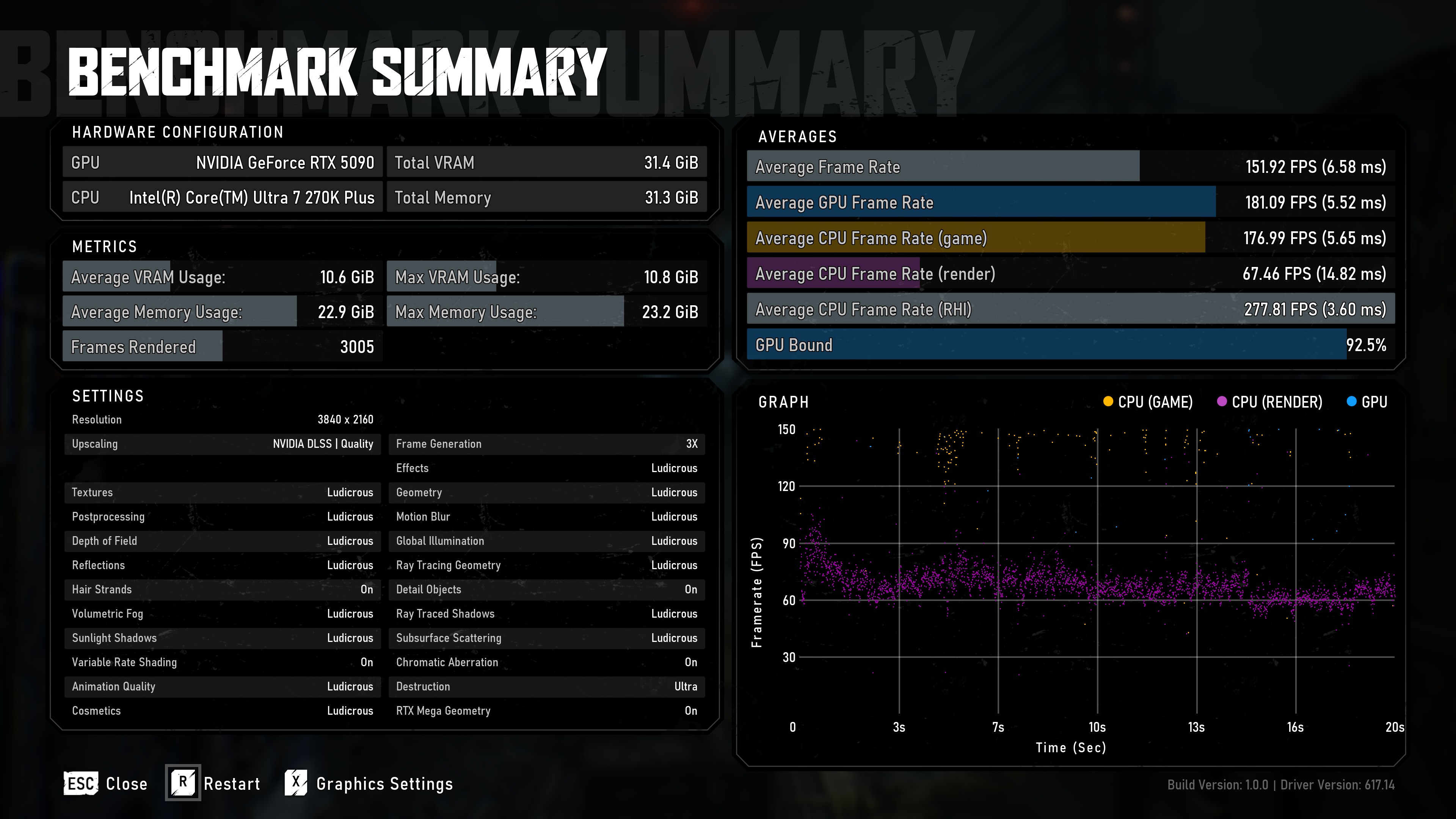
Frame generation is where the number on the counter and the number that actually matters start to drift apart, and E-Day is unusually honest about it. The benchmark summary includes a Frames Rendered count, and with frame generation on, it only counts the frames the game really rendered, not the ones DLSS generated in between, so dividing it by the length of the run gives you the true underlying frame rate (the one that decides how the game feels in your hands). The same summary screen does squash its timeline graph to 30 seconds at 2X and 20 seconds at 3X, by the way, which is simply wrong, every run lasted the full minute and our HWiNFO log backs that up.
At Ludicrous with DLSS Quality, 2X frame generation takes the counter from 58.0 to 104.9 fps, and 3X takes it to 151.9 fps. Underneath, though, the game is rendering 52.4 and 50.6 real frames a second respectively, so switching frame generation on costs you about 10% of your real frame rate at 2X and 13% at 3X, which is why 2X works out to 1.81 times the frame rate and not double. That’s normal (generating frames isn’t free), but it’s worth knowing.
The combination we’d avoid is frame generation on Ludicrous at native 4K. The counter says 67.5 fps, which sounds perfectly fine, but the game underneath is running at 33.7 fps, and that’s the number your mouse is actually connected to. With DLSS Quality and frame generation you’re starting from around 50 real frames instead, which is a far more comfortable base to multiply. We didn’t measure input latency this time, and we only tried 2X and 3X, so we can’t speak for 4X and above.
How much VRAM does Gears of War: E-Day use?
Less than you might expect. The game’s own counter never went past 13.1 GiB in anything we ran, and that was the worst case of the lot, Ludicrous at native 4K with Mega Geometry and 2X frame generation all on at once. Ultra with DLSS Quality sat at a modest 8.2 GiB.
Mega Geometry adds about 2 GiB, frame generation about 1 GiB on top of that, and stepping up from Ultra to Ludicrous adds 1.4 GiB with DLSS Quality or 2.7 GiB at native, so the heaviest settings stack up quickly even though no single one of them is outrageous on its own.
System memory is a different matter. On our 32GB machine, the game reported up to 25.4 GiB of memory in use at the heaviest settings (with HWiNFO and the usual background clutter running alongside), so we’d treat 32GB as the comfortable amount for Ultra and above, although we haven’t tested a 16GB machine to prove that either way.
What about stutter?
In the benchmark, at least, very little. With DLSS Quality on and frame generation off, the slowest single frame we logged topped out at 44 ms, and Ludicrous at native 4K threw up a handful of frames in the 45 to 65 ms range, which isn’t unusual for a card running at 36 fps. That’s a scripted flythrough, mind you, not a full Horde wave, so take it as a good sign rather than the final word.
Best settings for Gears of War: E-Day on an RTX 5090
If it were our evening (and it was), we’d play E-Day on Ultra with DLSS Quality. That’s 90 fps without any frame generation, so every frame you see is one the game actually rendered, and there’s still room to enjoy a high refresh rate display. If you want Ludicrous, run it with DLSS Quality and 2X frame generation, which gives you about 105 fps on the counter from a base of roughly 52 real frames, and keep Mega Geometry as the toggle to flip off if you want a bit more headroom. What we wouldn’t do is run Ludicrous at native 4K, with or without frame generation, because even a 5090 doesn’t have the legs for it.
Gears of War: E-Day PC performance FAQ
Can you turn off ray tracing in Gears of War: E-Day?
No. The game requires a graphics card with hardware ray tracing and has no option to disable it, so GTX 10 and 16 series cards, and Radeon RX 5000 series cards and older, can’t run it at any setting.
Can an RTX 5090 run Gears of War: E-Day at 4K 60fps?
On Ultra, yes, even at native 4K, where we measured 63.8 fps, and 90.0 fps with DLSS Quality. On Ludicrous it doesn’t average 60 fps without help, managing 36.0 fps at native and 58.0 fps with DLSS Quality, so you’ll want frame generation on top.
What is RTX Mega Geometry in Gears of War: E-Day?
It’s an NVIDIA technology that lets ray tracing work with far more of the game’s detailed Nanite geometry, instead of the simplified stand-in meshes Unreal Engine normally ray traces against. In our testing on an RTX 5090 it cost about 12% of the frame rate and around 2 GiB of extra VRAM.
How much VRAM does Gears of War: E-Day use?
At 4K on our RTX 5090, the game reported an average of 7.8 GiB to 12.9 GiB depending on settings, peaking at 13.1 GiB at Ludicrous, native 4K, with Mega Geometry on and 2X frame generation.
Does Gears of War: E-Day support DLSS 4.5 frame generation?
Yes. It supports DLSS 4.5 Frame Generation and Dynamic Multi Frame Generation, which NVIDIA says goes up to 6X on RTX 50 series cards. We tested 2X and 3X, which took the RTX 5090 from 58.0 fps to 104.9 fps and 151.9 fps respectively at 4K Ludicrous with DLSS Quality.
Conclusion
Gears of War: E-Day is properly heavy, and Ludicrous in particular feels like a preset built with the next generation of graphics cards in mind as much as this one, but the game is refreshingly upfront about where your frames are going. Its benchmark tells you how GPU bound you are and how many frames were really rendered, and the headline features are all toggles you can test for yourself, which is more than most big releases bother with. On an RTX 5090 we’d settle on Ultra with DLSS Quality and not think about it again, while Ludicrous only really makes sense once DLSS and frame generation are both switched on. As for Mega Geometry, 12% is a real cost, and we want to see it side by side before we tell you to keep it on.
We’ll be adding RTX 5060 results at 1080p and 1440p to this piece soon, since that’s a lot closer to what most of you are actually playing on, so if that’s you, check back.