Sixteen gigabytes of memory has picked up a reputation online as the configuration you settle for or compromise with. Read a few forum threads about running AI locally and you will come away convinced that anything under 32GB is a waste of time, and that the only serious option is a graphics card that costs more than the laptop.
That reputation is out of date, and it is worth knowing why before you spend money on either.
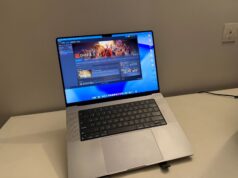
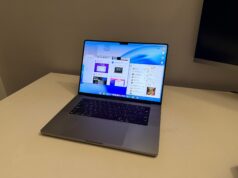
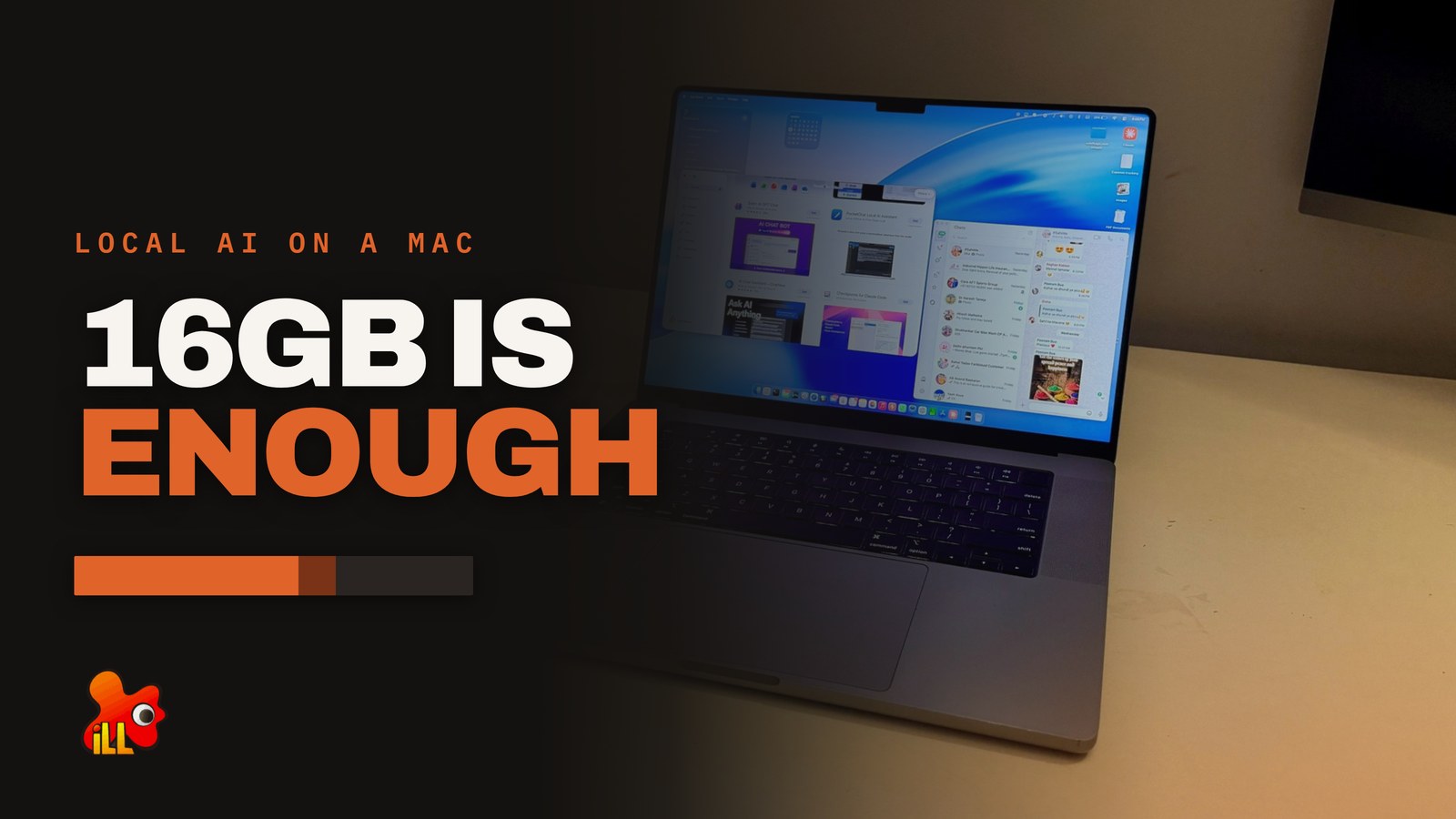
Sixteen gigabytes is the starting configuration on every MacBook Apple currently sells. The M5 MacBook Air begins there. So does the base M5 MacBook Pro. It is also what a huge number of perfectly healthy older machines are carrying, including M1 and M2 laptops that people are being told to replace. Here at iLL we are still using a M1 MacBook Pro 16 on the daily, with 16GB of unified memory. And on Apple Silicon specifically, that sixteen behaves very differently from sixteen on a Windows laptop, for reasons that turn out to matter a great deal.
And on Apple Silicon specifically, that sixteen behaves very differently from sixteen on a Windows laptop, for reasons that turn out to matter a great deal.
This is a guide to what you can genuinely do with 16GB. This is not a spec shouting match, neither is it a buying guide in disguise. There are practical AI workflows: making images, turning three hours of lecture recordings into searchable text, asking questions of your own textbooks, running a chatbot that works with the Wi-Fi switched off. Most of it is free even, and sometimes works better than a paid Claude or ChatGPT subscription. And, none of the scenarios mentioned require you to write code.
Why a Mac punches above its weight here
Everything that follows ahead of this section is based on your understanding of this bit.
On a Windows laptop, an AI model has to fit inside the graphics card’s own memory, and that memory is separate from the RAM the rest of the machine uses. A gaming laptop advertising 16GB of RAM might only have 8GB of video memory, and 8GB is the ceiling for anything AI-related no matter how much system memory sits alongside it. Going higher means a considerably more expensive machine.
Why the architecture matters
Same 16GB on the sticker. Only one of them will load the model.
On a Windows laptop the graphics memory is a walled-off slice and the model has to fit inside it. On Apple Silicon there is one pool and the model can draw on most of it.
Windows laptop, split memory
16GB advertised
The other 8GB may as well not exist. Going higher means a considerably more expensive machine.
Apple Silicon, unified memory
16GB unified
An entry-level MacBook loads models a mid-range gaming laptop simply cannot.
The honest counterweight is speed. A desktop with a proper NVIDIA card runs the same model several times faster. What a Mac gives you instead is capacity, silence, battery life, and the ability to do all of this on a train.
Apple Silicon does not work that way. There is one pool of memory shared by the processor, the graphics, and everything else, which Apple calls unified memory. A model can use a large share of the whole sixteen rather than being confined to a smaller graphics allocation. The practical result is that an entry-level MacBook will load models that a mid-range gaming laptop simply cannot, which is not the outcome most people expect.
The only counter argument is speed. A desktop with a proper NVIDIA card will run the same model several times faster, and anyone claiming otherwise is selling something. What a Mac gives you instead is capacity, silence, battery life, and the ability to do all of this on a train. For most students and hobbyists, even enthusiasts, that trade is the right way round.
Windows is catching up on this, faster than you can imagine
Apple got to unified memory about five years before anybody else, but the advantage is no longer exclusive, and it would be dishonest to write this guide as though it were.
AMD’s Ryzen AI Max+ 395, codenamed Strix Halo, borrows the same idea. It pairs 16 Zen 5 cores with a 40-compute-unit Radeon 8060S and an XDNA 2 NPU, all sharing up to 128GB of LPDDR5X-8000 across a 256-bit bus. That bus is rated at 256GB/s, and on a 128GB machine AMD’s Variable Graphics Memory setting hands up to 96GB of the pool to the graphics side under Windows, which is three times what any consumer graphics card on the market can offer.
The reason this is worth mentioning in a MacBook guide is that the most interesting example of it is not a workstation. It is a 13-inch tablet. The ASUS ROG Flow Z13 reviewed here runs exactly this chip, and the 128GB configuration will hold models that a desktop with an RTX 5090 in it physically cannot. That is a genuinely strange sentence to type, and it is true. This same chip can also be seen in the ASUS ProArt PX13.
So the fair version of the Apple argument is narrower than it was two years ago, but still, very relevant to the 2026 context (soaring memory prices). Unified memory is the better architecture for loading large models, Apple was first to it, and now AMD is there too. What has not changed is where the two sit on price. Machines built around Strix Halo start well above two lakh and are aimed at people who specifically want to run very large models locally. Nothing in that bracket competes with a 16GB MacBook Air for a student.
The comparison that actually applies at this budget is the one from the section above. A conventionally built Windows laptop at similar money still splits its memory, still gives the graphics side a small dedicated slice, and still hits a ceiling the Mac does not. That will change over the next few years as unified designs work down the price ladder (after the AI induced shortage settles), and it is worth watching. Today, in the price range most people reading this are shopping in, the Mac remains the unusual one and the more recommendable one.
A conventionally built Windows laptop at similar money still splits its memory, still gives the graphics side a small dedicated slice, and still hits a ceiling the Mac does not.
The nine gigabyte rule
One number governs everything, and it is not sixteen.
Because the memory pool is shared, macOS itself, your browser, your music and everything else in the background are all drawing from the same sixteen gigabytes. On top of that, macOS limits how much of the pool the graphics side is allowed to lock down, and on any Mac with 36GB or less that limit sits at around two thirds. That works out near 10.5GB on a 16GB machine, even before a single app opens.
Open a browser with a normal number of tabs and the realistic working figure is about 9 GB.
Nine gigabytes is your budget. Everything in this guide is sized to fit inside it, and if you remember nothing else, remember that a model advertised as needing “16GB of RAM” is not the same thing as a model that runs comfortably on a 16GB Mac.
Figure 2 · The nine gigabyte rule
Where 16GB actually goes before you load anything
macOS will not let the graphics side wire down more than two thirds of the pool on any Mac with 36GB or less. Then the rest of the machine takes its cut.
- Yours, for models
- Browser and open apps
- Held back by macOS
Nine gigabytes is the budget, not sixteen. A model advertised as needing “16GB of RAM” is not the same thing as a model that runs comfortably on a 16GB Mac. There is a terminal command that raises the ceiling. On a laptop it mostly makes the machine swap to storage, and the model you forced in performs worse than the smaller one you should have picked.
There is a terminal command that raises the ceiling, and plenty of guides will hand it to you. On a large desktop Mac it is reasonable tuning. On a 16GB laptop it mostly causes the machine to start swapping to storage, at which point everything you were doing slows to a crawl and the model you forced in performs worse than the smaller one you should have chosen.
What you can actually do with it
Make images, which is the fun one
This is where most people should start, because the results are immediate and it requires no technical knowledge whatsoever.
Draw Things is a free app on the Mac App Store, built natively for Apple Silicon, and it downloads models for you from inside the app. There is no terminal, no Python, and no environment to configure. Pick a model, type a prompt, press generate.
On 16GB, Stable Diffusion XL is the comfortable choice and it is genuinely capable, with an enormous library of community styles and LoRAs built on top of it. Flux models are the more modern option and they produce noticeably better prompt-following, though on a 16GB machine you are limited to the smaller quantized builds, roughly seven gigabytes, which fit but leave little room to spare. The heavier Flux versions want 24GB or more, so no luck for you 16GB somethings over there.
Set your expectations on speed before you start. Almost every impressive generation time you have seen quoted online was produced on a desktop graphics card, and a Mac will not match those. Goes without saying that models are natively built to run on Nvidia’s CUDA cores rather than Apple Silicon. What it will do is generate steadily in the background while you carry on working, at no cost per image, forever, which changes how freely you experiment far more than shaving a few seconds off each run would.
ComfyUI is the alternative if you eventually want to chain models together into complex pipelines. It is slower on a Mac and considerably more work to set up, so it is worth reaching for only once Draw Things starts feeling limiting.
Turn recorded lectures into text you can search
If you record classes, meetings or interviews, this is the application that pays for your whole setup.
Whisper is a speech recognition model that runs locally, and whisper.cpp is the leanest way to run it on a Mac. Feed it a three-hour recording, walk away, and come back to a text file you can search, quote and summarise. Nothing is uploaded anywhere, nothing is charged per minute, and there is no queue.
Every subtitle file on the videos published here comes out of exactly this process on a 16GB laptop. For a student with a semester of recordings sitting in a folder, the equivalent transcription service would cost real money and hand your lectures to somebody else’s servers.
Pair it with a language model and the recording becomes a set of revision notes rather than a wall of text.
Ask questions of your own notes and textbooks
The most useful thing a local model does is answer questions about documents you give it, rather than about the world in general. You have ChatGPT Go, Gemini and Claude Free Tier for that.
Point it at your lecture slides, PDFs, class notes or a folder of research papers, and you get something close to a private tutor that has actually read your syllabus. Ask what a chapter argued. Ask it to explain a section you did not follow. Ask which of your notes mention a specific concept before an exam.
The technical name for this is retrieval-augmented generation but trust us it only sounds intimidating. Both LM Studio and various free front-ends will do it by dragging files into a window. The underlying arrangement is small and light, and it fits inside the 9 GB budget with room to spare.
Apple is moving in on this too. The Foundation Models framework now ships a search tool powered by Spotlight, built specifically so an app can do all of this against your own files without anything leaving the machine. That one is covered further down.
Run a chatbot that works offline
For general conversation, writing help and explanation, Ollama and LM Studio are the two starting points. Ollama is one command in the terminal while LM Studio is a normal Mac app with a model browser, and it tells you how much memory a model will take before you download it, which on 16GB makes it the sensible first choice.
Models are measured in billions of parameters, written as 4B, 8B, 14B and so on, and quantization is a compression step that shrinks them at a small cost to quality. Four-bit quantization is the standard setting and the quality loss is minor enough that most people never notice it.
A 4B model costs around three gigabytes and can stay loaded all day without you noticing, macOS is good at that. The 8B and 9B class lands near five or six gigabytes and is the sweet spot on a 16GB machine, good enough for genuine work while leaving the rest of the computer usable. A 12B or 14B model will load at seven to nine gigabytes, but you will be closing everything else first. Anything above that belongs on a 24GB machine.
Figure 3 · What fits
Real download sizes against the nine gigabyte line
Four-bit quantisation is the standard setting and the quality loss is minor enough that most people never notice it. These are the sizes you actually download.
The 8B and 9B class is the sweet spot. Good enough for genuine work while leaving the rest of the computer usable. A 12B sits close to the line and you will be closing things first. Anything in the 27B class is not a 16GB machine’s problem to solve. SDXL is the one entry that is a range rather than a number, because how much room it needs depends entirely on which build you download.
Quality expectations should be set honestly. A local 8B model is not going to match a frontier cloud model on hard reasoning. It is very good at summarising, rewriting, explaining, extracting and answering questions about material you provide, and it does all of that offline and free.
Get coding help without a subscription
For anyone learning to program, a local model is a patient explainer that never runs out of free messages. Paste in code you do not understand and ask what it does. Ask why an error is appearing. Get boilerplate, regex, and shell commands written for you.
It will not architect a large project for you, and the frontier cloud models are meaningfully better at genuinely hard problems. For the daily grind of learning, a model running on your own laptop with no message limit is often the more useful tool.
Read photographs of whiteboards, handwriting and documents
Current small models can look at images as well as read text, which opens up a category of small annoyances.
Photograph a whiteboard at the end of a lecture and get the contents typed out. Point it at a page of handwritten notes. Hand it a receipt or a form and ask for the fields back in a structured list. Scan a page of a textbook and ask for a summary of it.
This works through the same apps as everything else. It also works through Apple’s own built-in model, which is covered below and costs you nothing from your nine gigabytes.
Translate and practice a language
Translation models run locally and work offline, which makes them useful in exactly the situation where a cloud service is not: on a plane, abroad on expensive roaming, or anywhere the connection is unreliable.
For language learning, a local model will hold a conversation in your target language, correct you, and explain the correction, indefinitely and without a subscription.
Handle the things you would never paste into a cloud service
There is a category of material most people will not upload anywhere. Medical documents. Financial records. Legal paperwork. A personal journal. Or anything covered by a non-disclosure agreement.
A model running on your own machine has no network connection to make and no terms of service governing what happens to your input. For some people this is the entire reason to bother, understandably so.
Teach a model your own style
This workflow is slightly more advanced, but it is worth knowing that this is possible on a 16GB unified memory infrastructure.
Using MLX, Apple’s own machine learning framework, and the mlx-lm tools built on it, you can take a small model and train it on examples of your own writing or your own data. The technique is called LoRA, and it runs on a 16GB Mac for models in the smaller size classes.
This is not training a model from scratch, which is out of reach for any laptop. It is nudging an existing small model toward your formatting, your tone or your particular task, and for a student project or a portfolio piece it is an impressive thing to have done on hardware you already own. Draw Things will do the equivalent for image models, training a custom style on-device.
The model already built into macOS
Separately from everything above, Apple ships its own model as part of the operating system, and apps can call it directly. At WWDC 2026 Apple expanded the Foundation Models framework with image input alongside text and added a Python SDK, giving developers access to the same on-device models used by Apple Intelligence. It also opened the framework up to other providers, with Anthropic and Google both publishing Swift packages so their models can be called through the same API. Two Vision framework tools now come built in for the model to use directly on-device: an OCR tool that pulls structured text out of images, and a barcode reader.
The relevant part for a 16GB owner is that this model is managed by macOS rather than by you, so it does not eat into the nine gigabytes. It is smaller and narrower than anything you would download deliberately, and any app built on it gets fast, free, offline AI without asking you to install a thing. Apple’s WWDC26 guide is the place to start if you want to build something with it yourself.
What it will not do
Video generation is out of reach at any useful quality. Training a model from scratch is out. Large models, meaning anything above roughly 14 billion parameters in standard form, will not load. Very long documents are the subtle one, because models advertise enormous context windows and those numbers are real on paper, but the memory needed grows as the conversation does and it comes out of the same nine gigabytes. Feeding an entire book to a model on a 16GB Mac will not end well.
And a local model will not match a frontier cloud model on genuinely hard reasoning. The right mental model is not replacement. It is having a capable, free, private assistant available at all times, and reaching for the cloud when the problem actually demands it.
Which Mac holds up, and for how long
Two specifications decide how well any Mac handles the scenarios mentioned above, but only one of them appears in the marketing.
Memory decides what will load at all. If a model does not fit, nothing else matters. Memory bandwidth, measured in gigabytes per second, decides how fast the model produces text once it has loaded, because generating each word requires reading the entire model out of memory. Faster memory means faster answers, and this number is almost never mentioned in reviews.
Memory decides what will load at all. If a model does not fit, nothing else matters.
Figure 1 · Memory bandwidth
A Pro chip from 2021 still reads memory faster than the base chip Apple sells today
Bandwidth decides how fast a model produces text, because every word generated requires reading the whole model out of memory. It is the number no review quotes.
Base tier
Pro tier
The gold row is the whole argument. An M1 Pro from 2021 runs 200GB/s. The M5 selling today runs 153. The Pro tier has stayed ahead of the base tier for five years running, which is what a long shelf life looks like once you put a number on it.
Apple’s figure for the M5 is 153GB/s, which it describes as nearly 30 percent up on the M4 and more than double the M1. That is a real generational gain.
Now compare the two highlighted rows. An M1 Pro from 2021 runs 200GB/s. The base M5 selling today runs 153. On the specification that governs how quickly a model produces text, a Pro chip from five years ago is still ahead of the current base chip, and ahead of every base chip Apple has ever shipped.
On the specification that governs how quickly a model produces text, a Pro chip from five years ago is still ahead of the current base chip, and ahead of every base chip Apple has ever shipped.
If you are sitting on an M1 Pro or M2 Pro MacBook and wondering whether it is too old for any of this, it is not. Those machines are still faster at generating text than the entry-level laptop in the store today, and everything in this guide runs on them.
The M5 Pro runs up to 307GB/s and beats all of the above comfortably, so this is not an argument that old beats new. It is an argument that the Pro tier has stayed ahead of the base tier for five straight years running. Paying up for a Pro chip buys a memory system that entry-level chips take roughly half a decade to catch, which is what a long shelf life looks like when you put a number on it.
The M5 has its own advantages and they are not small. Its graphics cores each carry a dedicated accelerator for AI work, which makes it dramatically quicker at reading a long prompt before it starts answering, and it does everything on far less power in a thinner machine. Which chip suits you depends on whether your work involves feeding in long documents or generating long answers.
So what should you buy
If you already own a 16GB Mac of any generation, you own a capable machine for all of this. The gap between what people assume it does and what it does is wide, and nothing in this guide costs money to try.
If you are ordering a new one and the budget is tight, memory is the upgrade that matters more than storage and more than graphics cores. Moving from 16GB to 24GB takes you from running 8B models carefully to running 12B and 14B models without thinking about it, and it is the difference between Flux image models being a squeeze and being comfortable. Storage can be added over Thunderbolt later for a fraction of the price. Memory can never be added at all.
And if you want the machine to still be doing useful work in five years, the table above makes the case for the Pro chip better than any launch-day review could, because it is only visible in hindsight.
FAQ
**Can a 16GB MacBook run AI locally?**
Yes. Around nine gigabytes is realistically available for models, which covers image generation with SDXL or smaller Flux builds, local chatbots up to roughly 14 billion parameters, speech transcription, and document question-answering.
**Can you generate AI images on a 16GB Mac?**
Yes, using Draw Things, which is free on the Mac App Store. Stable Diffusion XL runs comfortably and quantised Flux builds of around seven gigabytes will fit. Heavier Flux versions need 24GB or more.
**Is a MacBook better than a gaming laptop for AI?**
For capacity, often yes, because unified memory lets a model use a large share of total memory instead of being confined to a smaller graphics allocation. For raw speed, a desktop NVIDIA card is considerably faster.
**Is an M1 MacBook still usable for AI in 2026?**
Yes. An M1 Pro runs 200GB/s of memory bandwidth, which is still ahead of the base M5’s 153GB/s on the specification that determines text generation speed.
**Should students buy 16GB or 24GB?**
24GB if the budget stretches, since memory cannot be upgraded later. 16GB is genuinely workable for everything in this guide.